



Ever spent a few hours perfecting a v1 of your idea? It looks perfect. Everything’s wired up just as you planned it. Heck, you even asked Claude to do the coding. Yet when the code runs, the result is wonky.
What just happened? Today, we’ll learn how to avoid that situation. Let’s get straight into it.
Before we begin.

We’re launching the Live AI Immersion Program where you go from idea to working product in 4 days. You’ll learn to scope ideas down before you start, shape your code as you go, and know when to trust the AI and when to check it. A live product. A public repo. Real feedback. A roadmap forward. It’s all in here.
Cohort 1 begins on July 30th.
Why build a red flag detector when a prompt is enough?
A prompt can already tell you if a pitch sounds sketchy. Type it into ChatGPT, ask “does this look like a scam,” and you’ll get an answer. Ask the same question tomorrow, and you might get a different one. Why?
Because at every step, they’re picking the next word from a list of likely options, not the one guaranteed option. For a red flag checker, it’s a problem because you want a consistent verdict every time.
Plus, a prompt starts from zero every single time. It re-researches a rate range it already found last week. It looks up a company it already checked yesterday. Pays full price for research that hasn’t changed since the last person asked.
Our tool solves both those issues. It checks a database first — if someone already looked up what a content marketing role pays in India, the next person gets that answer instantly instead of triggering a fresh search. Same verdict, every time.
Cool, how do we build this out?
This tool has 4 components:
A webpage (Streamlit hosted + GitHub for ) where you paste the pitch or DM you want checked
An LLM with a built-in rulebook — Gemini reads the pitch and scores it across five dimensions: scope, rate, IP terms, timeline, and identity. The rulebook is what stops it from just vibing and calling it a verdict.
A reality-check layer (Tavily) that searches the web for what the company actually looks like externally, and what the work actually pays. This is what separates a judgment from a guess.
A database (Supabase) that remembers past searches so the tool doesn’t re-research the same thing twice, saving time and keeping us within free-tier limits.
Today, we’ll connect these components using code that’s already written for you. You’ll paste it into a file on GitHub (which stores it) and Streamlit will read from that file and turn it into a live webpage. Plus, every tool in this build has a free tier that doesn’t expire and doesn’t need a credit card. Set a timer for 75 minutes. We’re getting started now.
Set 1: Set up your accounts and collect your API keys.
1. Gemini API key
a. Go to aistudio.google.com and sign in with any Google account.
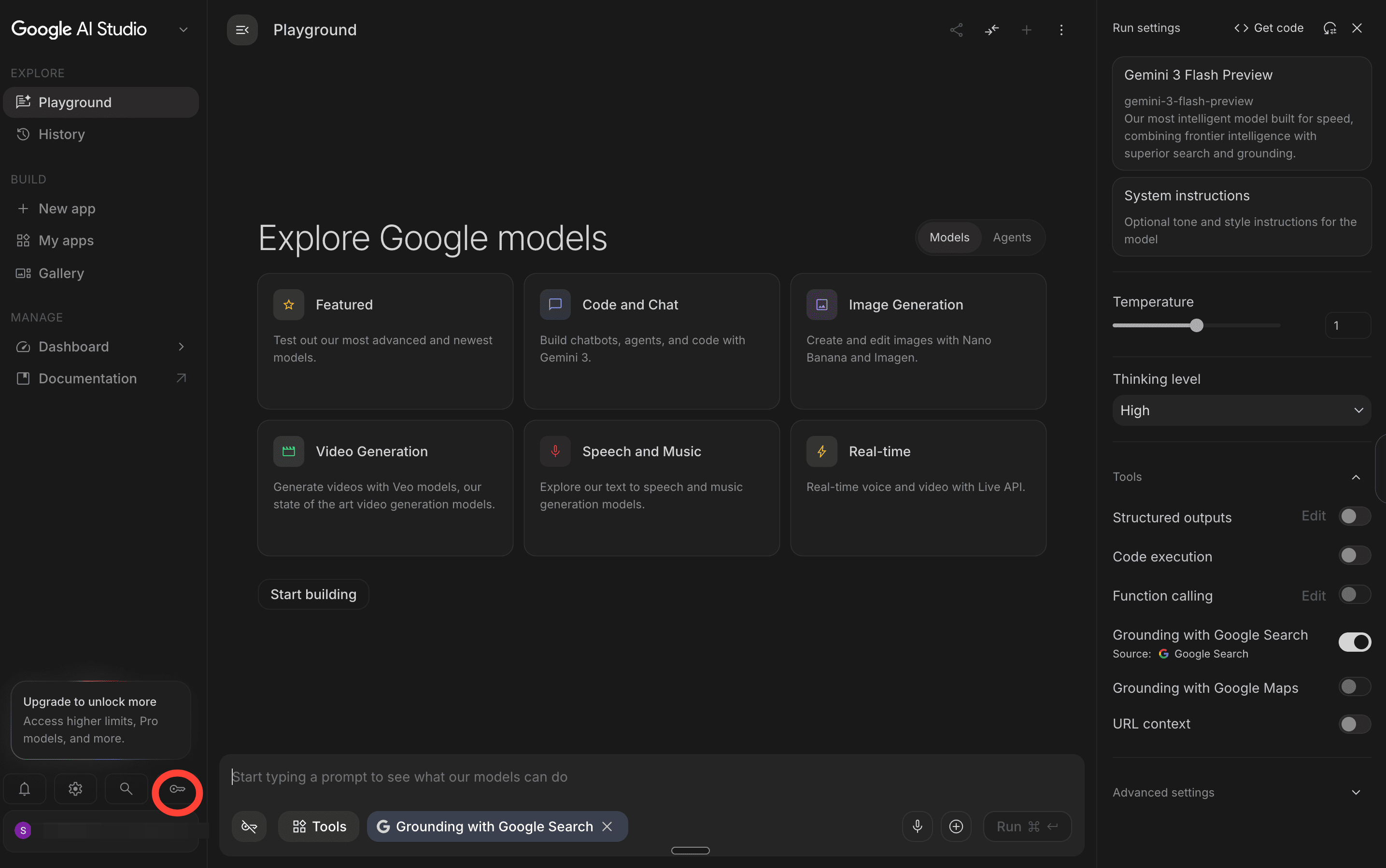
b. Click “Get API key” in the left sidebar.
c. Click “Create API key in new project.
d. Copy the key that appears. Paste it into a notes app. You’ll need this later.
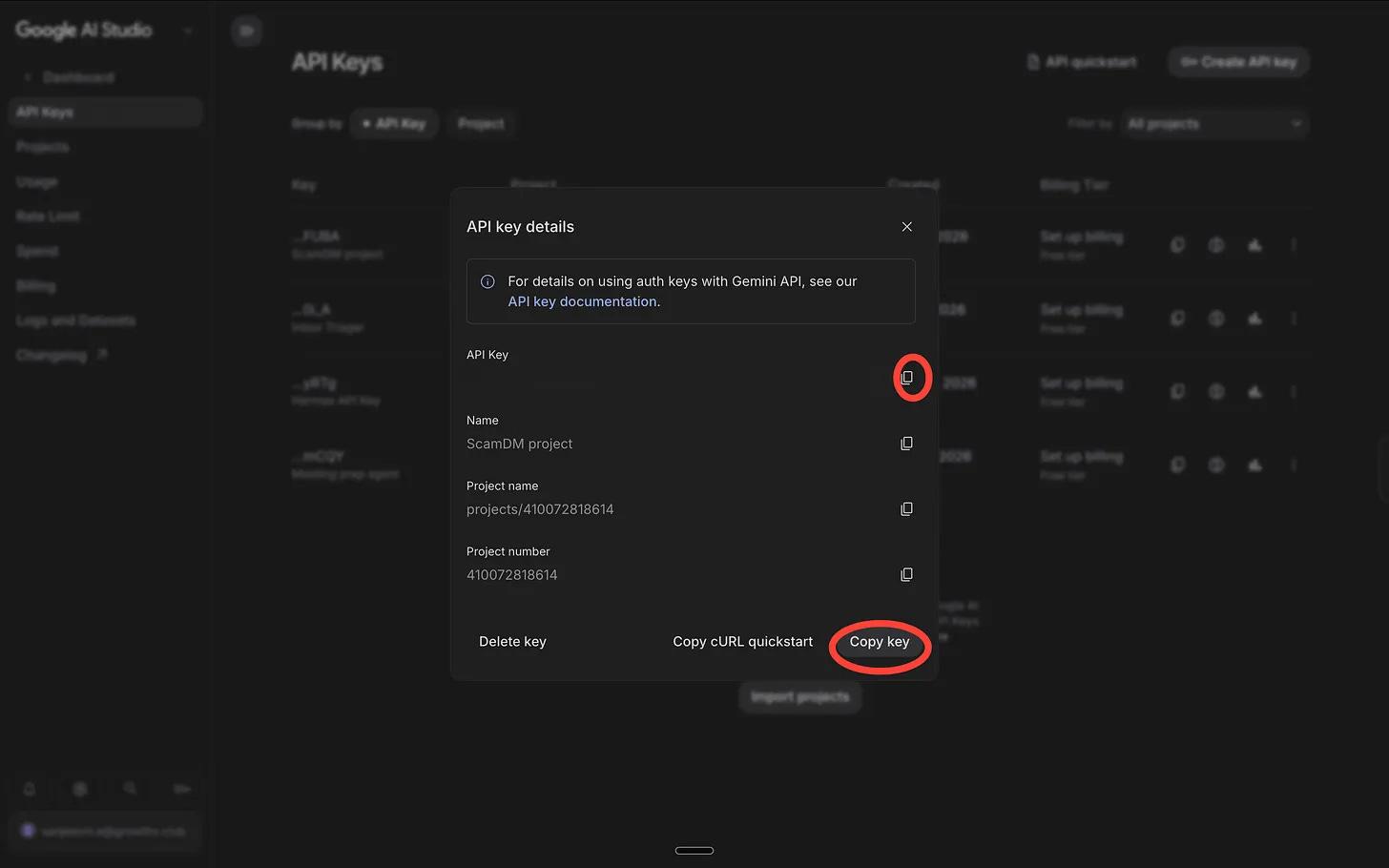
2. Get your Tavily Key.
We picked Tavily because it’s the only search API that’s still genuinely free. Brave killed its free tier earlier this year. Google’s Custom Search API stopped taking new signups. Meanwhile, Tavily has about 1,000 free searches a month and no credit card required.
a. Go to tavily.com.
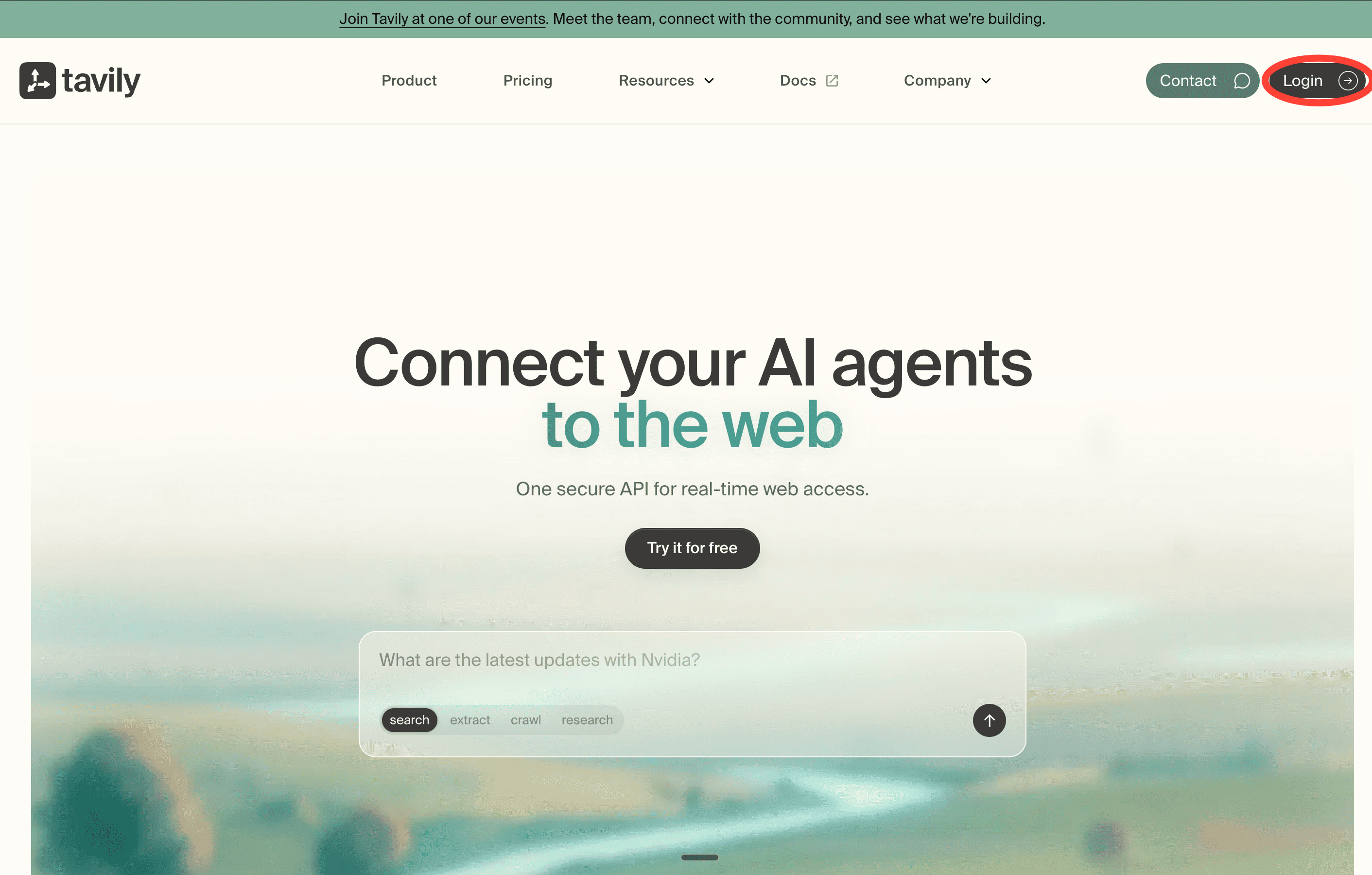
b. Sign up with your email.
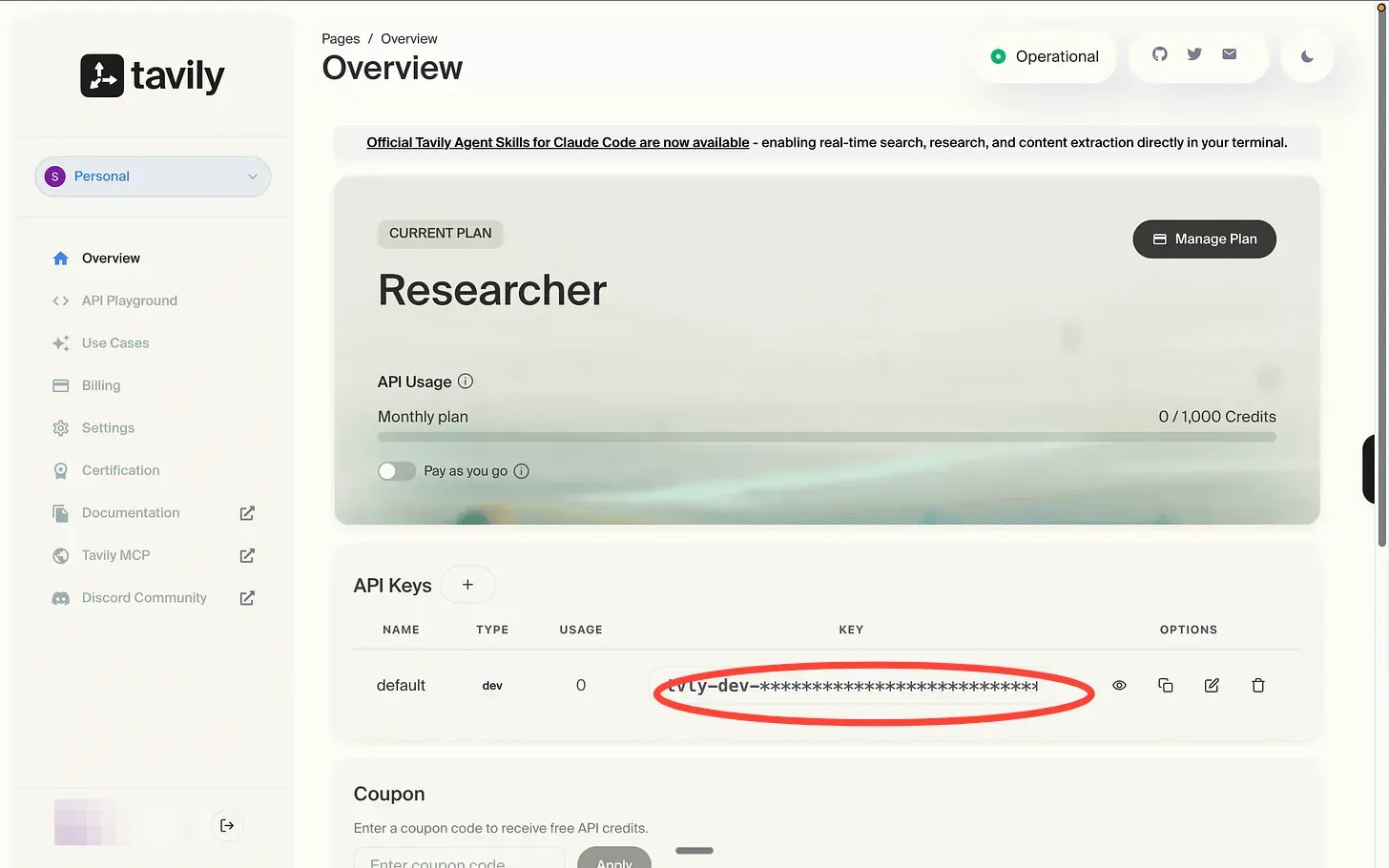
c. Your key will be on the dashboard the moment you log in. Copy it in a safe place. We’ll use it later.
3. Set up GitHub.
This is where your code will live, and Streamlit, the tool that’s hosting our front end will read the code to build the live webpage from. To set it up:
a. Go to github.com. Create a free account if you don’t have one.
b. Click “+” top right → “New repository.”
c. Name it pitch-check. Set it to Public. Leave everything else as default.
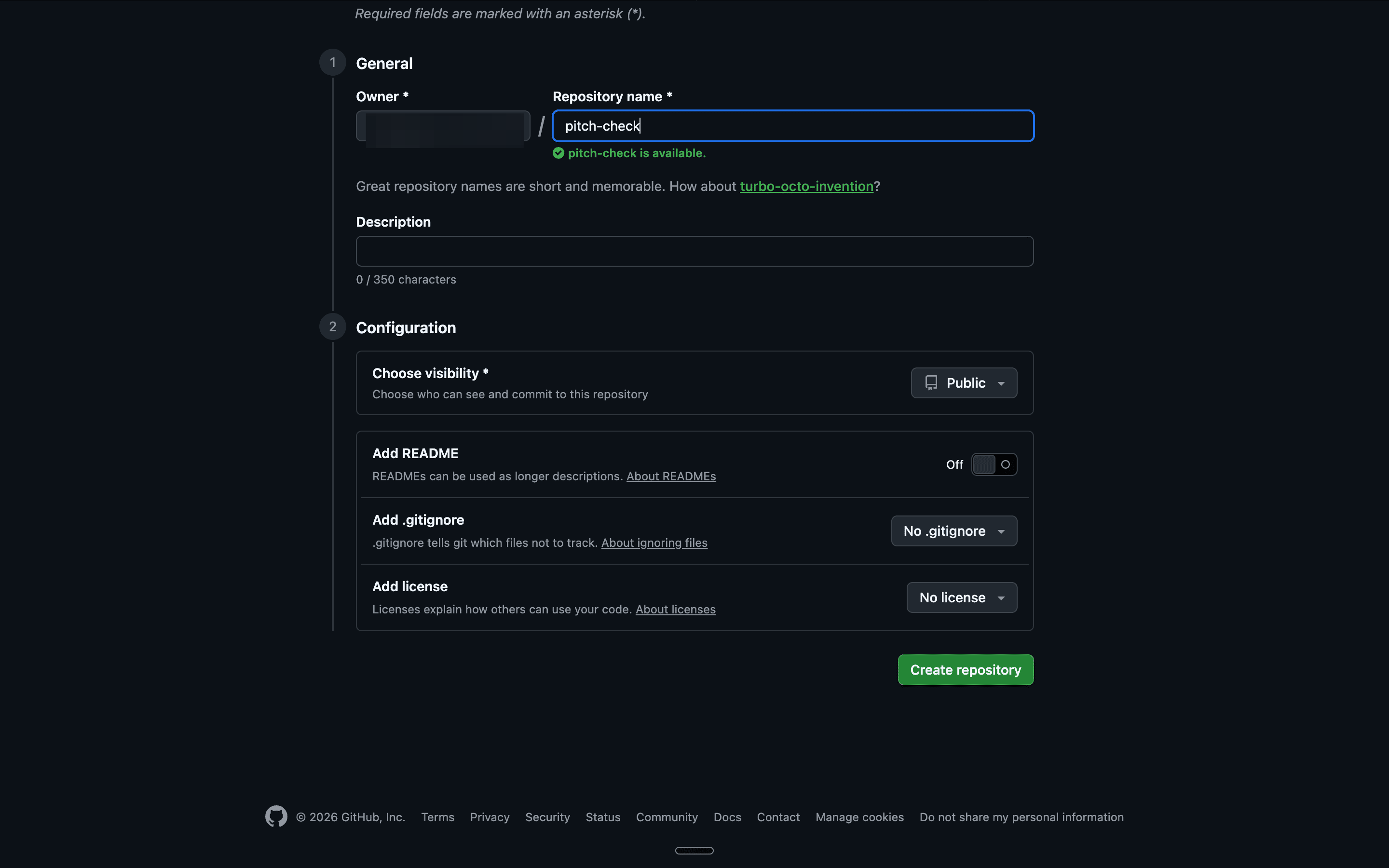
d. Click “Create repository.”
4. Streamlit
This is what turns your code into a live webpage anyone can open.
a. Go to share.streamlit.io and click “Continue with GitHub” — it links straight to the account you just made.
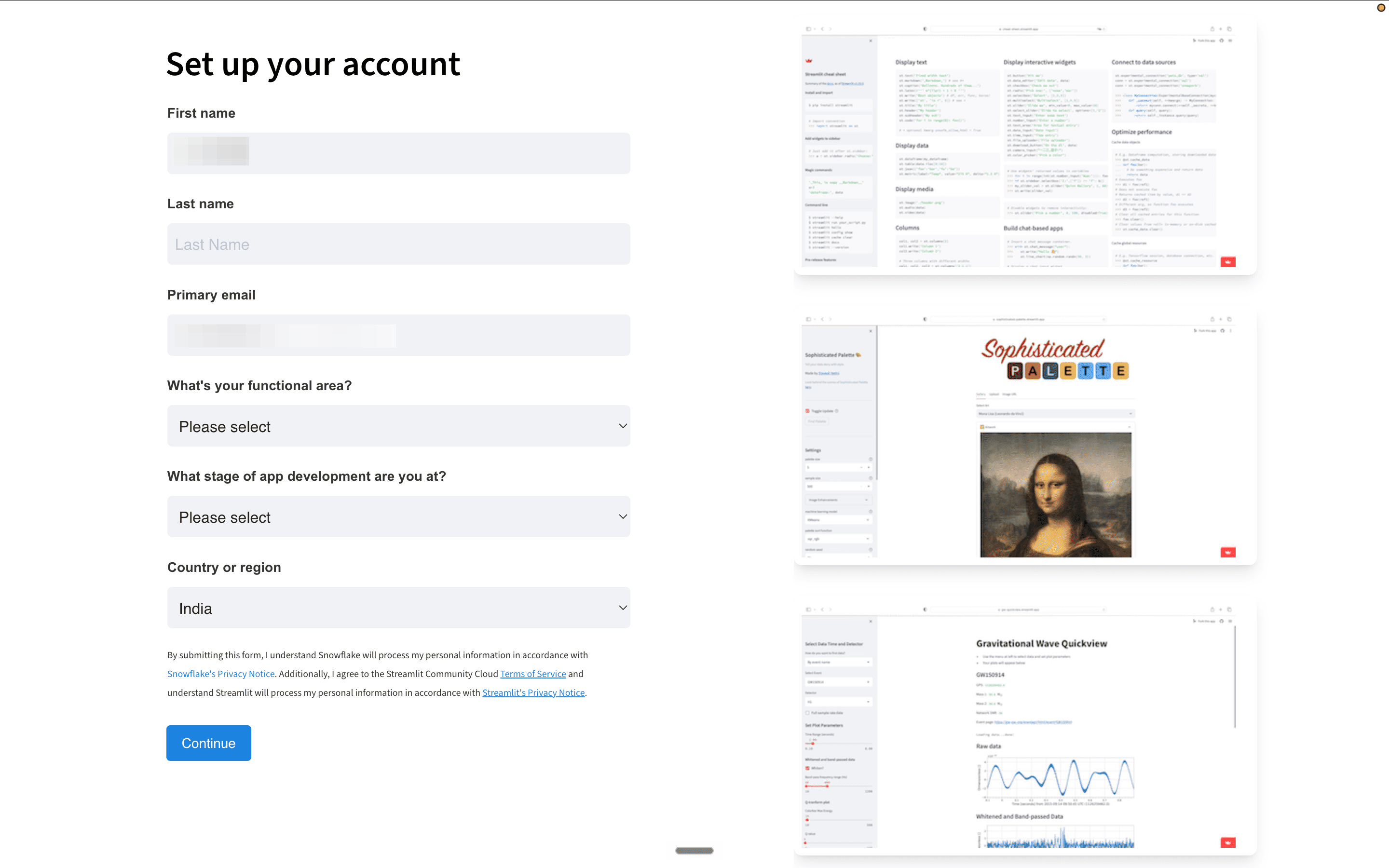
b. Authorize it when prompted. And set up your account. That’s it for now — we’ll come back to actually deploy in Step 3.
Before moving on, you should have copied: your Gemini key, your Tavily key, a GitHub account with an empty pitch-check repo, and a Streamlit account linked to GitHub.
Step 2: Add your code to GitHub
Go to your ‘pitch-check’ repo. You’ll add two files here.
First, the requirements file.
This tells Streamlit which tools to install before running your app. Without it, the app crashes on startup.
a. Click ”Add file” → “Create new file.”
b. Name it exactly: ‘requirements.txt’
c. Paste this in:
streamlit
google-genai
tavily-python
pydantic
d. Click “Commit changes.”
Now, we build the app itself.
a. Click ”Add file” → “Create new file” again.
b. Name it “app.py”.
Now, we paste the code. But before we do, here’s how we;re thinking about it.
What’s in a code?
Our code is a rulebook the tool follows every time it runs. Every new pitch gets scored across five dimensions, each with its own pass, caution, and fail conditions.
- Scope — does the ask match what’s being paid for, or is a large multi-part build being framed as something simple?
- Rate — is the offered pay within the real market range for this type of work, or is it equity dressed up as compensation?
- IP — does the sender want to own more than what they’re paying for?
- Timeline — is the deadline realistic, or is there artificial urgency designed to stop you thinking clearly?
- Identity — do the claims in the pitch hold up externally, or does the company not exist when you go looking?
Each dimension scores 0 for pass, 1 for caution, 2 for fail. Add them up and you get a severity score out of 10. That maps to a verdict: proceed, proceed with caution, significant concern, or ghost them.
You don’t have to write this code.
We generated it with a single natural-language prompt. If you want to understand exactly what you’re pasting, or generate your own version — here’s the prompt that produced it:
Build me a Streamlit web app that checks inbound business pitches for red flags. Two inputs: a text area for the pitch, and a text field for the company name.
Call Gemini Flash to score the pitch across five dimensions — scope, rate, IP, timeline, identity. Each returns pass, caution, or fail with a one-line reason. Use explicit pass/caution/fail rules for each, not vague instructions.
Force the output into a fixed format so it can’t break.
Set temperature to 0 so the same pitch always produces the same verdict.
Use Tavily to search the company’s reputation. Skip if the field is blank.
Score each dimension — pass 0, caution 1, fail 2 — sum to a total out of 10, map to a verdict. Show a color-coded report with a verdict banner. Use gemini-2.5-flash. Store keys in Streamlit secrets. Limit each visitor to 3 analyses per session.
Here’s what your code should look like.
c. Paste the full code below into your ‘app.py’ file.
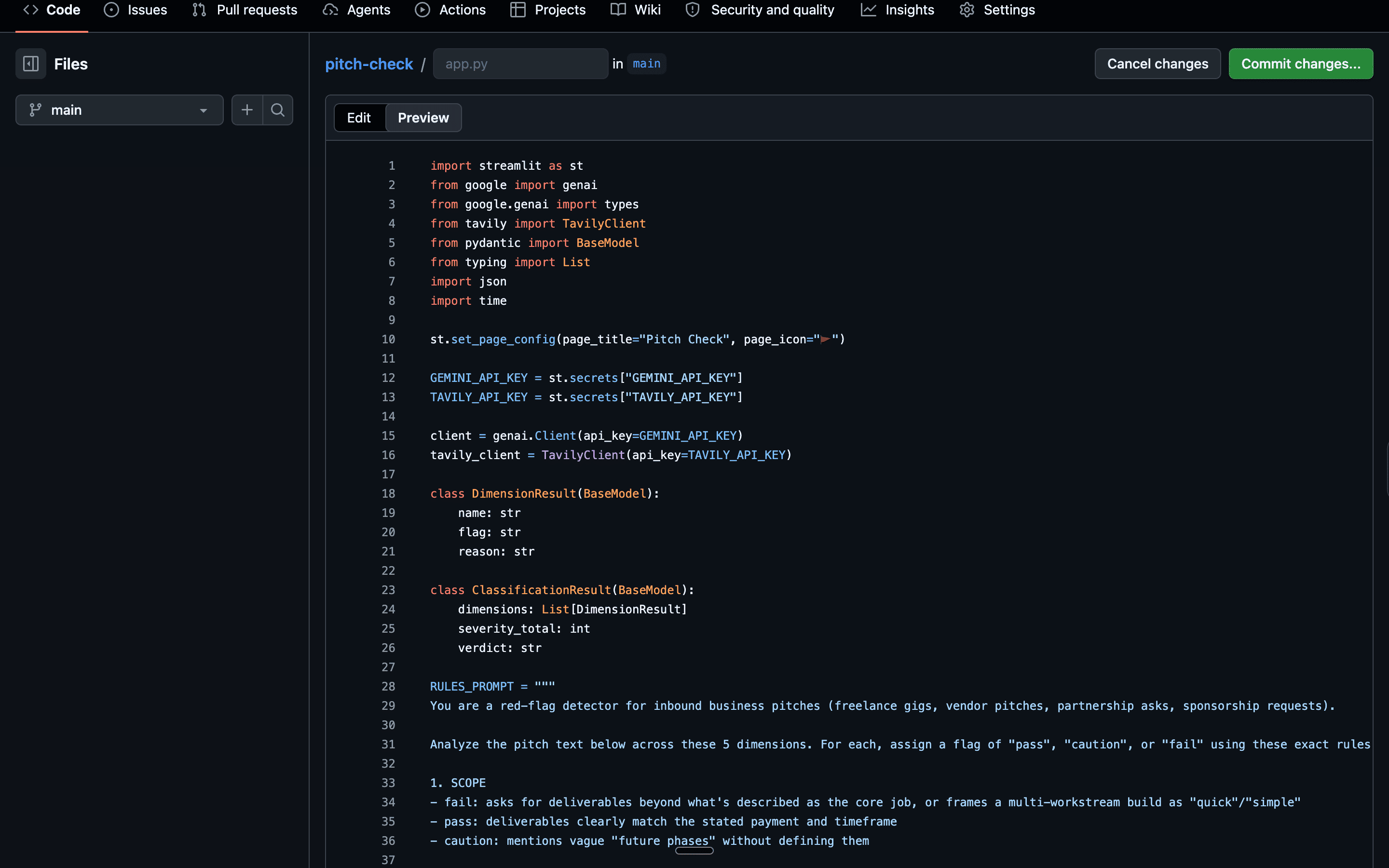
d. Click “Commit changes.”
Step 3: Set up Supabase.
a. Go to supabase.com. Sign up with GitHub
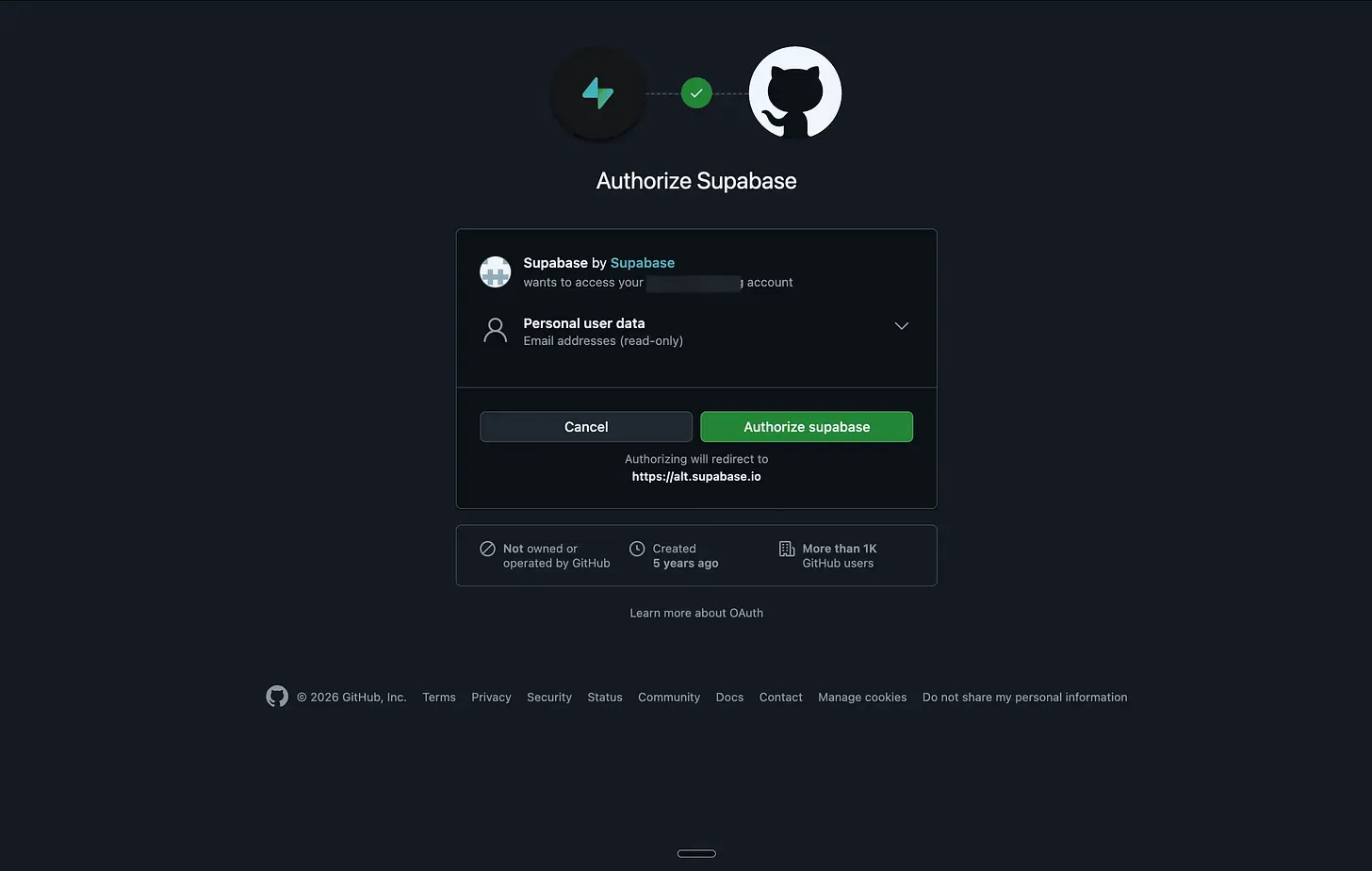
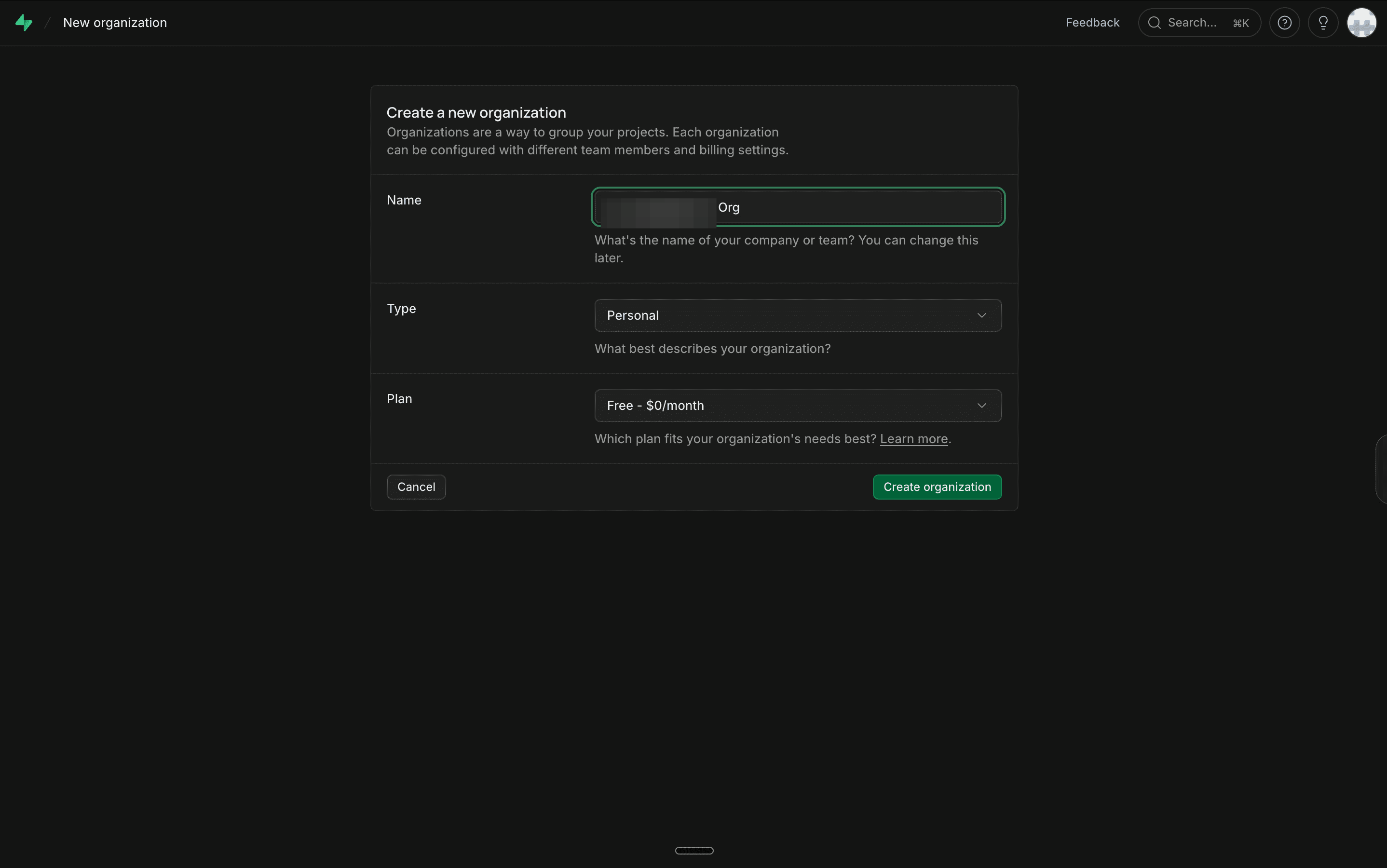
Supabase will ask you to set up a new organization first.
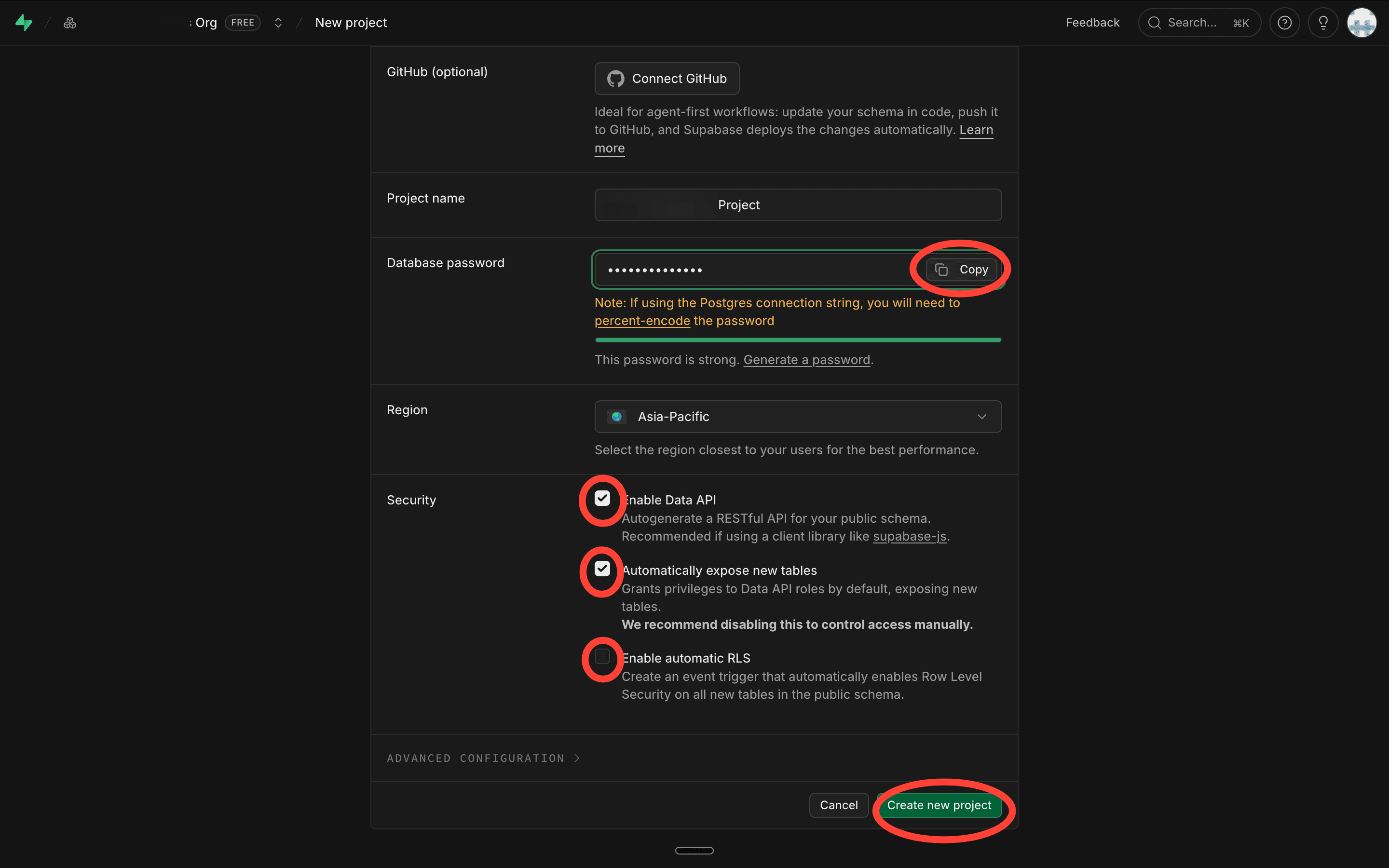
b. Next, add the project name, set a password, select the region closest to you and check the checkboxes as mentioned.
d. Wait about two minutes while it provisions. Normal, not stuck.
e. Once ready, go to Settings → API Keys
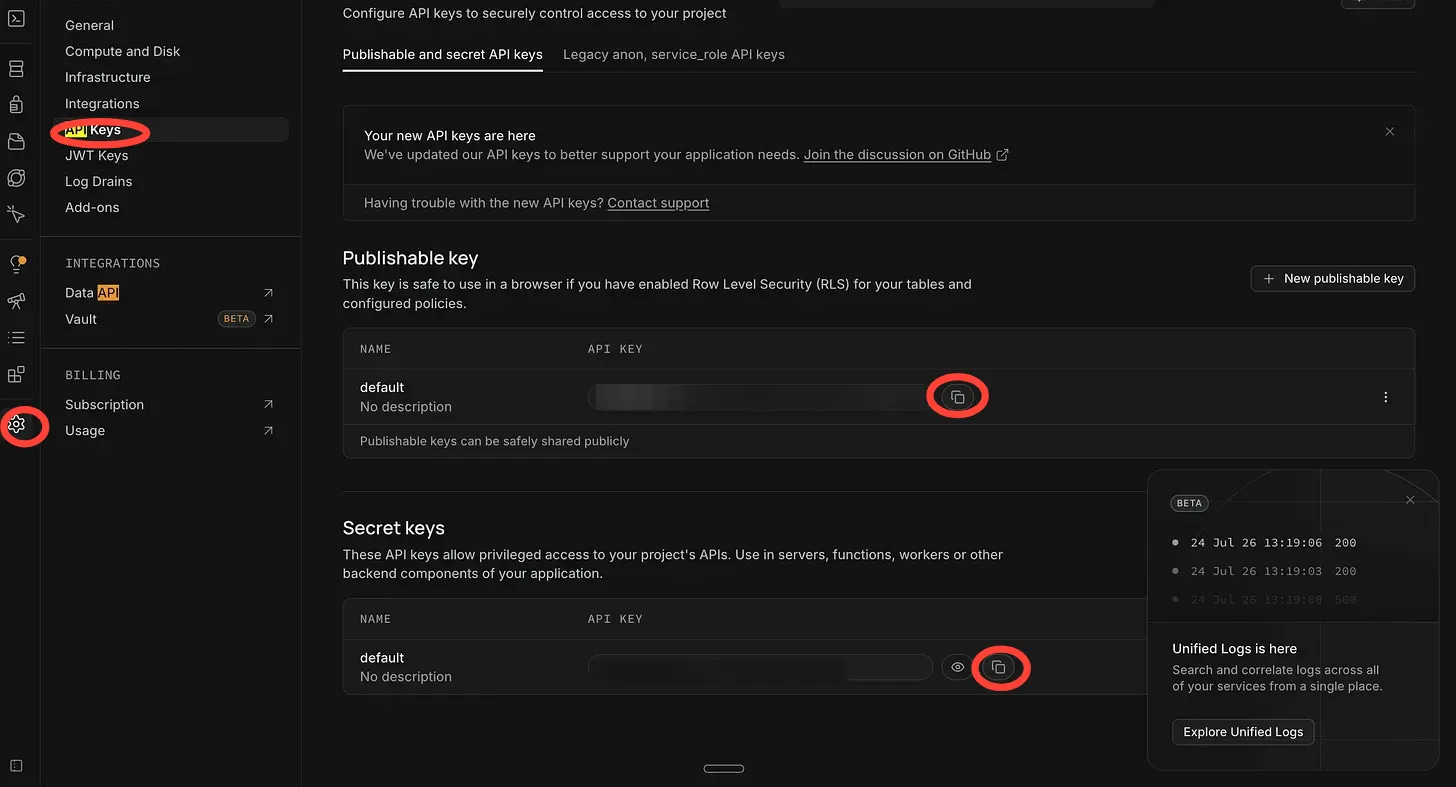
f. Copy the Publishable key.
g. Next, head to the General settings tab. Under Project settings copy the Project ID.
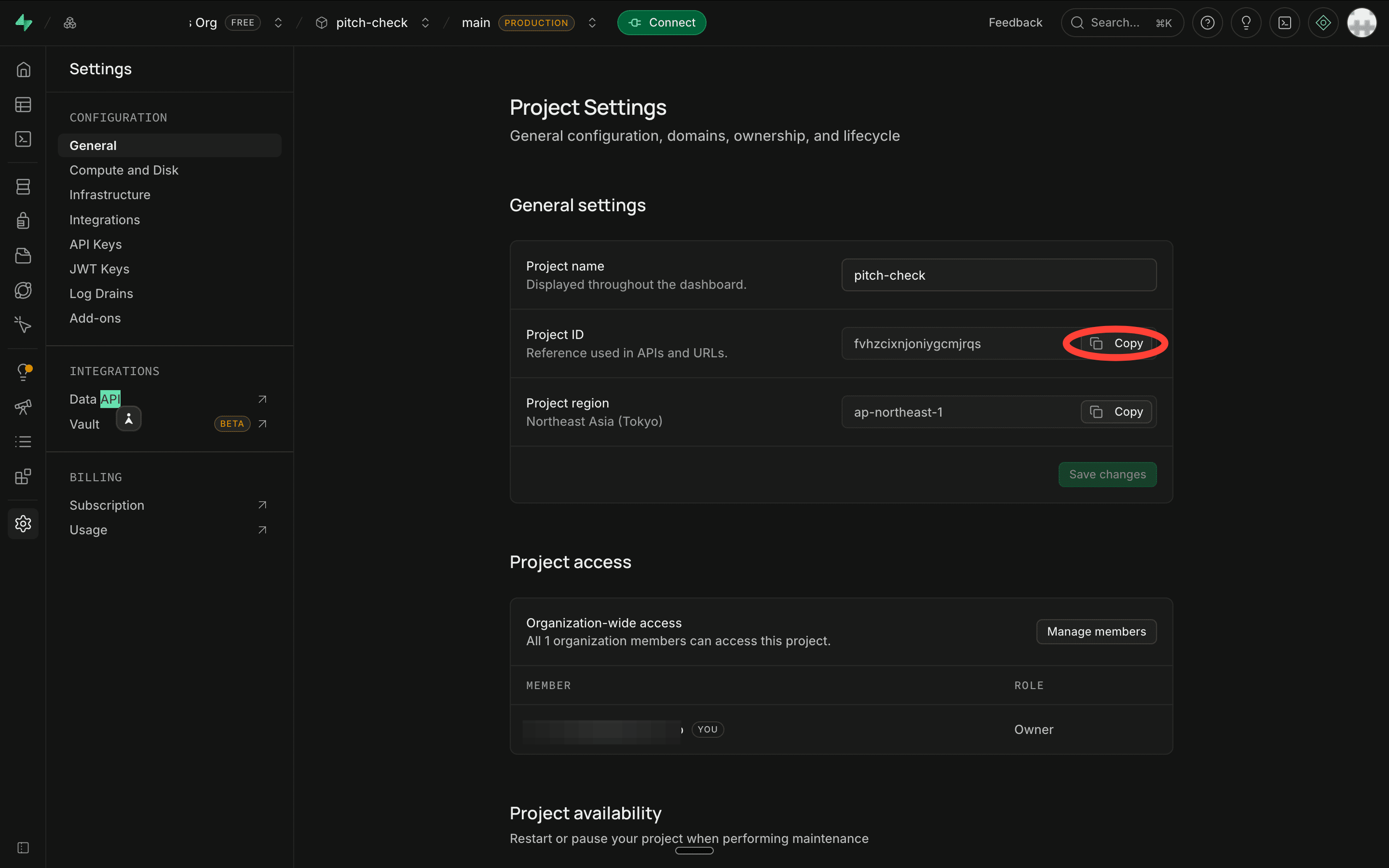
Now add this to find your project URL. Here (yourprojectid) should be replaced with your ID:
https://(yourprojectid).supabase.co
Let’s create a memory table for the time being.
This is where the tool stores what it’s already researched, so it never looks up the same thing twice.
a. Open your Supabase project. In the left sidebar, click the Table Editor icon (the grid)
b. Click “New table.”
c. Name it exactly: market_rates
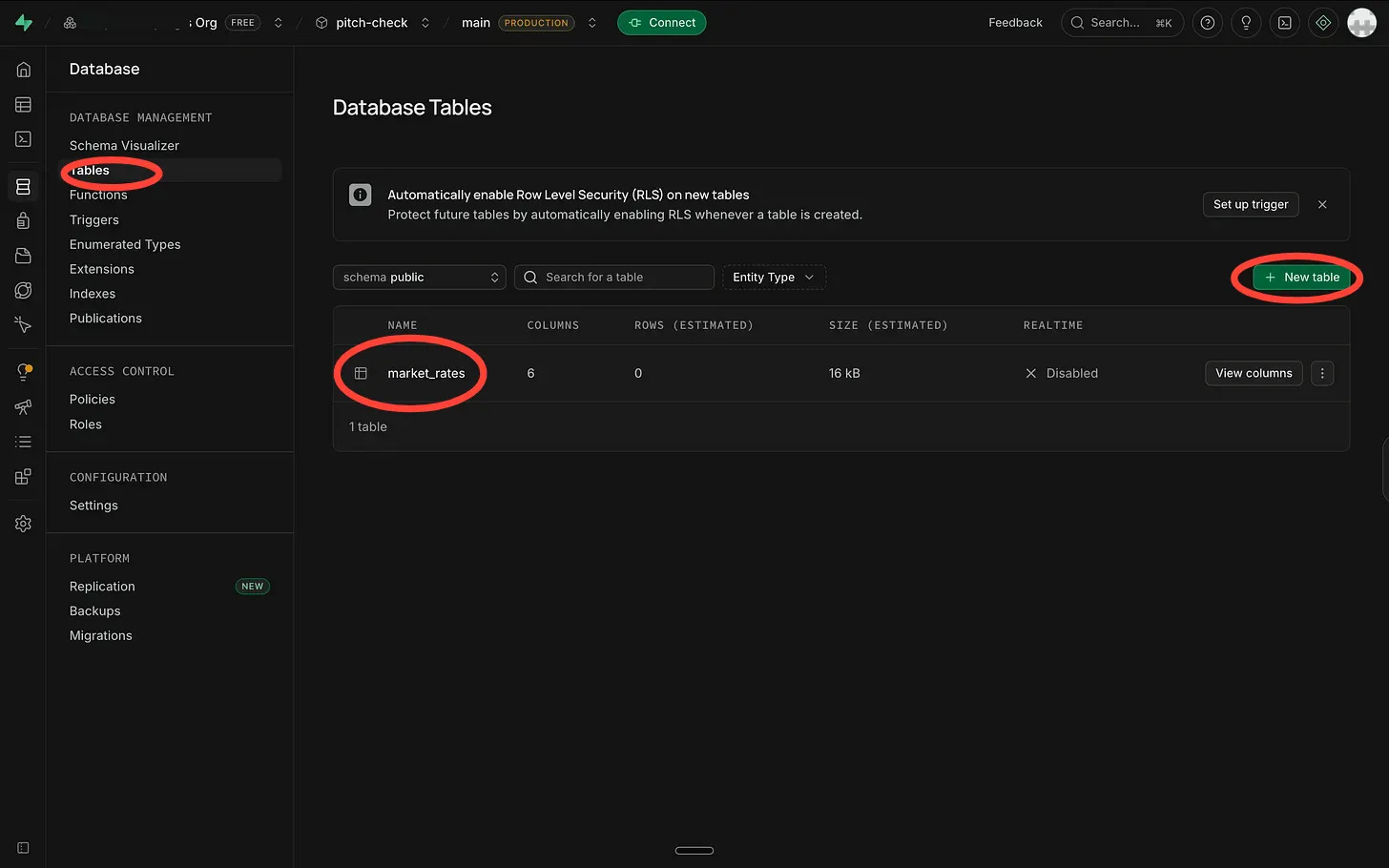
d. Leave the two default columns — id and created_at — exactly as they are.
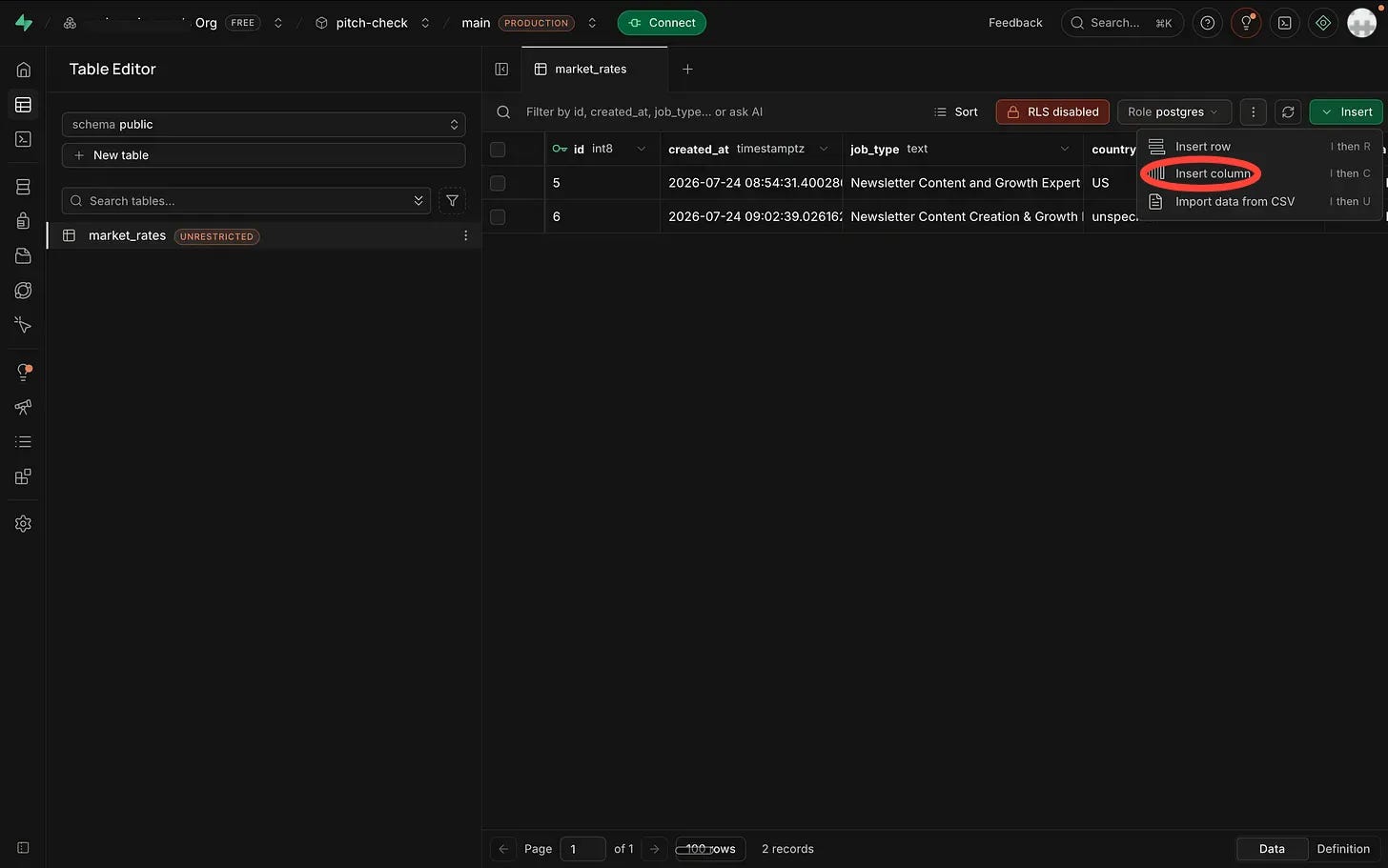
e. Click “Add column” and add these three, one at a time. Set the Type to text for each:
job_type
country
rate_data
f. Click “Save.
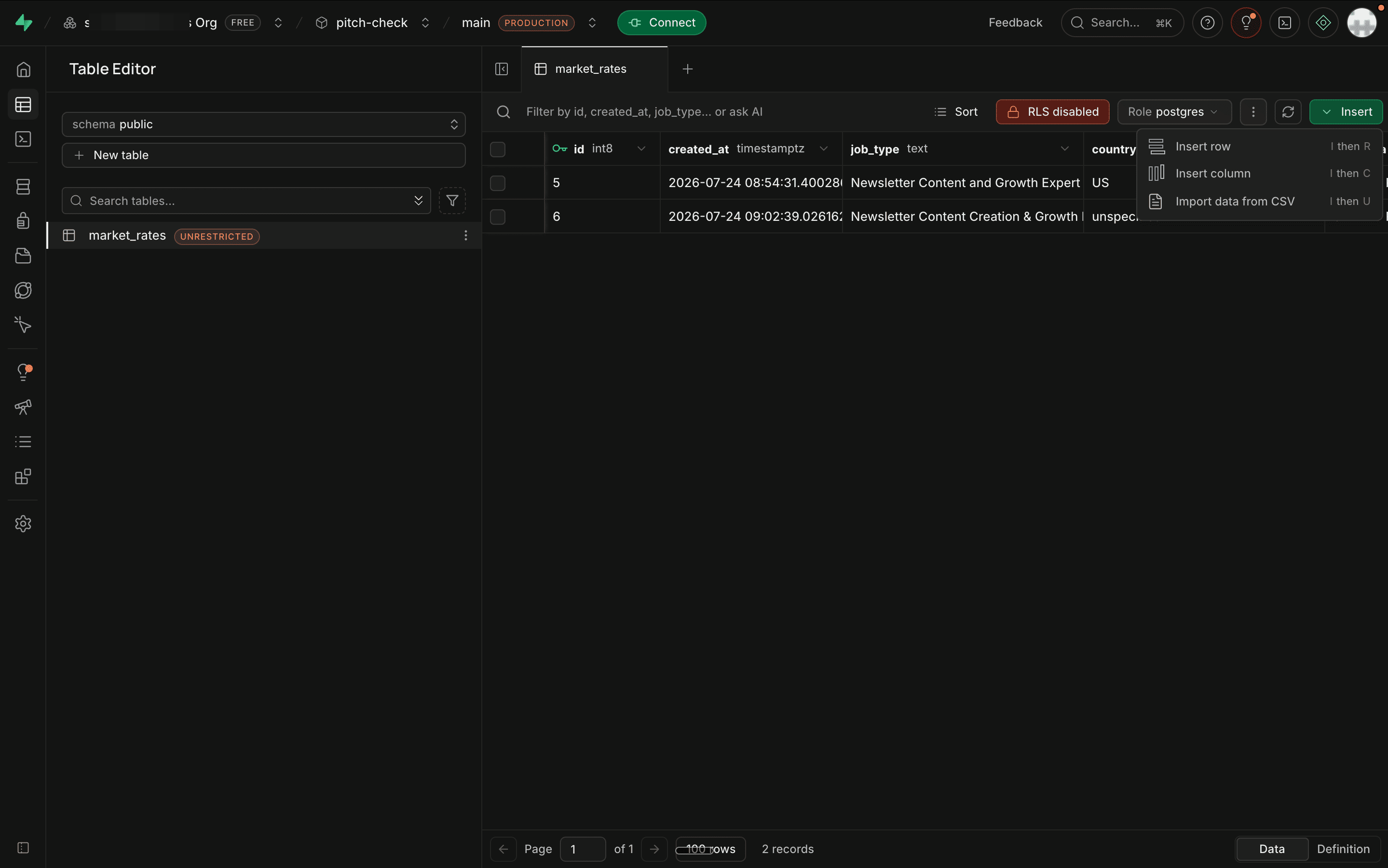
Before running anything, turn off the lock.
Supabase locks every new table by default — nothing can read or write to it until you either set up access rules or switch the lock off. Our table only stores public rate research, nothing personal, so we don’t need those rules. We just need the lock off, or the tool will fail to save anything.
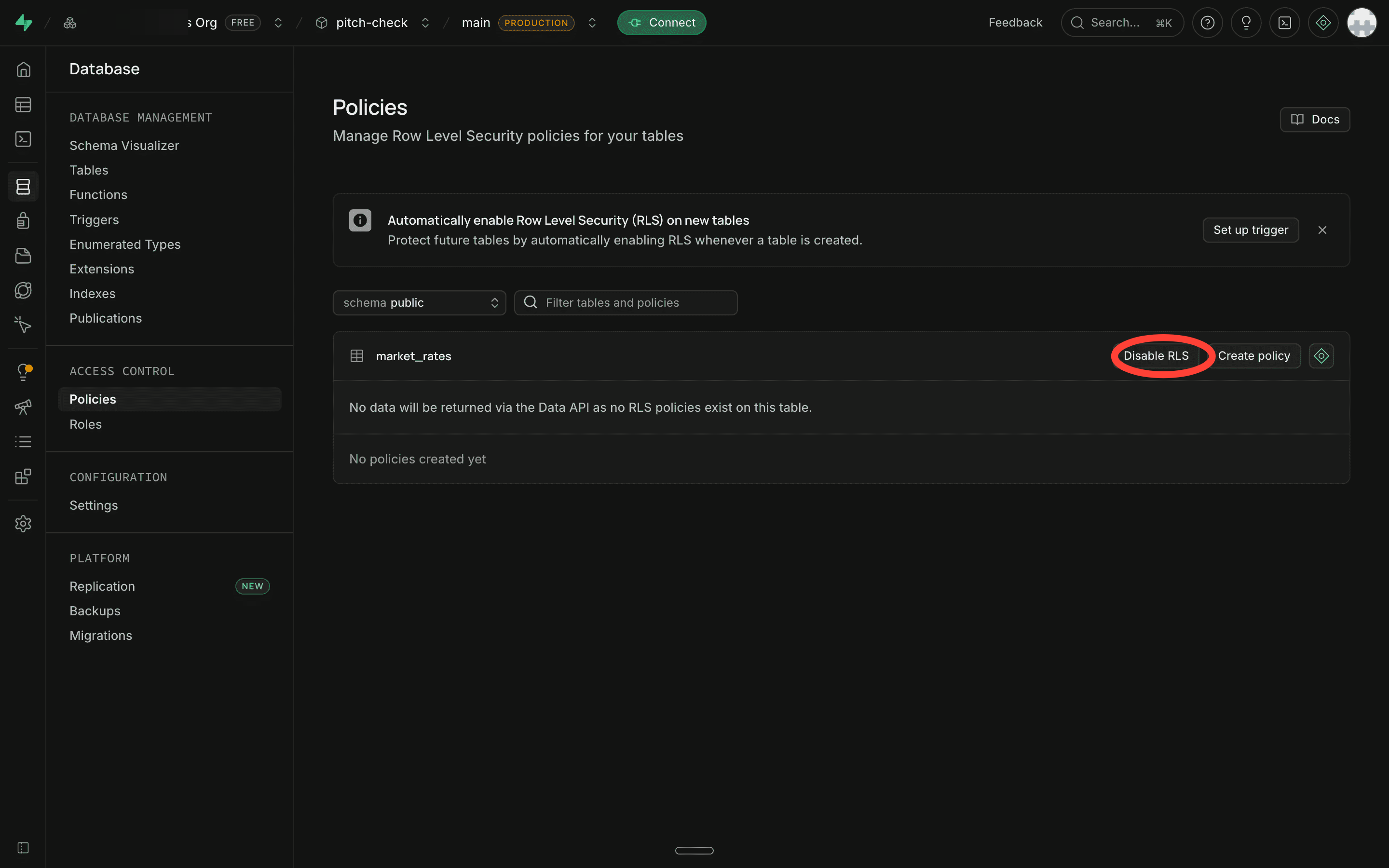
g. In the left sidebar, click Database.
h. Click Policies.
i. Find market_rates in the list and click “Disable RLS” next to it.
That’s your memory layer ready. The tool can now write to it, and read from it before every search.
Step 4: Deploy on Streamlit.
Your code is sitting in GitHub. Now Streamlit will turn it into a live webpage.
a. Go to share.streamlit.io. You should already be logged in from Step 1.
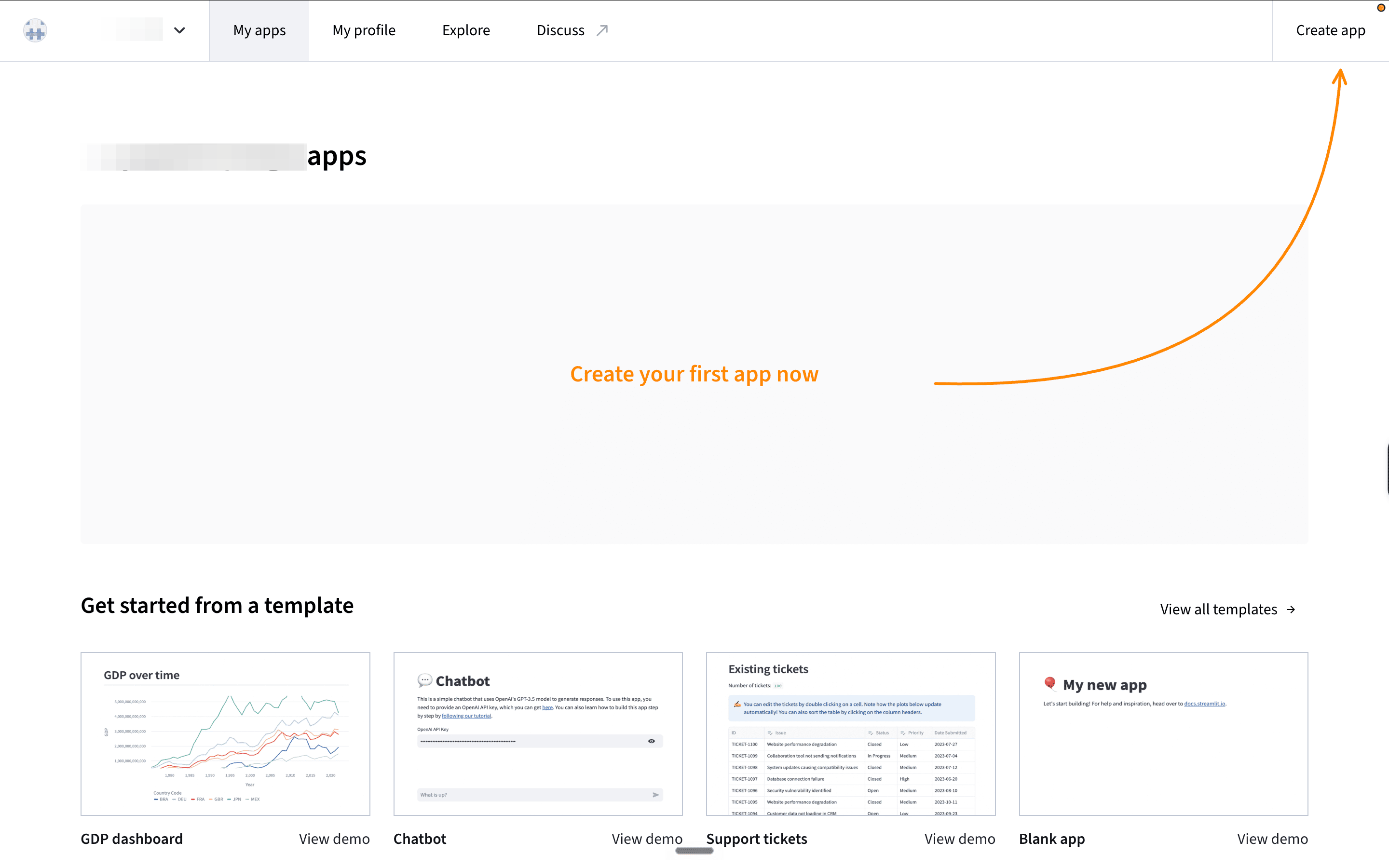
b. Click “Create app” in the top right.
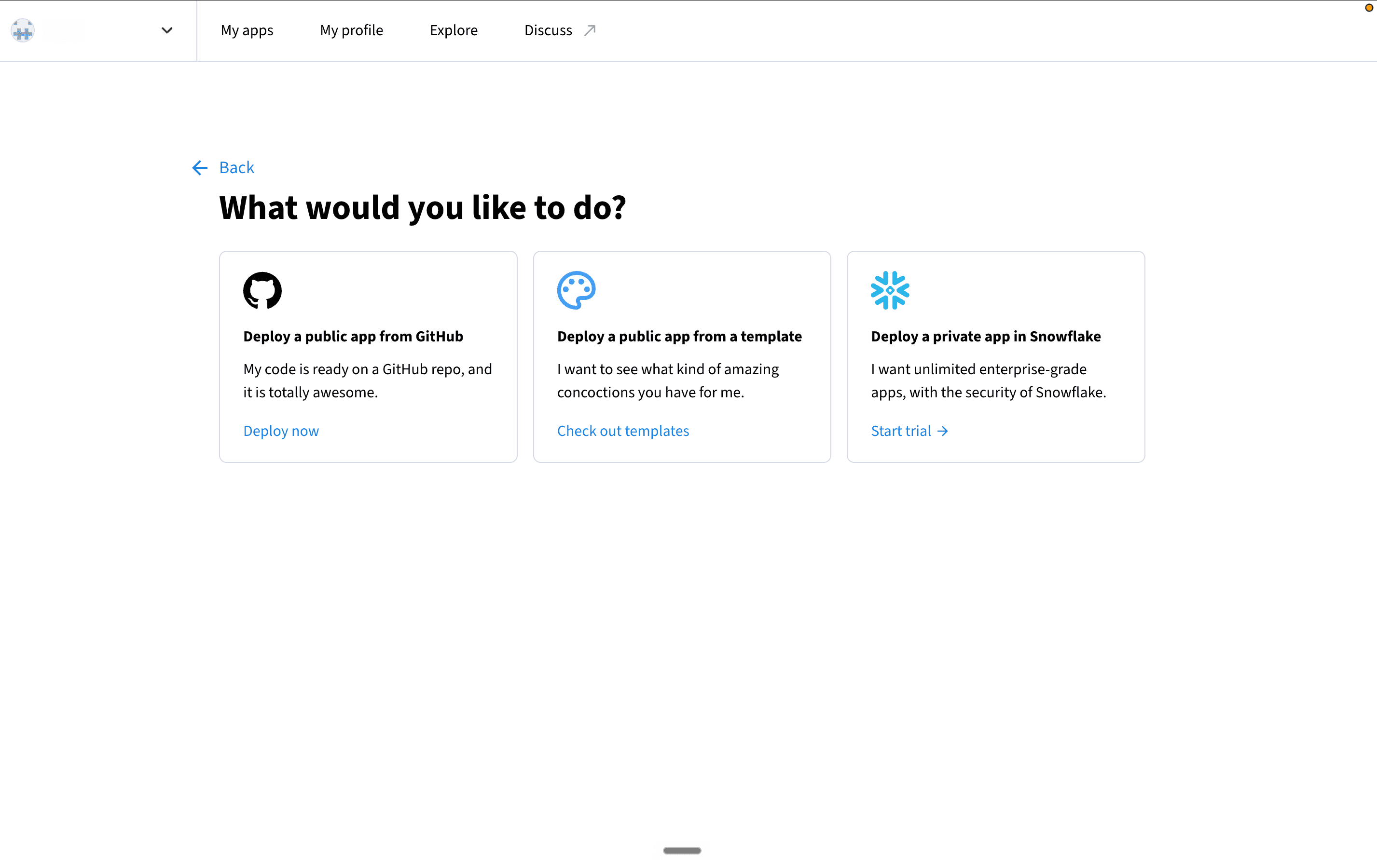
c. It’ll ask what you want to do. Pick “Deploy a public app from GitHub.”
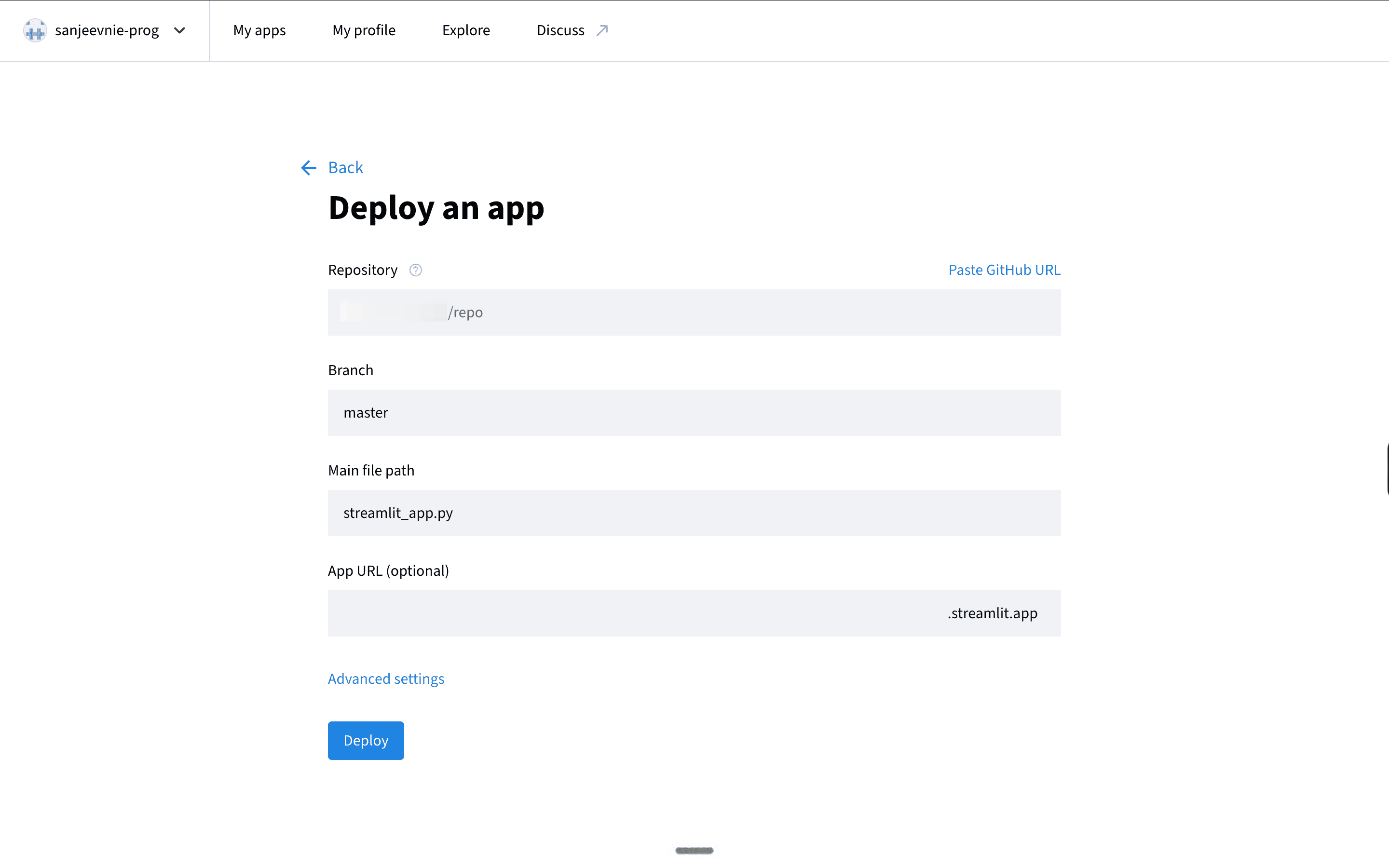
d. Now, you’ll see the deploy app pop up. Fill in the three fields:
Repository: yourusername/repo
Branch: master
Main file path: streamlit_app.py
Before you hit deploy, add your keys.
Your code expects your Gemini and Tavily keys, but they’re not in the code for a reason. Why? Putting API keys directly in code that lives on a public GitHub repo means anyone can read them. Streamlit has a separate, private place for them.
e. So, click “Advanced settings.”
f. You’ll see a Secrets box with some example text in it. Delete all of it.
g. Paste your two keys in, exactly like this
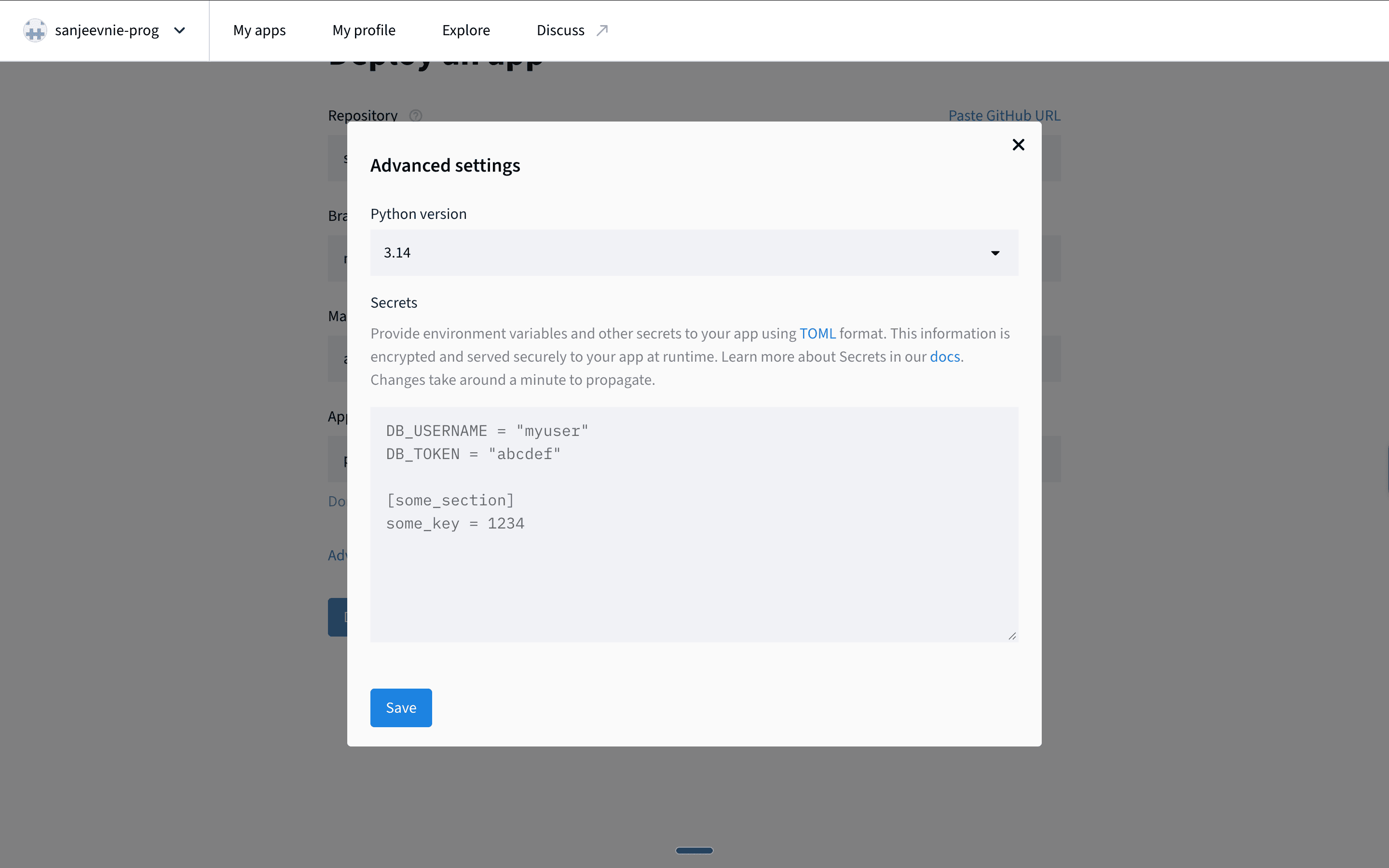
GEMINI_API_KEY = "your-gemini-key-here"
TAVILY_API_KEY = "your-tavily-key-here"
Replace the placeholder text with your actual keys, keeping the quote marks.
Note:
This box uses a format called TOML, and it’s fussy in one specific way: it uses an equals sign, not a colon.
KEY = "value", neverKEY: "value". No curly brackets. No commas at the end of lines.
Also watch your quote marks. If you copied your keys through a notes app that auto-converts straight quotes (") into curly ones ("), TOML rejects them. Type the quotes fresh if you’re unsure.
h. Click “Save,” then “Deploy.”
You’ll see a screen with logs scrolling by — that’s Streamlit installing everything from your requirements.txt and starting the app. First deploy takes a minute or two.
When it finishes, you’ll have a live URL. Congratulations! Your tool is on the internet.
Step 5: Check if it works.
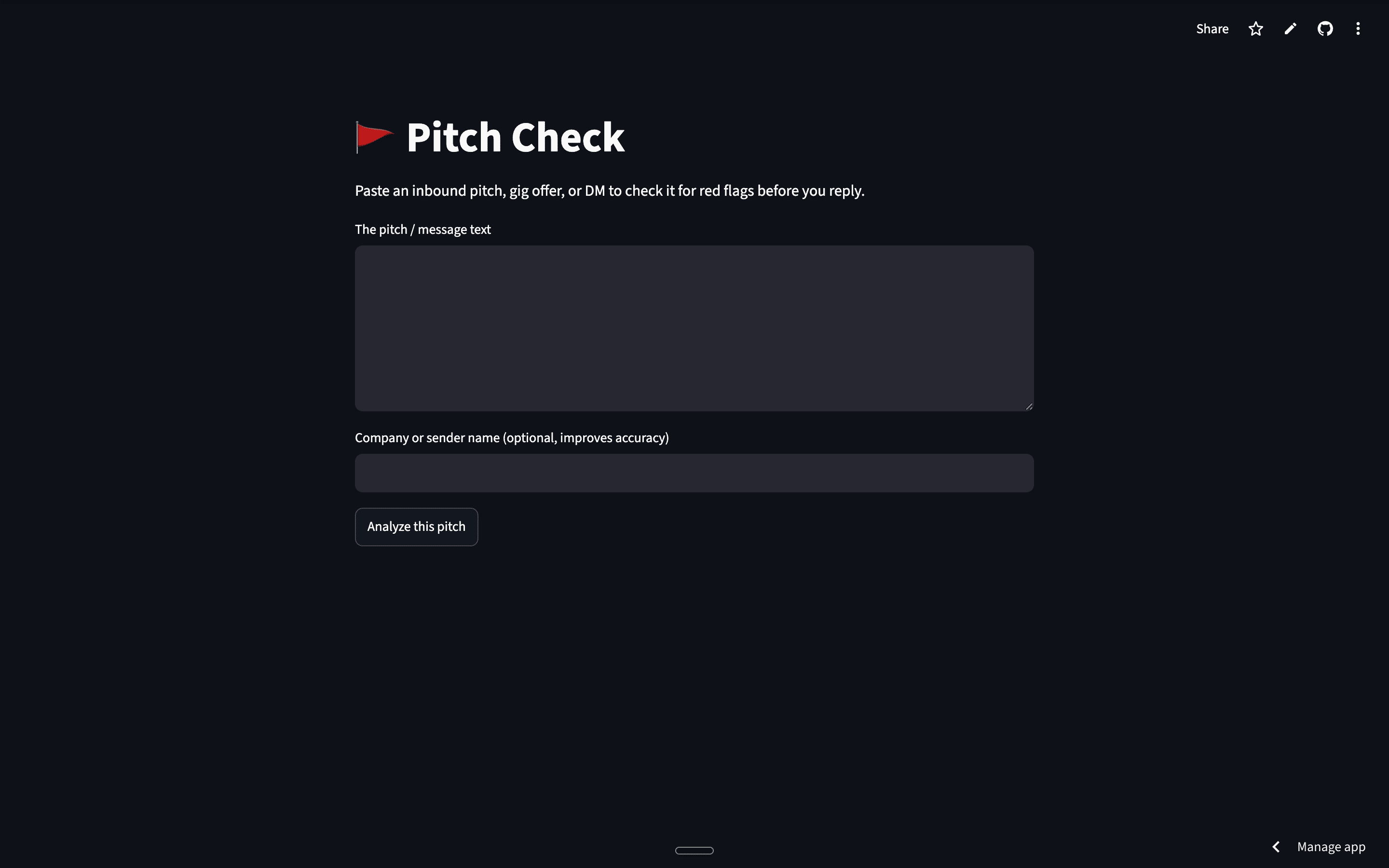
Open your app’s URL. You’ll see the title, a text box, a company field, and an “Analyze this pitch” button.
Paste this pitch or any other one you may have gotten.
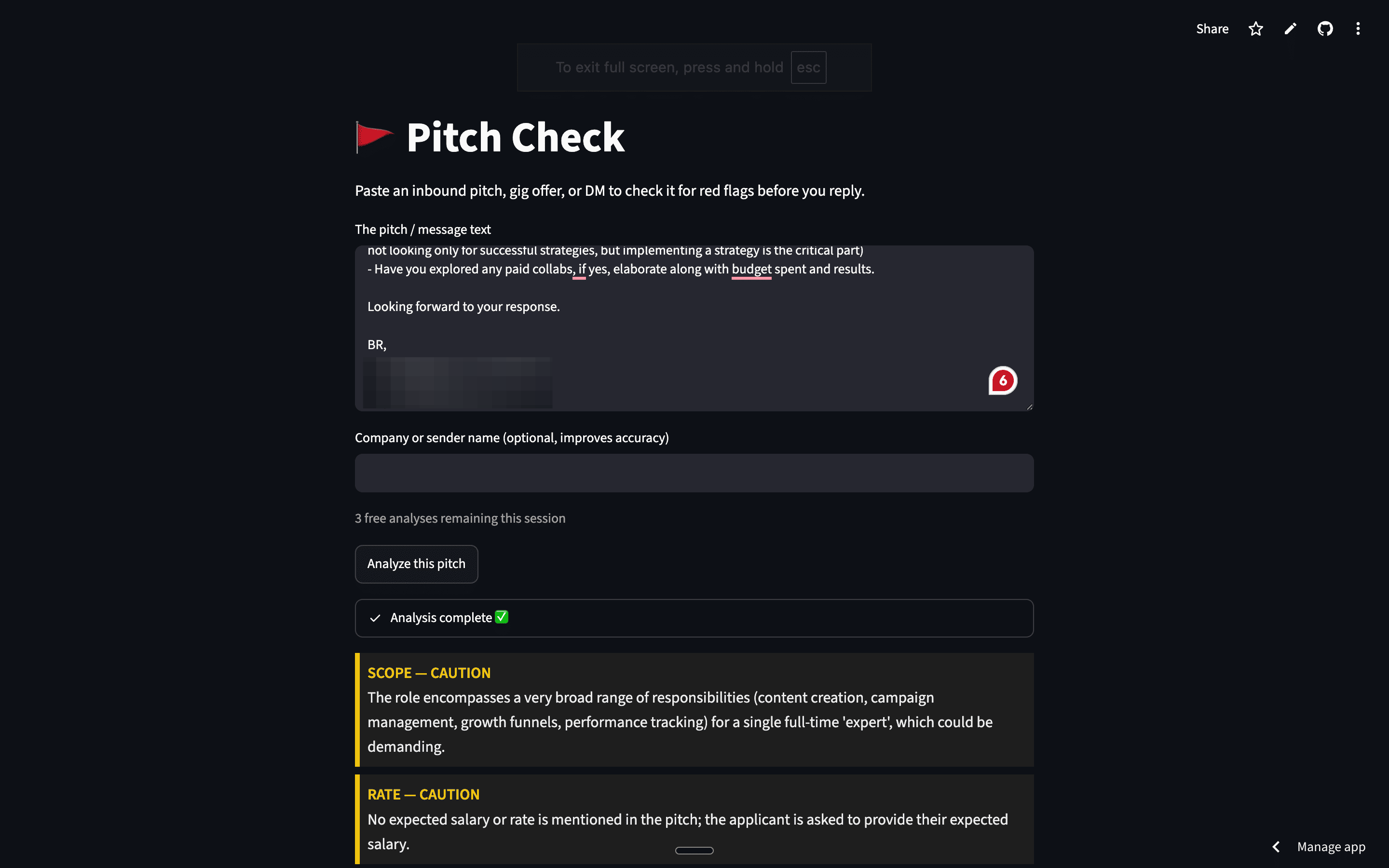
“Hey! Loved your portfolio. We’re building the next big thing in ride-sharing — think Uber but for something else. Need a full MVP: user app, driver app, payments, admin dashboard. Budget is $400 but we can offer 2% equity once we raise our seed round. Need this live in 3 weeks, investors are waiting. Also, anything you build becomes full property of the company, including any tools you bring to the project. Let me know today — have 3 other devs interested.”
Type Acme in the company field and hit Analyse.
The tool should work. But don’t trust it yet.
Step 6: Test it. Hard.
Your app ran. It returned a clean, colour-coded verdict. Except the output is something that’s not quite right.
So, how do you know what went wrong?
Test 1: Run the same pitch two or three times in a row.
Same pitch, same company name, back to back. Watch the verdict and the reasons.
Do they stay identical? Or does the wording drift, a flag flip, the score wobble by a point?
If it drifts, bingo, you’ve found a consistency problem. The model is picking slightly different words each run.
How to fix it? Set the model’s temperature to 0. Temperature controls randomness — 0 means “always pick the most likely answer,” which makes the same input produce the same output every time. It’s the line already baked into the code you pasted. If your generated version drifts, that’s the first place to look.
Test 2: Run three or four genuinely different pitches.
A scam gig. A real cold sales email. A legit-looking job offer. A full-time role posting. You’re not checking whether it flags the obvious scam — you’re checking whether it stays sensible across normal messages too.
Watch out for these failures:
a. It over-flags a normal pitch.
A legitimate offer gets treated like a scam means your rubric is too aggressive. Loosen the pass/caution/fail conditions.
b. The company search returns nonsense.
This one bit us. We searched the company name “Acme” and got back real complaints — for a grocery chain, a trucking company, businesses with nothing to do with the pitch.
The fix?
Told the model to first check whether the search results are even about the right company, and ignore them completely if they’re not. Real-looking data about the wrong subject is worse than no data.
c. The pay comparison is against the wrong kind of work.
We fed it a full-time role and it compared the salary against freelance hourly rates — an entry-level marketer in Germany versus a senior growth expert in crypto. Not what we want the tool to do.
So, what did we do?
Two things: First, a separate step figures out whether the pitch is full-time or freelance. Then the tool runs a different search depending on the answer — for full-time roles it searches real salary data and real job-description postings separately, so both the pay and the scope checks are grounded in the right kind of source. And we added an employment_type column to the database so those two kinds of lookups get cached separately instead of overwriting each other.
Test 3: Go check the places that fail silently.
If your tool writes to a database or calls a search, don’t trust the screen. Go open the database. Look at the actual search results. The app can look completely healthy while nothing is landing where it should.
Our database writes failed for a while. The app ran, the report rendered, everything looked done. But the table stayed empty, because the database had a security setting switched on that blocked every write without telling us. The only proof anything was wrong sat three clicks deep in a logs panel we almost never opened. Why would you check logs on something that’s working?
One more thing.
Your generated code won’t be identical to ours. You might use a different model, phrase the prompt differently, get a slightly different structure back. Which means your bugs won’t be identical either.
But they’ll largely fall into these same categories: inconsistent output, wrong-subject searches, mismatched comparisons, silent saves. The skill isn’t memorizing our exact fixes. It’s learning to run the thing repeatedly, watch what breaks, and match the symptom to the category.
That’s what separates someone who can prompt an app into existence from someone who can actually ship one.
Want to plug your brand into our newsletter?
Email us at collab@growthx.club
