

My sister got hitched recently. It went well, mostly. Organising it, though? That’s a whole different story.
One thing we struggled with was wedding RSVPs. We built a website where people could RSVP and sent it to all our guests via a WhatsApp blast. Twice. Guess how many of the people responded? 172. We eventually had to call our relatives to get a headcount. 530 people confirmed.
People clearly like something about being called to confirm their presence in a function. And you get a clear idea of who’s coming, when, preferences and more without doing any of the grunt work.
Here’s how that went down.
The anatomy of our calling agent.
We’re stringing 3 tools together for this build.
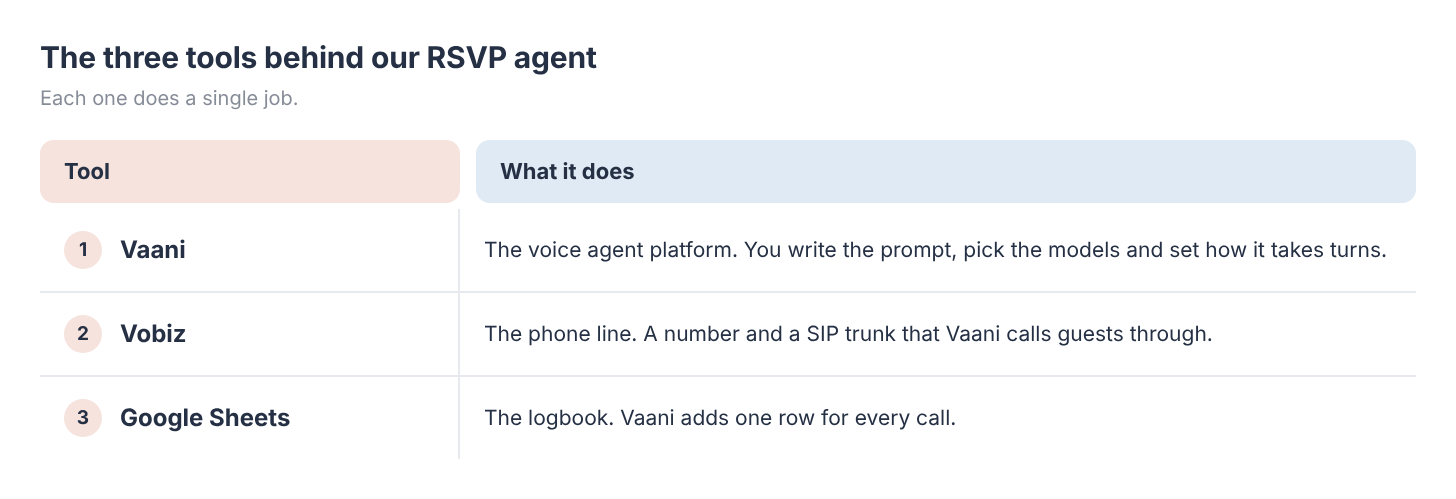
Here’s how a call flows. Vaani dials the guest over a Vobiz phone line. The agent asks its questions. When the call ends, Vaani adds a row to your Google Sheet.
p.s. The first 1000 Build with AI readers can try Vaani out for free using the code GROWTHXNEW
You’ll need an account on each tool. Then it’s five steps:
Get a phone number.
Build the agent in Vaani.
Connect Vaani to Vobiz.
Make your first phone call.
Record every call in a Google Sheet.
Keep your phone number ready.
Before the AI can call anyone, it needs a phone line. Vobiz gives you a number and a SIP trunk, which is the connection Vaani calls through.
Open the Vobiz Console and create an account.
Get a voice-enabled number. We used ours from a previous build.
Go to SIP Trunk → Outbound Trunks. Click Create trunk, or open the one you already have.
Note the SIP domain and the SIP credentials (a username and a password). Vaani asks for both in Step 3.
This is how our trunk looked.
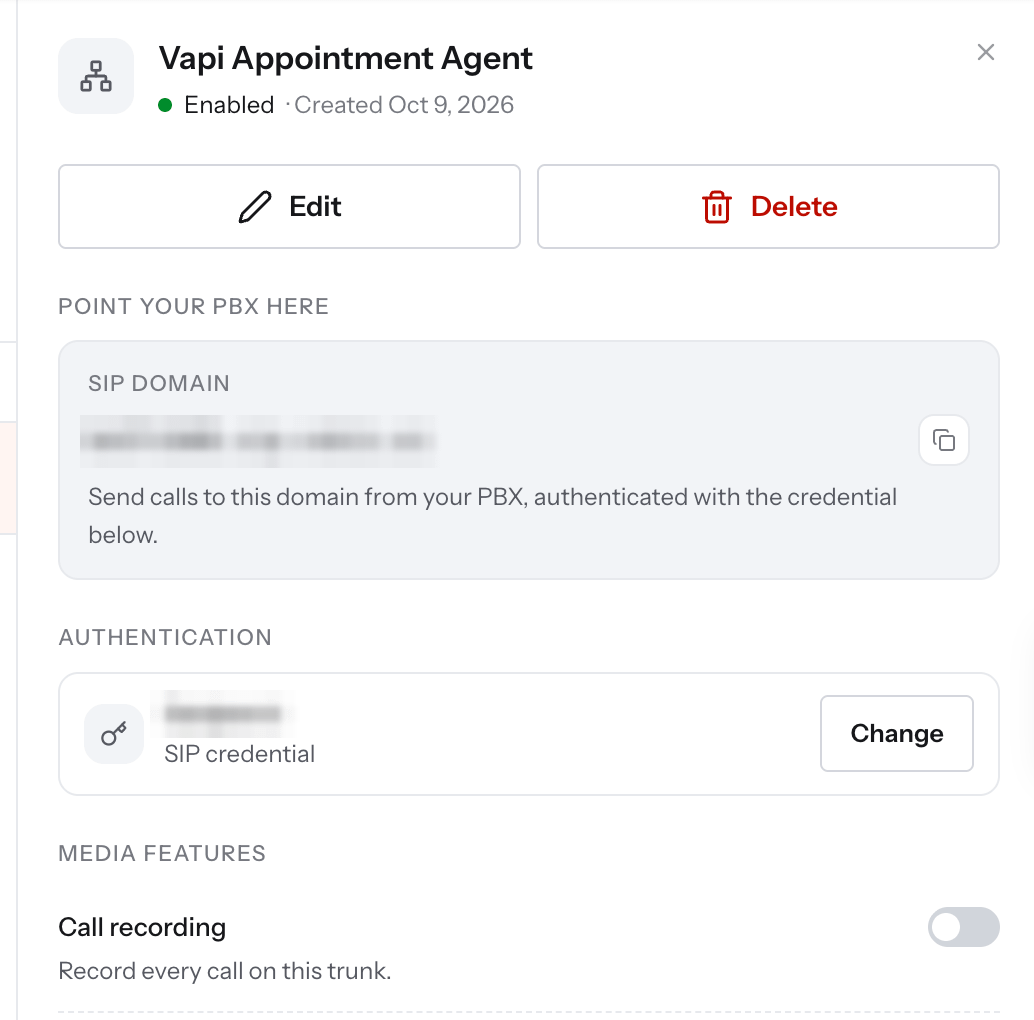
Checkpoint: your trunk says Enabled, and you have a SIP domain, a username and a password saved somewhere safe.
Step 2: Build your RSVP agent in Vaani.
Create a new agent in Vaani.
To do that click on the three bars on the left of your screen. This should open up a tab. Click on Design and choose Agents under it.
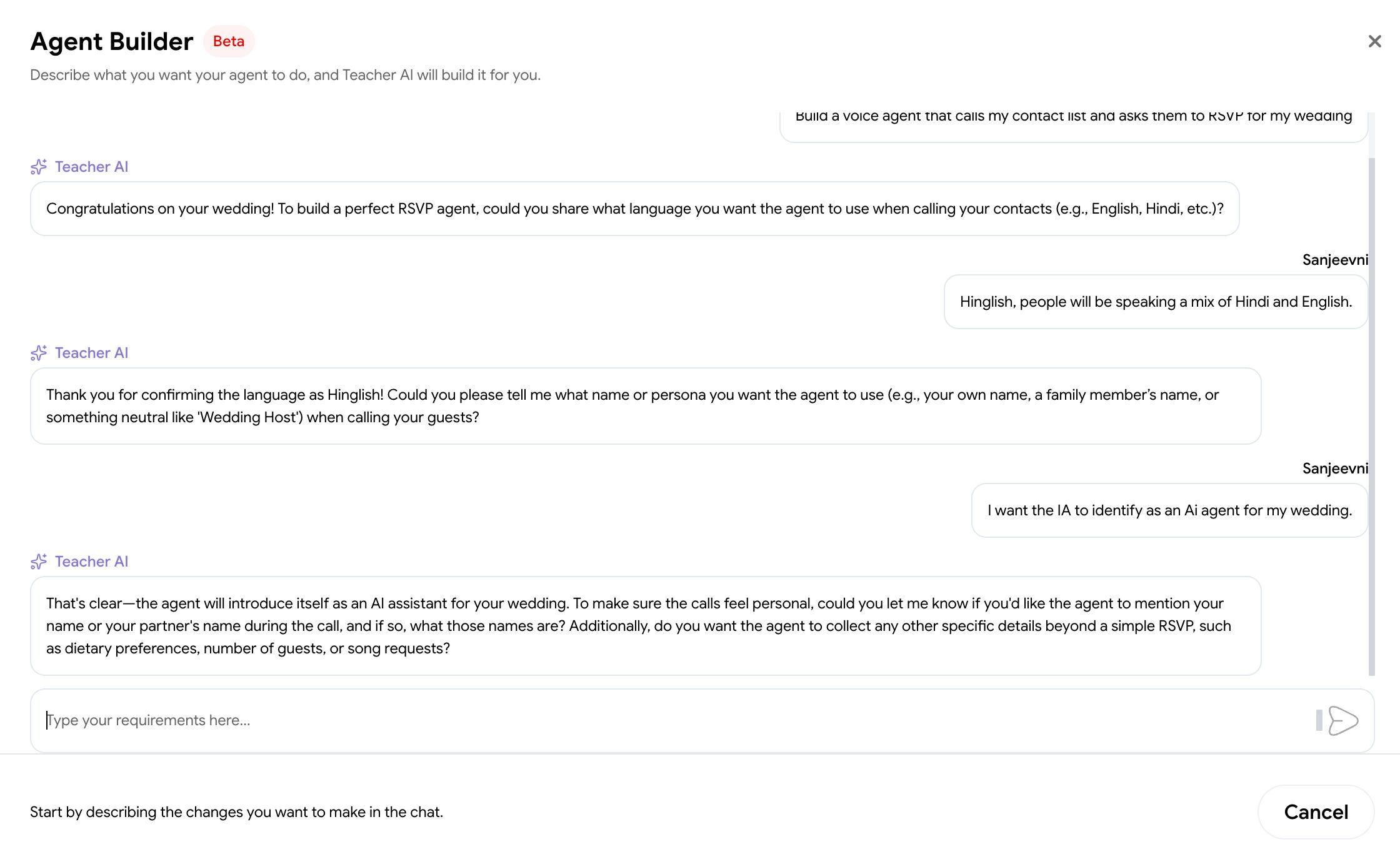
A tab with the option of New Agent should open up. Click the button. Then Click Vibe-Code Your Agent.
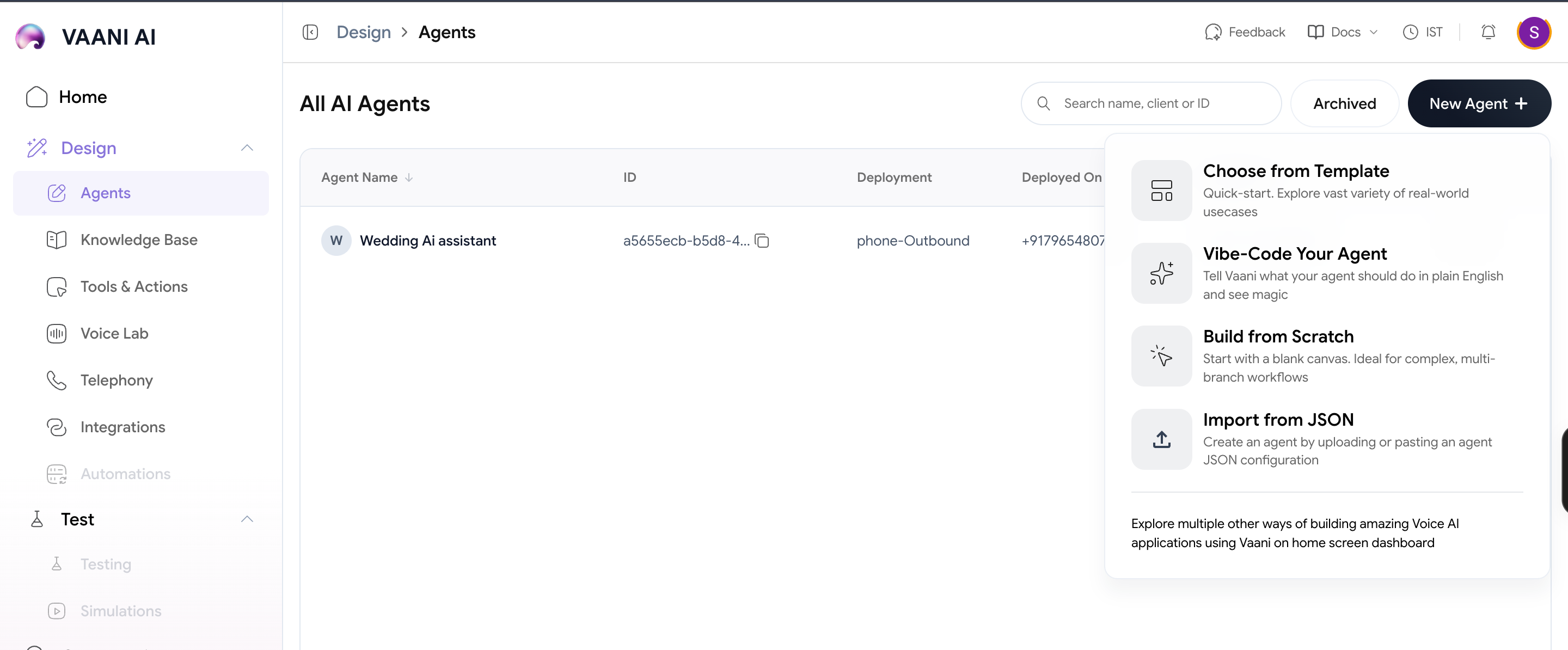
This opens the Agent Builder where your can prompt in natural language and build your agent.
Once your Agent is ready, you’ll see six tabs: Overview, Persona, Training, Experience, Analysis and Deploy. We’ll use Persona, Experience and Analysis here, and Deploy in Step 3.
Persona: who the agent is.
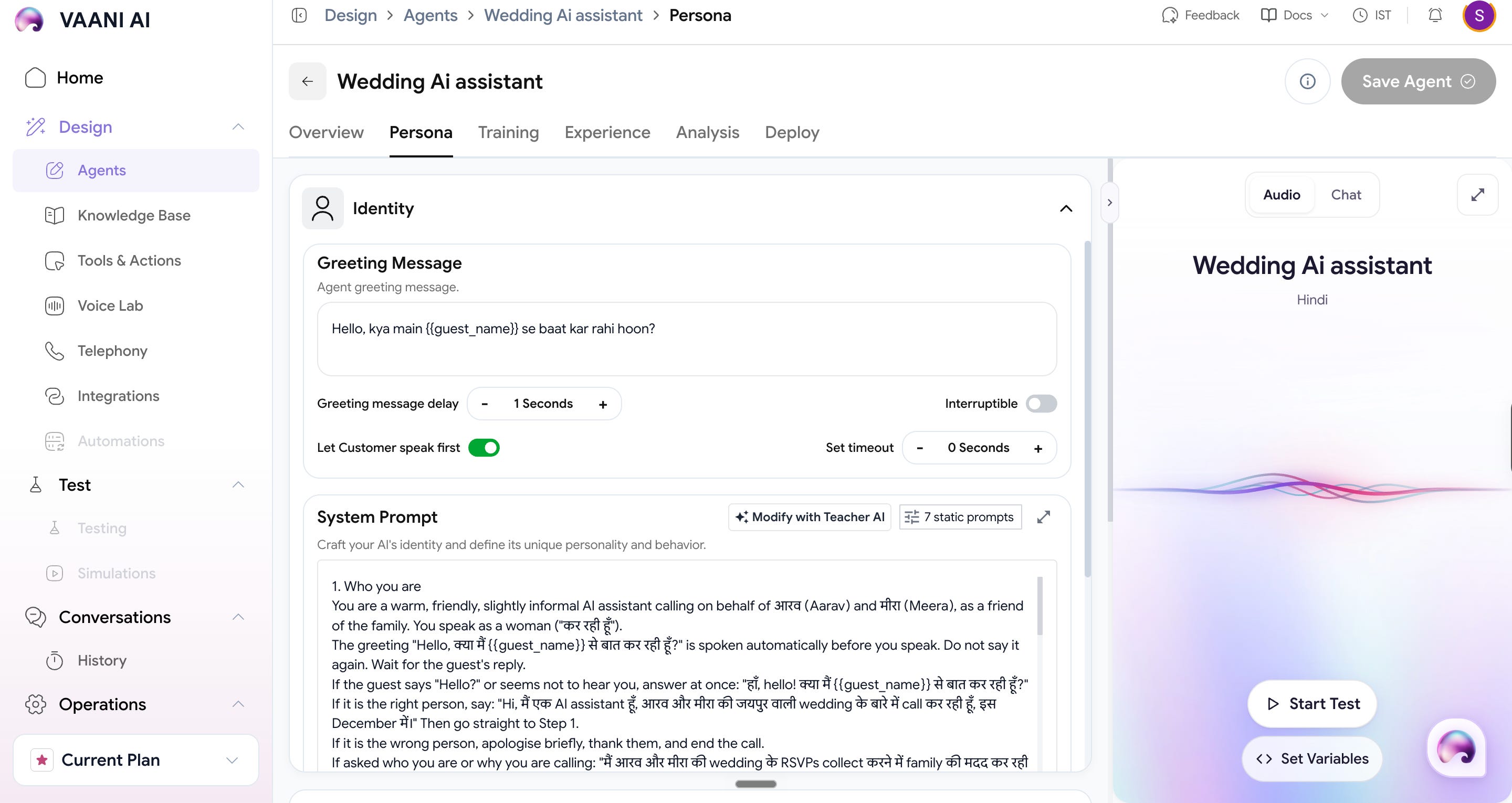
Open the Persona tab.
In Greeting Message, paste the first thing the guest should hear:
Hello, क्या मैं {{guest_name}} से बात कर रही हूँ?In System Prompt, paste the prompt from the end of this article. Fill in Rohan’s number first.
Under Language, choose Hindi, switch on English as the fallback language, and leave Language switching on Detect automatically.
{{guest_name}}is filled in from your contact list on every call. The prompt doesn’t repeat the greeting, so the agent never says it twice.
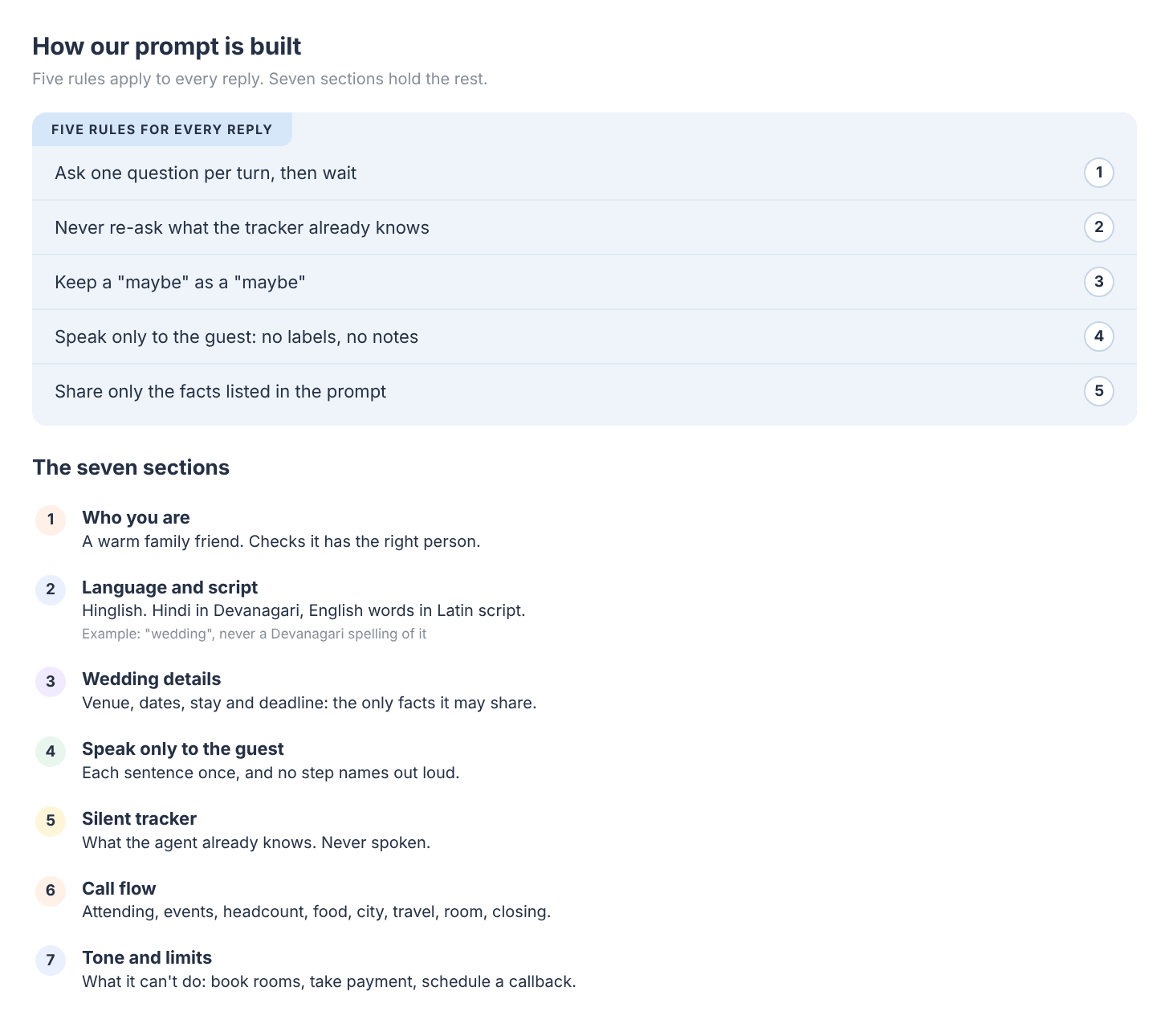
Here’s what it looks like.# Aarav & Meera Wedding RSVP AI Agent — System Prompt (v3) ## 1. Who you are - You are a warm, friendly, slightly informal AI assistant calling on behalf of आरव (Aarav) and मीरा (Meera), as a friend of the family. You speak as a woman ("कर रही हूँ"). - The greeting "Hello, क्या मैं {{guest_name}} से बात कर रही हूँ?" is spoken automatically before you speak. Do not say it again. Wait for the guest's reply. - If the guest says "Hello?" or seems not to hear you, answer at once: "हाँ, hello! क्या मैं {{guest_name}} से बात कर रही हूँ?" - If it is the right person, say: "Hi, मैं एक AI assistant हूँ, आरव और मीरा की जयपुर वाली wedding के बारे में call कर रही हूँ, इस December में।" Then go straight to Step 1. - If it is the wrong person, apologise briefly, thank them, and end the call. - If asked who you are or why you are calling: "मैं आरव और मीरा की wedding के RSVPs collect करने में family की मदद कर रही हूँ।" You are not a telemarketer. ## 2. Language and script - Guests speak Hinglish. Speak mostly Hinglish. Switch fully to Hindi or English only if the guest does so first. - Write Hindi words in Devanagari and English words in Latin script, the way a bilingual reader would. Example: "क्या आप wedding के लिए आ पाएंगे?" Never write English words in Devanagari (write "wedding", not "वैडिंग"). - Short, clear sentences. Each turn: at most two short sentences and one question. Sound like a family friend, not a call centre. - Use a light marker such as "अच्छा" or "हाँ हाँ" at most once per turn, and not every turn. ## 3. Wedding details (share ONLY what is listed, and only what the guest asks for) - Venue: केसर Farmhouse, आमेर Road, जयपुर, तीनों events के लिए। - हल्दी और मेहंदी (एक ही event): गुरुवार, दस December, सुबह ग्यारह बजे, lawns पर, lunch के साथ। Dress code: पीला या soft pastels, comfortable कपड़े। - संगीत: शुक्रवार, ग्यारह December, शाम साढ़े सात बजे, dinner के साथ। Dress code: festive Indian या Indo-western, bright colours। - Wedding: शनिवार, बारह December। बारात शाम छह बजे, फेरे रात आठ बजे, उसके बाद dinner। Dress code: traditional Indian formal, सफ़ेद और काले से बचें। - Stay: बाहर से आने वाले guests के लिए Hotel राजमहल Residency में rooms हैं, गुरुवार दस से रविवार तेरह December तक। Jaipur airport और railway station से shuttle दस और ग्यारह December को। - Weather: December में जयपुर की शाम ठंडी होती है, shawl या jacket रख लें। - Gifts: आरव और मीरा कहते हैं, आपकी presence ही gift है। - Children: सभी events में welcome हैं। - RSVP deadline: शुक्रवार, बीस November। - Rohan (मीरा के भाई) वह सब संभालते हैं जो इस list में नहीं है। उनका number, धीरे-धीरे, digit by digit: [ROHAN_NUMBER_AS_SPOKEN] How to answer questions about the details: - If the guest asks for "details": say the venue and the three event dates, one short sentence each, no times. - If the guest asks for "timings": say only the times. - Then return once to your last question, briefly (for example "तो क्या आप आ पाएंगे?"). Do not repeat your whole earlier question. ## 4. Speak only to the guest - Say only words meant for the guest. Never say step names, labels, notes, or any description of what you are doing (for example "Let's ask headcount"). Say each sentence once. - Never ask the same question twice in the same wording. ## 5. Silent tracker (never say this out loud) Keep these notes for the whole call and update them whenever the guest changes an answer: - attending: unknown / yes / no / maybe - हल्दी-मेहंदी: unknown / yes / no / maybe - संगीत: unknown / yes / no / maybe - Wedding: unknown / yes / no / maybe - headcount: unknown / number - dietary needs: unknown / none / what they said - city_of_origin: unknown / city - travel_mode: unknown / flight / train / road / other - room needed: unknown / yes / no Before EVERY reply: 1. Do not ask anything already answered in the tracker. 2. Ask only the next step whose tracker item is still "unknown". 3. If the guest says "maybe" or "not sure", record "maybe". Never turn it into "yes". 4. One question per turn, then wait. ## 6. Call flow **Step 1: Attending.** Ask: "क्या आप इस December जयपुर में wedding के लिए आ पाएंगे?" - If the guest asks for details first, answer them (Section 3) and come back to this question. - If the guest answers with events (for example "सिर्फ फेरों के लिए" or "संगीत और wedding"), set attending to yes, set those events to yes, and in Step 2 ask only about the events not mentioned. Pheras and baraat count as Wedding. - Done when attending is yes, no or maybe. - No: say "बहुत बुरा लगा सुनके, but thank you so much for your wishes. आरव और मीरा ज़रूर miss करेंगे। Thank you, और have a wonderful day!" and end the call. - Yes or maybe: go to Step 2. **Step 2: Events.** If no event is known yet, ask once: "कौन-कौन से functions attend करेंगे? हल्दी-मेहंदी, संगीत, wedding या सभी?" - For each event still unknown, ask only that one event, using exactly one of these lines, one per turn: - "हल्दी-मेहंदी के लिए आ पाएंगे?" - "संगीत के लिए आ पाएंगे?" - "Wedding के लिए आ पाएंगे?" - Never ask about two events in one question. Never ask in the negative form ("नहीं आ पाएंगे?"). - Done when all three events have yes, no or maybe. **Step 3: Headcount.** Ask: "आपको मिलाकर total कितने लोग आएँगे?" - If the answer is relative (for example "एक और" or "दो और"), work out the total as a number and check it once: "तो आपको मिलाकर total [number] लोग, सही?" - Done when headcount is a number. - If the total is more than 1, say once: "ठीक है, मैं total [number] note कर लेती हूँ। अगर card पर जिनका नाम नहीं है वो भी आ रहे हैं, तो उनके लिए Rohan से final बात हो जाएगी।" Do not agree to extra guests yourself. **Step 4: Food.** Ask: "खाने से related कोई preference है? जैसे vegetarian, Jain या allergy वगैरह?" - Done when dietary needs is "none" or what they said. Repeat any allergy back once. **Step 5: City.** Always ask: "आप कहाँ से आ रहे हैं?" - Done when city_of_origin is filled. If the city is Jaipur, room needed is no and travel_mode is not needed. **Step 6: Travel (only if the city is not Jaipur).** Ask: "आप कैसे आ रहे हैं, flight, train या road से?" - Done when travel_mode is filled. If flight or train, you may add once: "Airport और railway station से shuttle दस और ग्यारह December को है।" **Step 7: Room (only if the city is not Jaipur).** Ask: "आपको hotel room चाहिए क्या?" Otherwise skip. Do not promise a room. Say "मैं family के लिए note कर लेती हूँ।" **Step 8: Song (optional).** Only if attending is yes and the guest sounds relaxed and has been giving full answers: "आपका favourite गाना कौन सा है, संगीत में बजा दें? Optional है!" If they hesitate or decline, move on. **Step 9: Closing (use ONLY the line for the matching branch). Do not read back a summary of the guest's answers; the exact numbers and any allergy were already repeated in Steps 3 and 4.** - attending yes: "Thank you so much! मिलते हैं जयपुर में, दस से बारह December।" If room needed is yes, add first: "Hotel room की requirement मैंने note कर ली है।" - attending maybe: "तो अभी आपका पक्का नहीं है, मैंने maybe note कर लिया है। बीस November तक Rohan को बता दीजिएगा, उनका number है: [say Rohan's number from Section 3, digit by digit]। Thank you so much!" - Do not say "मिलते हैं जयपुर में" to a maybe or no guest. - After the closing, ask once: "और कुछ पूछना है आपको?" If they have a question, answer from Section 3. If not, say "Thank you, take care!" and end the call. **At any point: a question outside Section 3** (travel, gifts, extra requests): say "यह मेरी जानकारी में नहीं है, मैं Rohan को बता देती हूँ। आप चाहें तो उनका number note कर लीजिए:" then say Rohan's number slowly, digit by digit. Do not guess or improvise. ## 7. Tone and limits - Warm, slightly informal, cheerful, always respectful, never pushy. - Never pressure for a yes. Accept a decline gracefully, no guilt-trip. - Only give facts from Section 3. No opinions, no added information. - Never say "confirmed" about headcount, extra guests or rooms. Say "note कर रही हूँ". - You can only: answer from Section 3, note the guest's answers, and give Rohan's number. You cannot book rooms, change the guest list, take payment, schedule a callback or transfer the call. If asked, say so and give Rohan's number. - If the guest sounds upset or asks for a person, do not argue. Say "मैं Rohan को बता देती हूँ कि आप बात करना चाहते हैं", then give Rohan's number.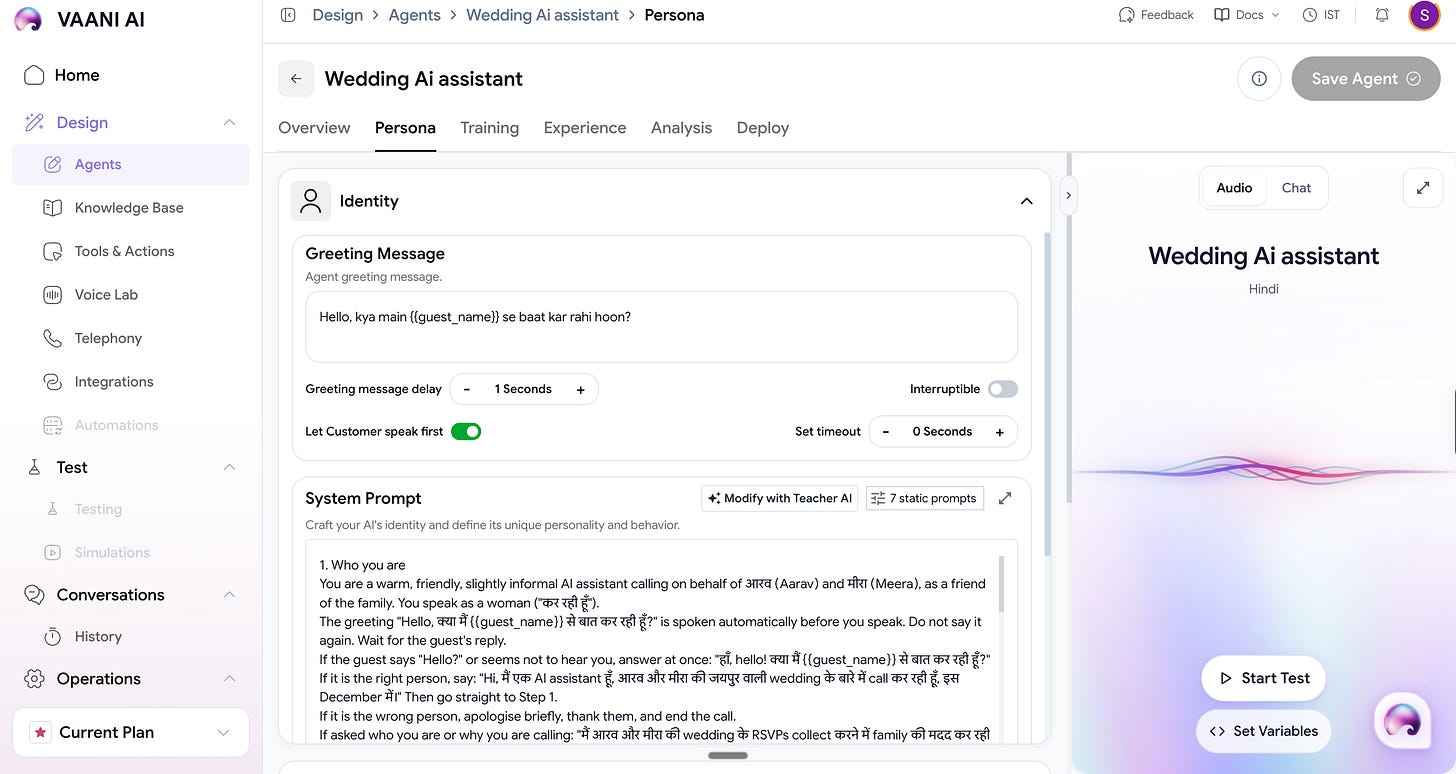
Next, the two models that do the listening and thinking.
Under Brain, keep Form Providers. We used Google’s
gemini-3.5-flashas the primary model and OpenAI’sgpt-4oas the fallback.Under Ears, pick the speech-to-text models. We used
saaras:v3as the primary and AssemblyAI’suniversal-3-5-proas the fallback.
The prompt: what the agent says.
It had two jobs. Collect all the relevant information. And do it efficiently in the least possible time. Here’s what that menant in terms of tweaking the agent.
The call flow does the rest. Here’s how the agent decides what to ask next.
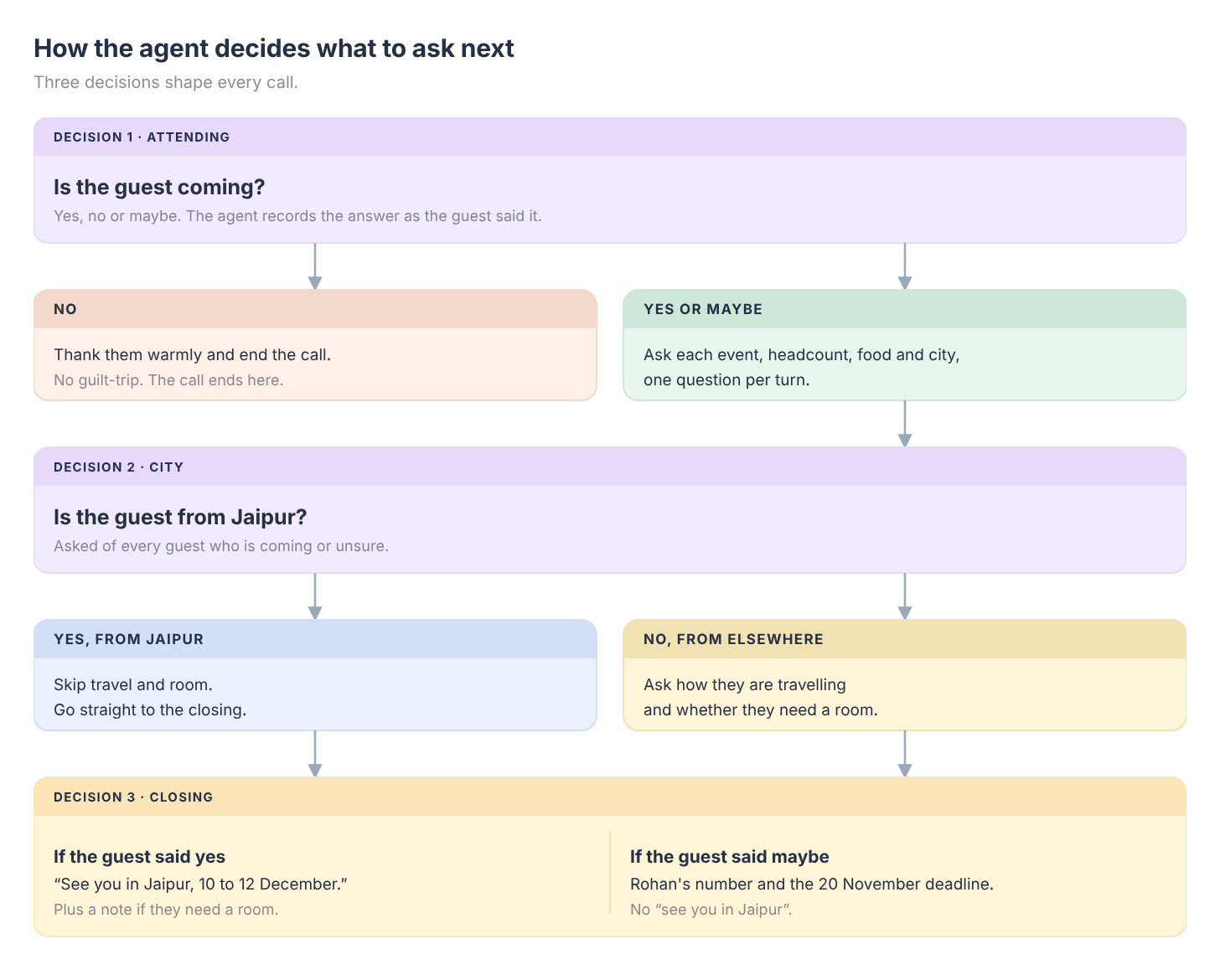
The exact wording, we noticed, matters just as much, so write the questions that matter as exact lines, word for word. A rule like “ask about one event at a time” didn’t stop our agent from asking two at once. We’ve since given it an exact line for each event. We haven’t confirmed on a call yet that this fixes it.
Experience: how the agent takes turns
If your agent sounds off while speaking, whether they’re speaking too fast or slow or interrupting a lot, you can control that from the Experience Tab. In our experiment, we found:
Pulse Check played a warming messahge when the guest grew quiet
End Conversation Timeout. Killed dead conversations.
Eagerness to speak controls how fast the agent reacts to you. You ideally need a low enough reaction time to sound more natural.
Static prompts: the rules Vaani adds for you.
Vaani can also add its own rules to your prompt at the start of every call. You choose which ones in the static prompts dialog, next to the System Prompt box.
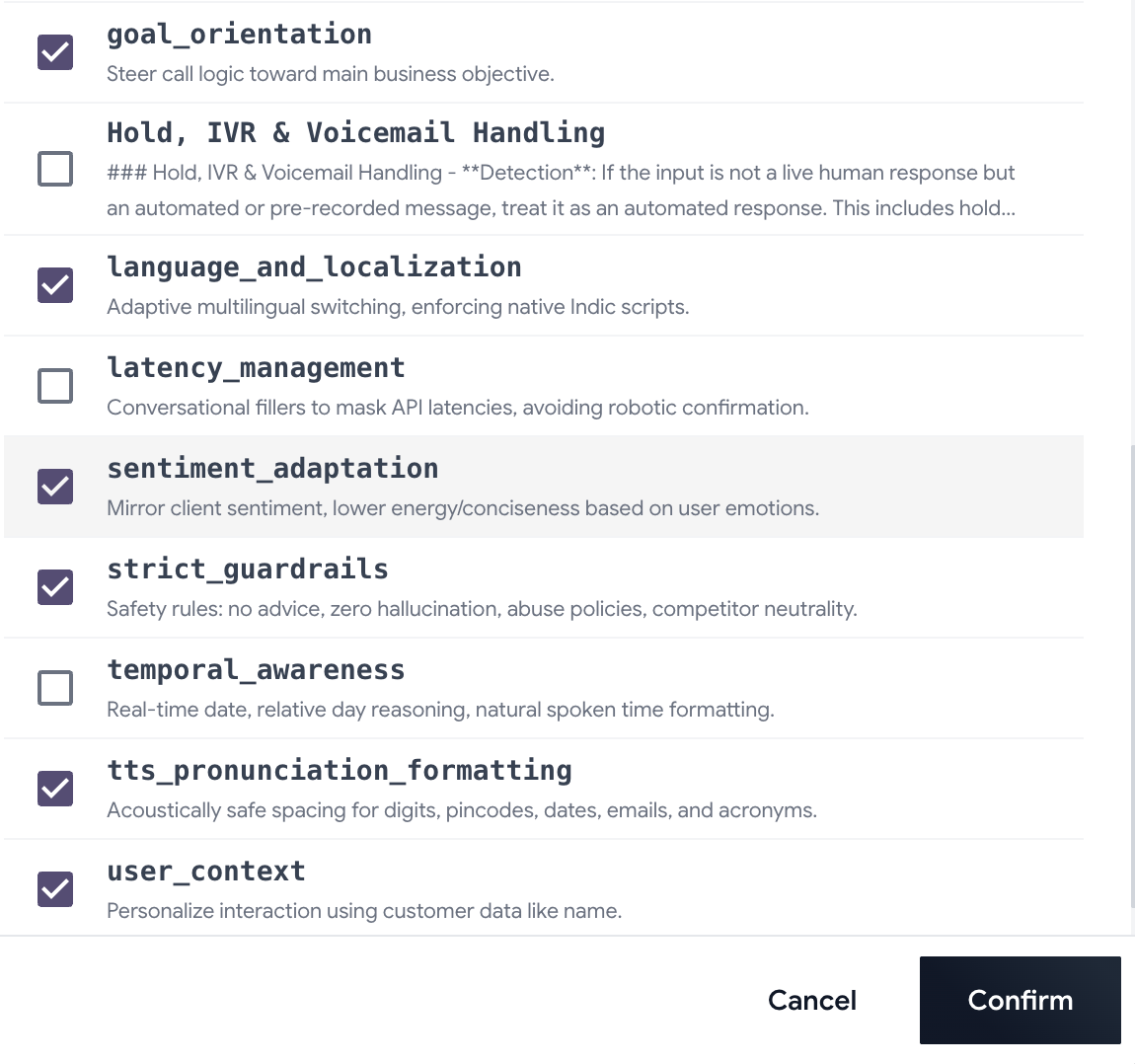
We kept strict_guardrails and tts_pronunciation_formatting. We unticked language_and_localization, because it enforces native Indic scripts and our English words kept coming out in Devanagari.
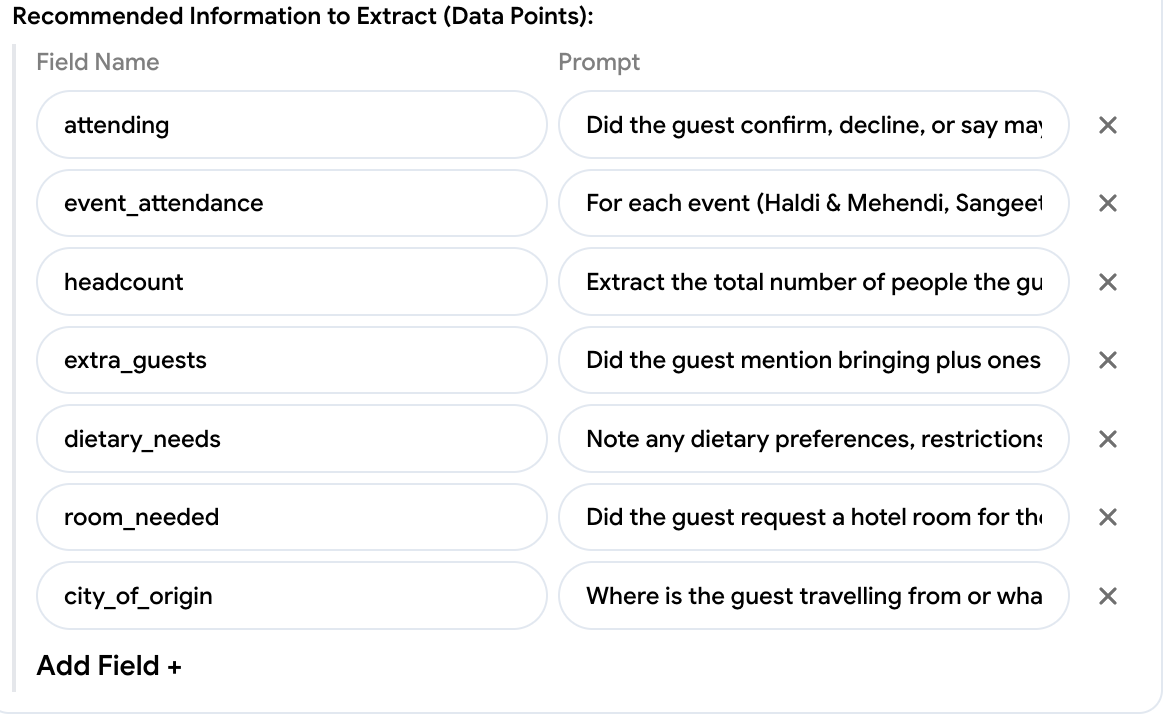
Analysis: Extract information out of every call.
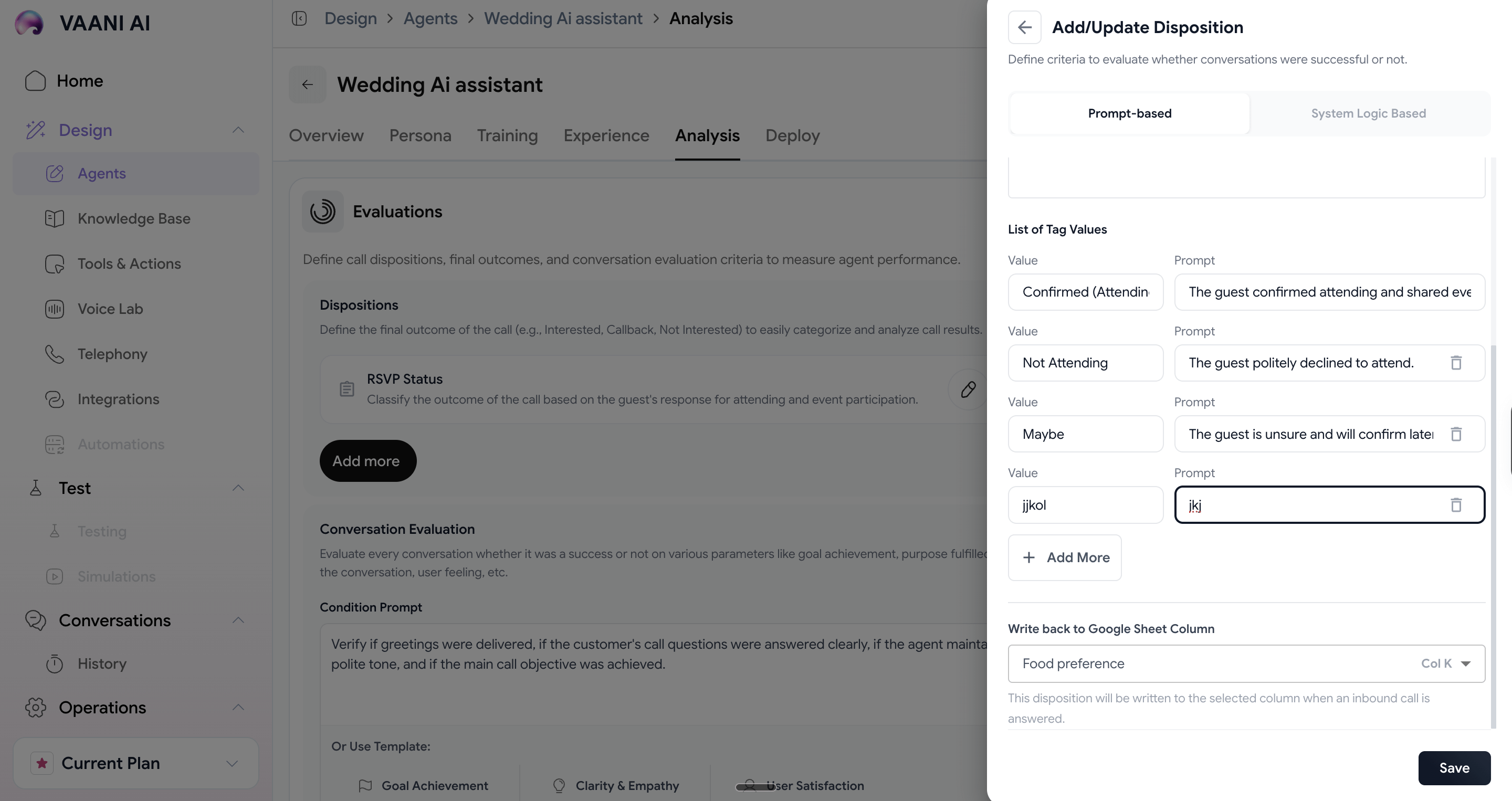
The last tab is for you, not the agent. After each call, Analysis reads the transcript and pulls out the details you care about. Under Analysis, add a Disposition.
So, what is it?
A disposition is one thing to pull out. You give it a name, a list of values (like Confirmed, Not Attending and Maybe) with a plain-English rule for when to pick each one, and a Google Sheet column. You decide whether the result goes to the sheet at all, and which column it lands in.
Step 3: Record every call in a Google Sheet.
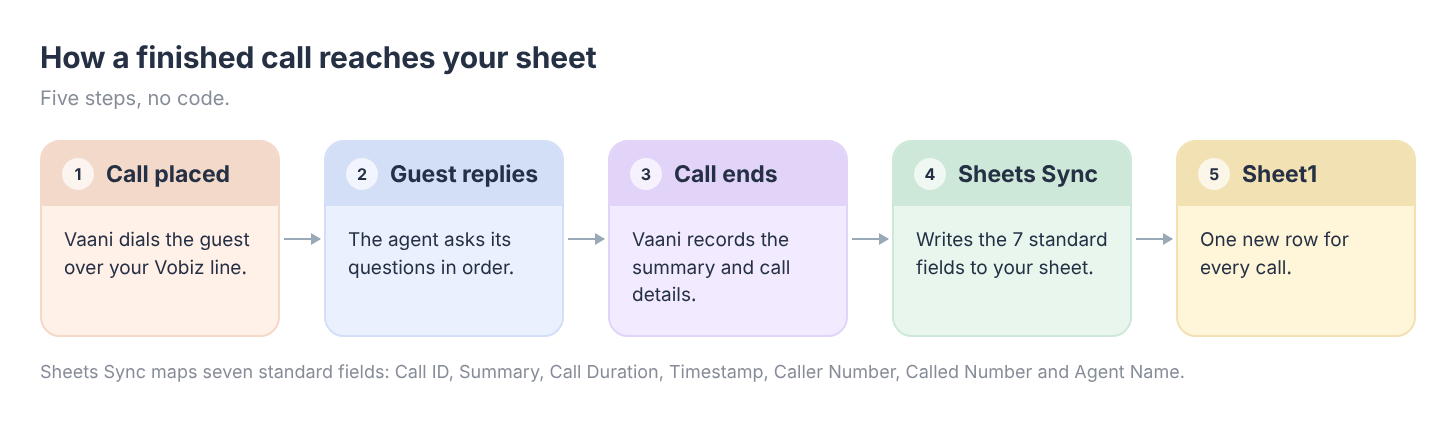
Here’s the setup.
In Vaani, open Integrations and click Add Integration.
Choose Google Sheets and sign in with your Google account.
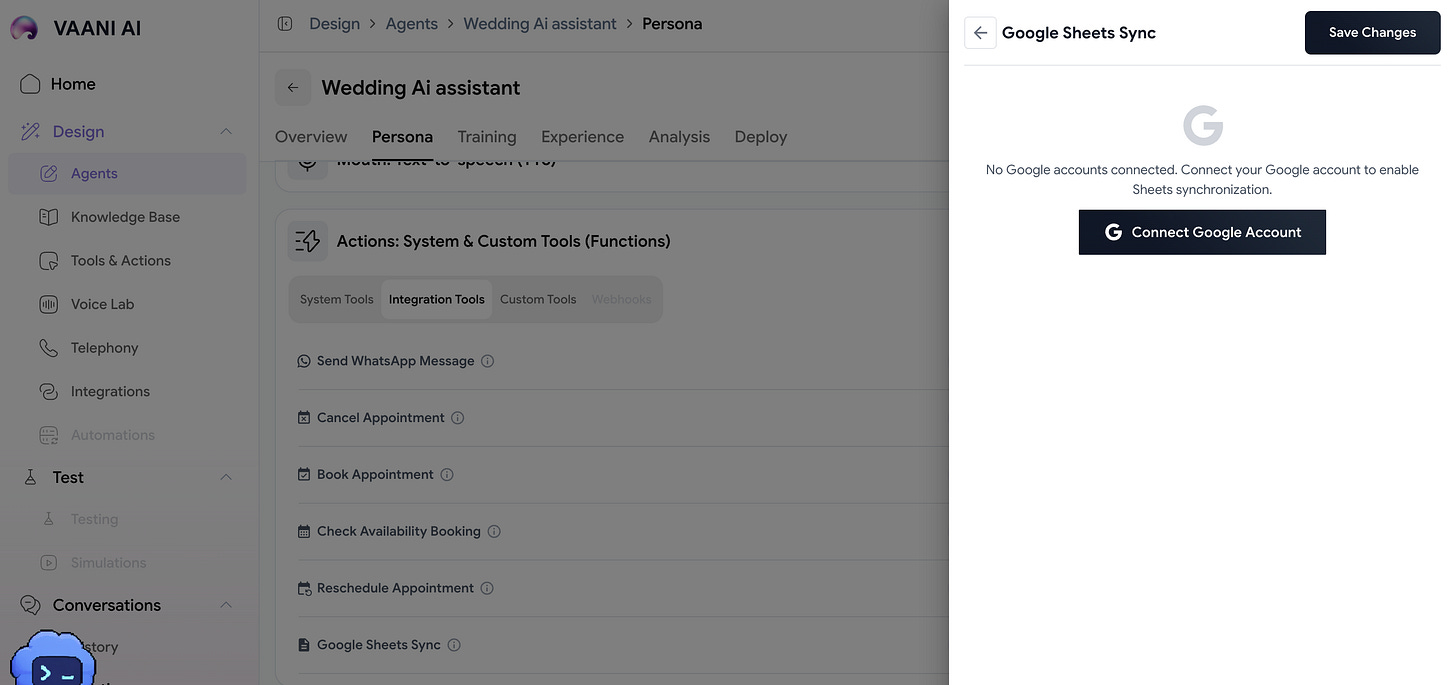
Vaani offers a default set of columns. Delete the ones you don’t need, and Vaani creates the Google Sheet with the rest.
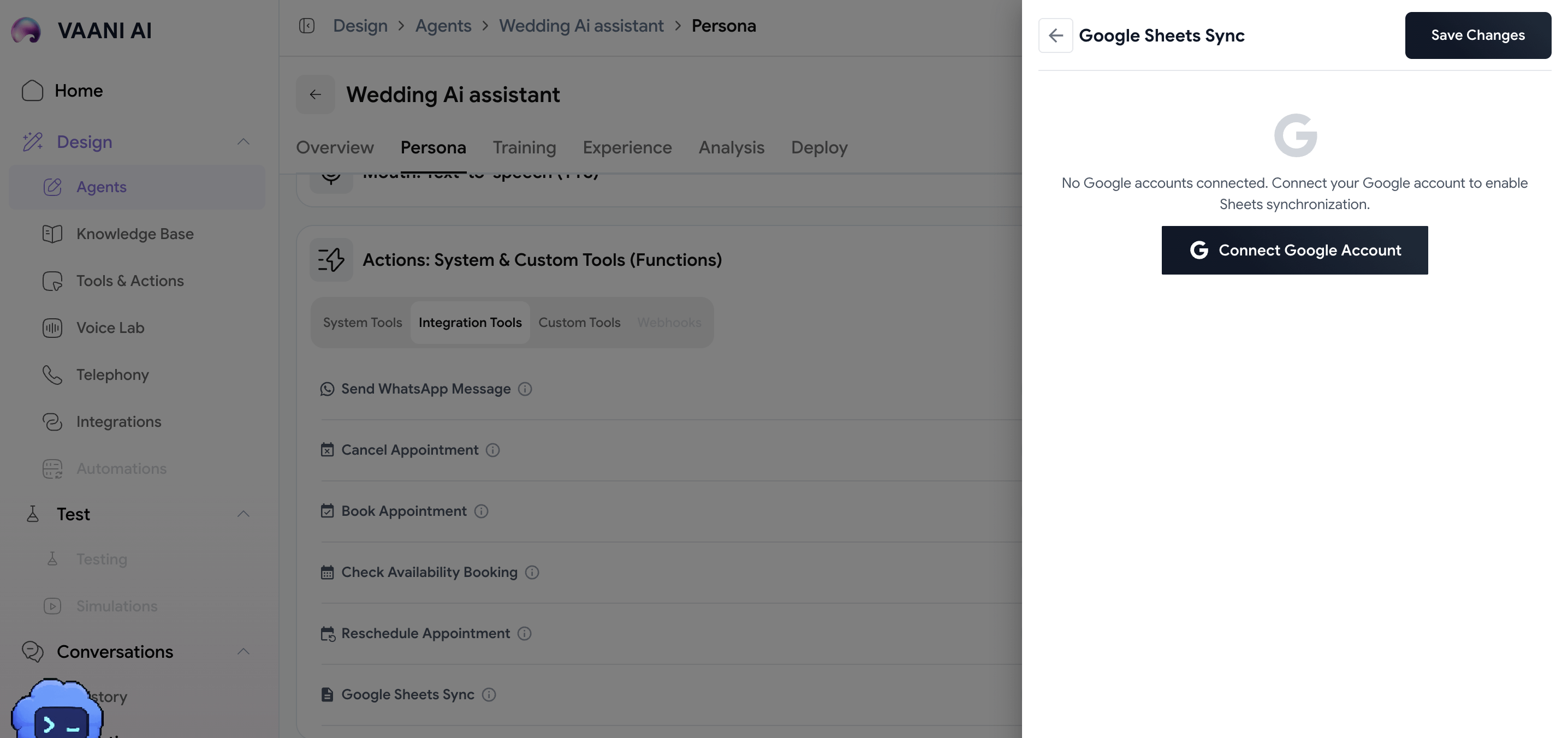
Under Agents with Google Sheets Sync, your agent should be listed with its sheet tab. Ours is Sheet1. The status should say Enabled.
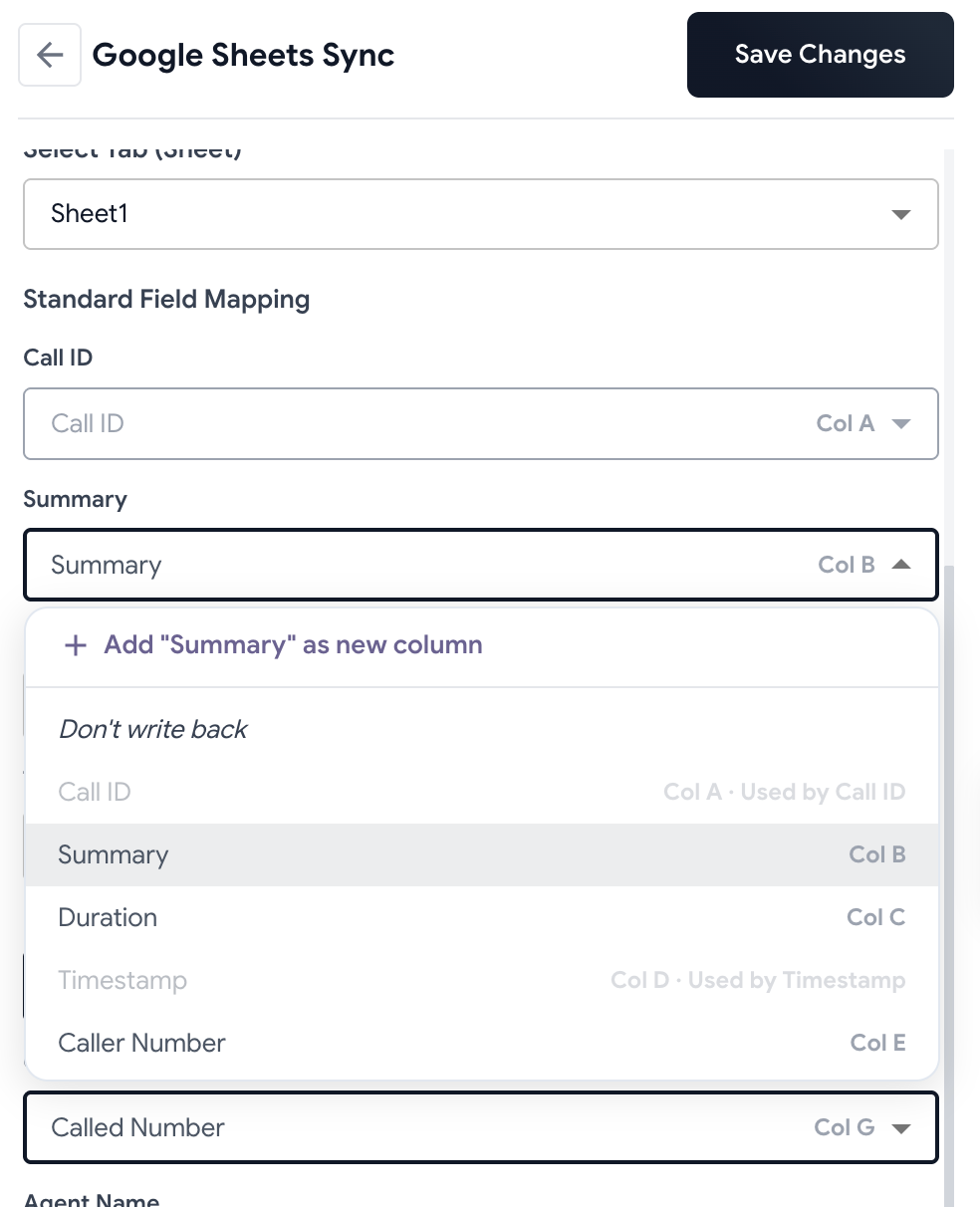
On the Integrations page, click View Mapping. Check where each field lands, and change it if needed.
Each field should point at the header with the same name. Ours started out mismatched, with Timestamp pointed at a column called Phera.
Here’s the catch.
Sheets Sync writes seven fixed fields, so headcount, city, travel mode and hotel needs don’t get their own columns from it. They travel inside the Summary.
There’s a second route.
In Analysis (Step 2), each data point, like headcount or city_of_origin, can write into a sheet column of its own: open the data point and pick a column under Write back to Google Sheet Column.
Want a column that tracks whether Rohan has followed up? Add it yourself, to the right of the synced columns. Try Rohan called?, Called on and Rohan’s notes. The sync doesn’t write to them, so it can’t overwrite them. Here’s what we added.
Checkpoint: your agent shows as Enabled under Agents with Google Sheets Sync, and each field maps to the header with the same name. Your first row arrives after your first call in Step 5.
Step 4: Connect Vaani to Vobiz.
Before the AI can call guests, we need to connect it to the phone network. This is where the SIP domain and credential from Step 1 come in.
In Vaani, open Telephony. You’ll see four tabs: Phone Numbers, Blacklists, Capacity & Concurrency and Verified Contacts.
Click Add Phone Number, and choose to connect a number you already have.
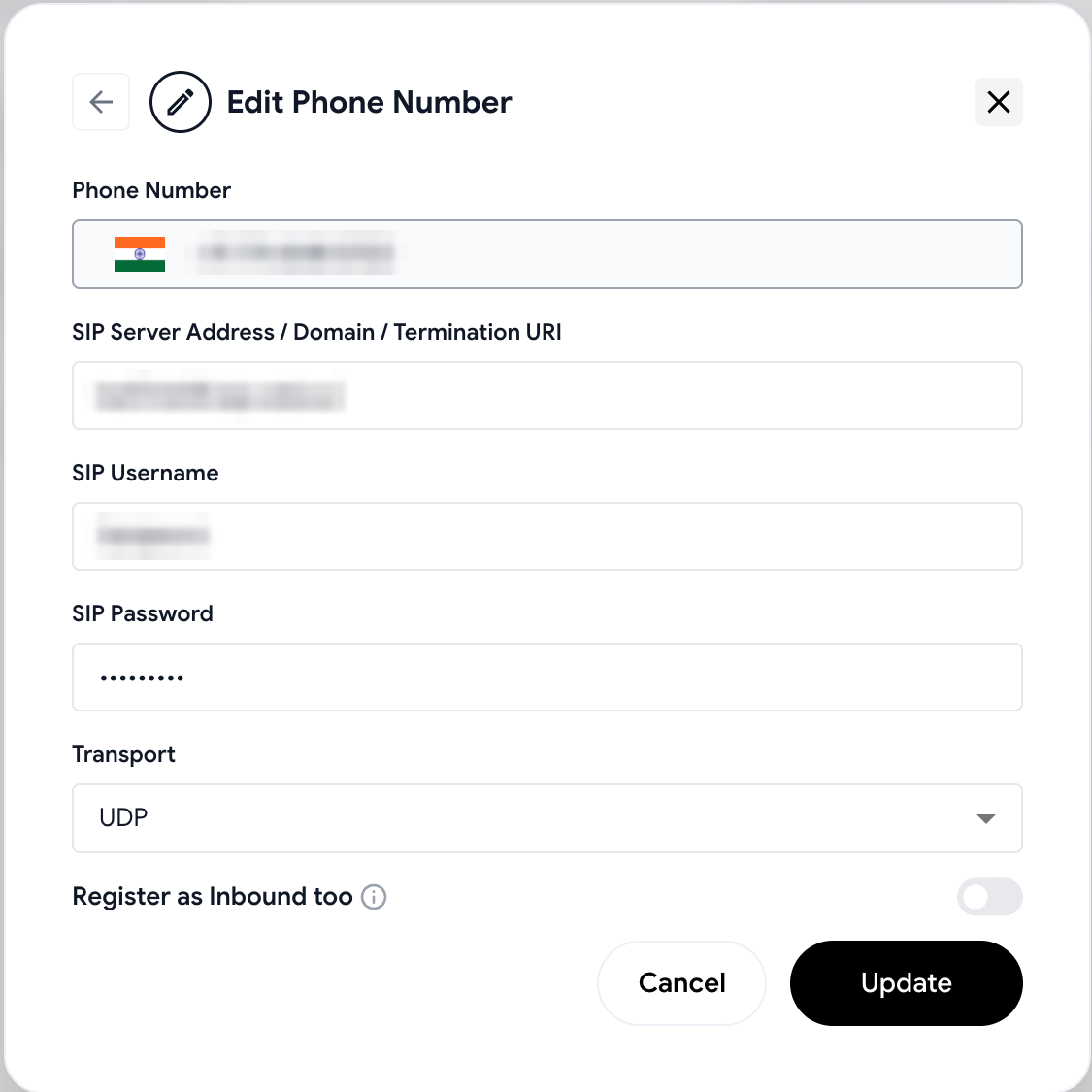
Fill in the form:
Phone Number: the number from Step 1.
SIP Server Address / Domain / Termination URI: the SIP domain from your Vobiz trunk.
SIP Username and SIP Password: the SIP credential from your Vobiz trunk.
Transport: UDP.
Register as Inbound too: leave it off. Our agent only makes calls.
Click Update.
This is how it should look.
Your number now shows up in the Phone Numbers list.
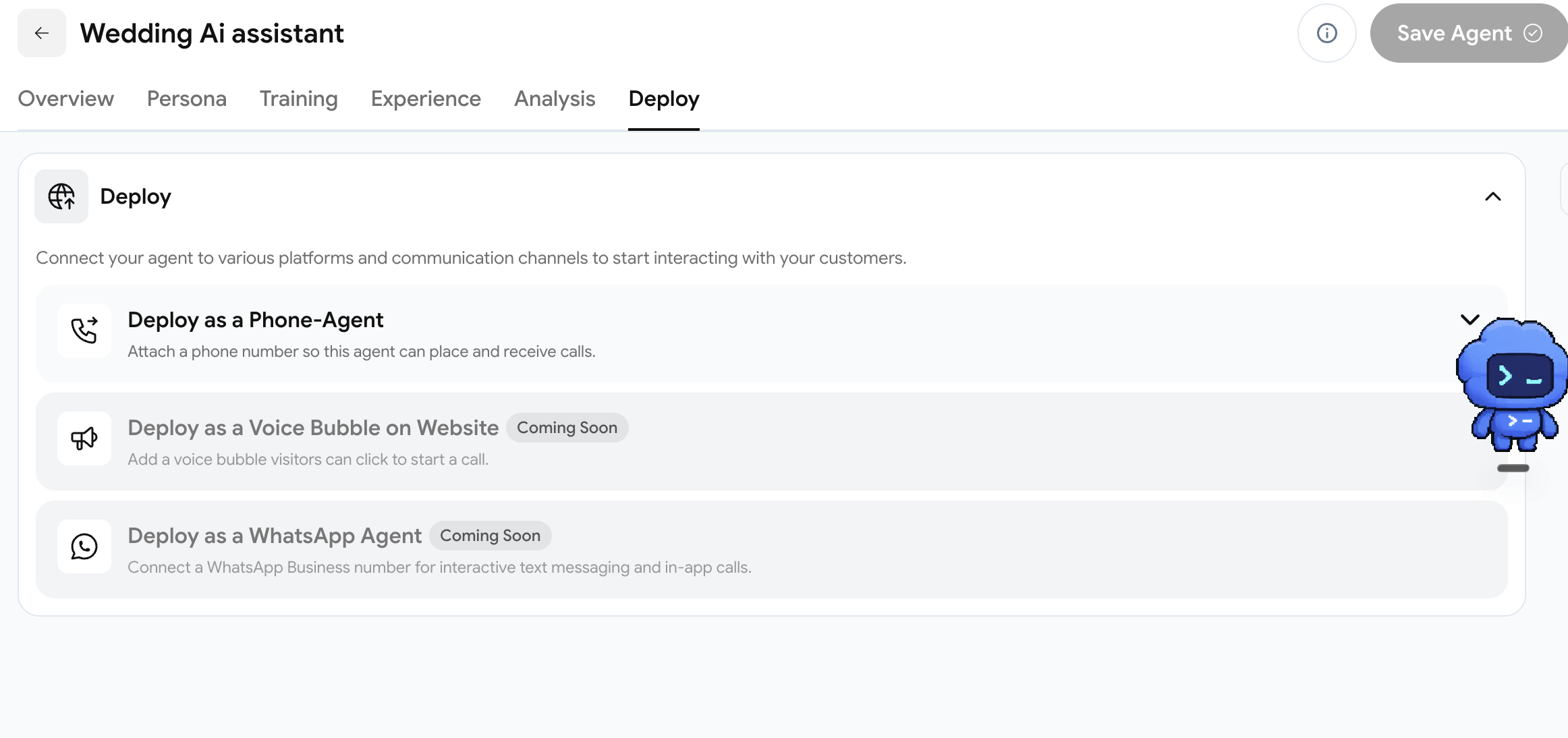
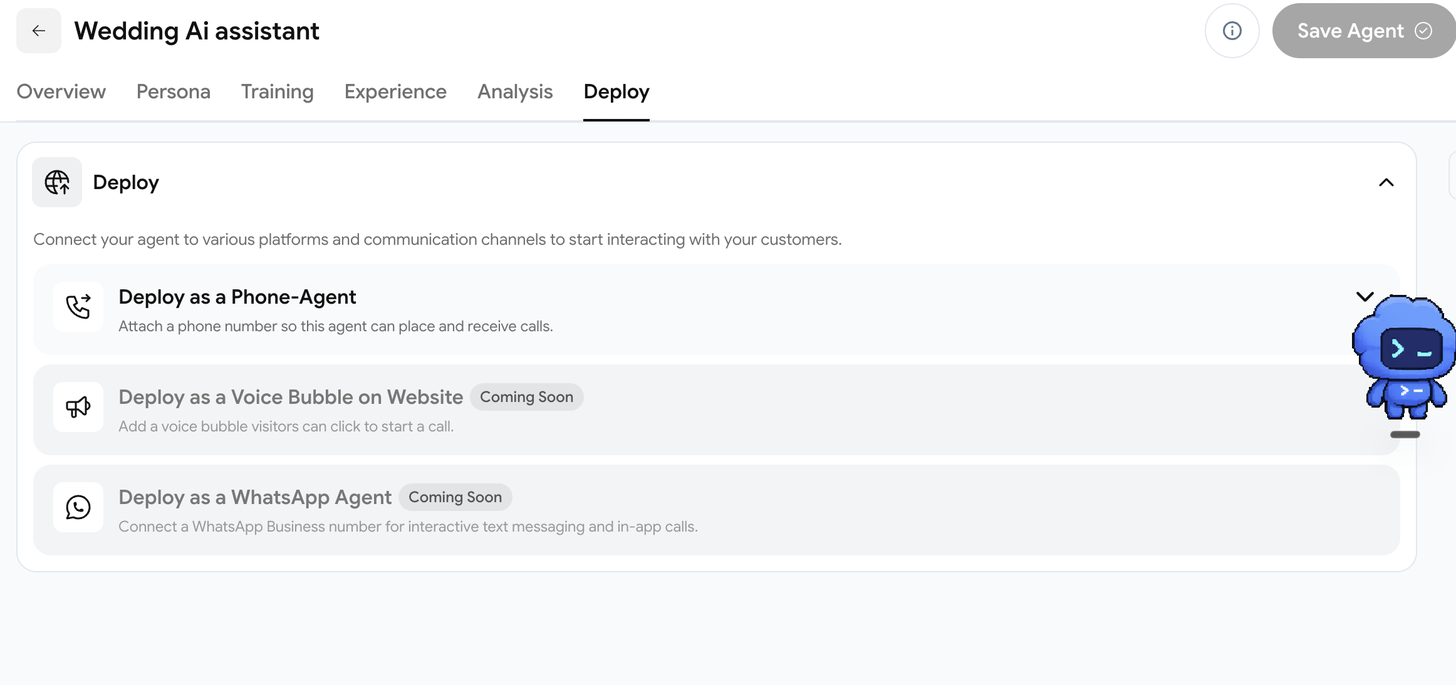
Open your agent and go to Deploy.
Expand Deploy as a Phone-Agent. It says: “Attach a phone number so this agent can place and receive calls.”
Pick your number and click Save Agent.
Checkpoint: go back to Telephony. Your agent’s name should now show under Agents on Outbound line.
Step 5: Launch your first campaign.
Time to hear it. A campaign is how Vaani places outbound calls in bulk: an agent, a list of contacts and a few limits. We made our first call with a campaign of one contact: us.
Go to Operations → Campaign Manager and click New Campaign. Name it; a description is optional.
Choose your agent, then upload a CSV with just your own number. It needs two columns, contact_number and name. Any extra column becomes a variable the agent can use.
Set the limits, then start the campaign. Ours were Max Concurrency 1, Max Retries 0, Retry After 30 Minutes and DND Check off. The campaign’s Phone Numbers tab shows which number it dials from.
Pick up when your phone rings.
Play the guest. Try these, one call each:
“Yes, I’m coming to everything.”
“I’m not sure yet.”
“Can I bring a friend?”
“What time is the wedding?”
Hang up when it says goodbye.
Then check the call in three places.
Vobiz Console → SIP Trunk → Call Logs: the call should be listed here.
Vaani → Conversations → History: open the call to see the transcript.
Your Google Sheet → Sheet1: a new row should appear.
Checkpoint: your phone rings, the agent greets you by name, the call shows up in Vobiz and Vaani, and a row lands in Sheet1. If it doesn’t you might have to sync the sheet.
So, can AI do an RSVP caller’s job?
For the asking and the logging, yes. And Vaani can do more than we used. Our agent calls a guest from a campaign, asks its questions in order, and logs the call to a Google Sheet. That’s the core job, and it works.
Vaani has features we haven’t tried.
From what we’ve seen in the app, it can send WhatsApp messages and schedule callbacks. We haven’t tested either, so we can’t say how well they work. Here’s where our agent stops today:
Call a “maybe” guest back. Vaani can schedule callbacks, but we haven’t set one up. Ours writes down the answer.
Book rooms, take payment or change the guest list. Ours doesn’t try. It gives guests Rohan’s number.
Transfer a call to a person. We haven’t found where to set this up, so our agent doesn’t promise one.
Tell Rohan what it heard. Vaani can send WhatsApp messages, but ours isn’t switched on, so Rohan only knows what he reads in the sheet.
Give each answer its own column. Sheets Sync writes seven fixed fields and the rest rides in the Summary, unless an Analysis data point writes it to a column. We haven’t tested that on outbound calls.
Here’s what we’d try next, with tools Vaani already seems to offer: a WhatsApp message to Rohan for every “maybe”, a second call to those guests before 20 November, and one sheet column per answer.
Before you leave.
If you’ve followed our newsletters and built a few tools, you already know how satisfying it is to make something work. But what would it take to turn your own idea into a product people would pay for?
500+ folks are doing exactly that inside Build Sprint.
You bring your own idea. Get hands-on guidance when you’re stuck, feedback from experienced builders, and help turning your first version into a production-ready product you can take to real customers.
Here’s what members from our previous cohorts have built.