

One thing no one tells you about writing an AI newsletter: you end up signing up for a lot of free trials.
And everyone wants your card details. Which means when the trial ends, your card gets charged — whether you remembered to cancel or not. I almost lost $100 to a Lovable plan that way.
So I built a tool to catch those misses. It scans my inbox, reads through every subscription email, and creates a Google Calendar block for anything that needs a decision. The whole build took under an hour. Here’s how I did it.
Before we begin.
It’s one thing to build an AI product once. It’s so much harder to keep showing up for building.
GrowthX puts you around people who get that every single week. Think builders exchanging notes, giving live feedback, figuring it out together. Plus, the room, vibes, and credits — it’s all covered.
What does the tool really do?
It runs, finds every trial subscription and credit that needs a decision before you need to pay for them.
Note: You can build this exact tool over any stack. Since I’m locked into the Google ecosystem (I use the email for subscriptions and the Calendar app everyday), building with Google AppScript made sense.
Here’s the entire stack.
Google Apps Script: native access to Gmail and Calendar, no OAuth setup
Groq API: free tier, no credit card, reads the emails and extracts the dates
Google Sheets: logs every entry, makes sure nothing gets added twice
The tool does three things.
It searches your Gmail for every email about trials, renewals, and expiring credits using Google Apps Script. It sends each email to Groq ( a free AI API), which reads it and extracts three pieces of information: the tool name, the amount, and the expiry date. Google Apps Script then takes those three things and creates a Calendar block two days before the deadline, with a note that tells you exactly what to decide. That’s it. Let’s get straight into building.
Step 1: Create a Google Sheet
This is where every expiry gets logged. Tool name, amount, expiry date, and the original email subject. Why? So that Groq doesn’t check the same email in two different sessions and waste credits.
Go to sheets.google.com and create a blank sheet
Rename the tab at the bottom to Commitments. Now the script looks for this exact sheet to check emails
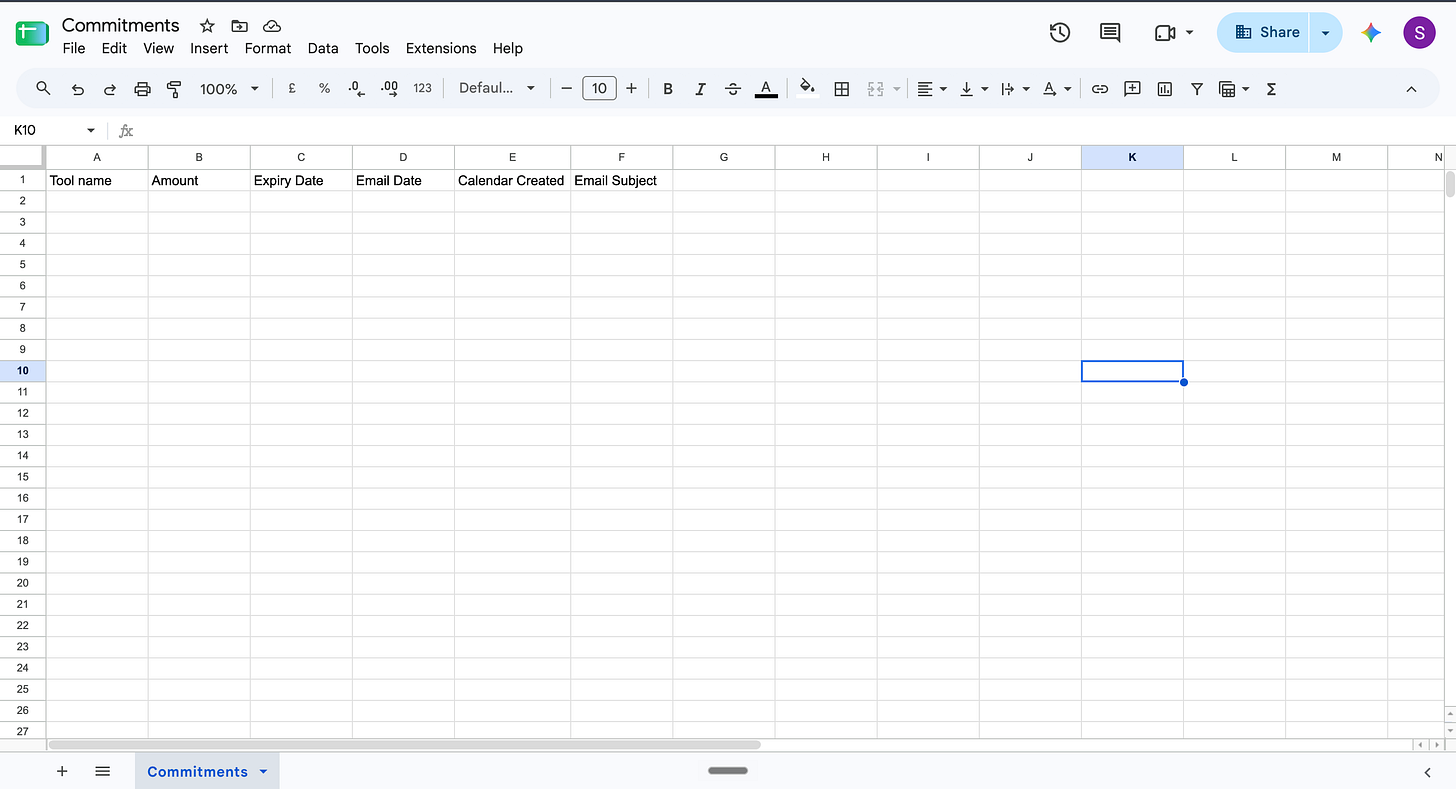
Add these headers across Row 1: Tool Name · Amount · Expiry Date · Email Date · Calendar Created · Email Subject
Step 2: Get your Groq API key
Groq is the AI layer that reads each email and pulls out the tool name, amount, and expiry date. The free tier is permanent; there’s no credit card required, no expiring trial.
Go to console.groq.com and sign up
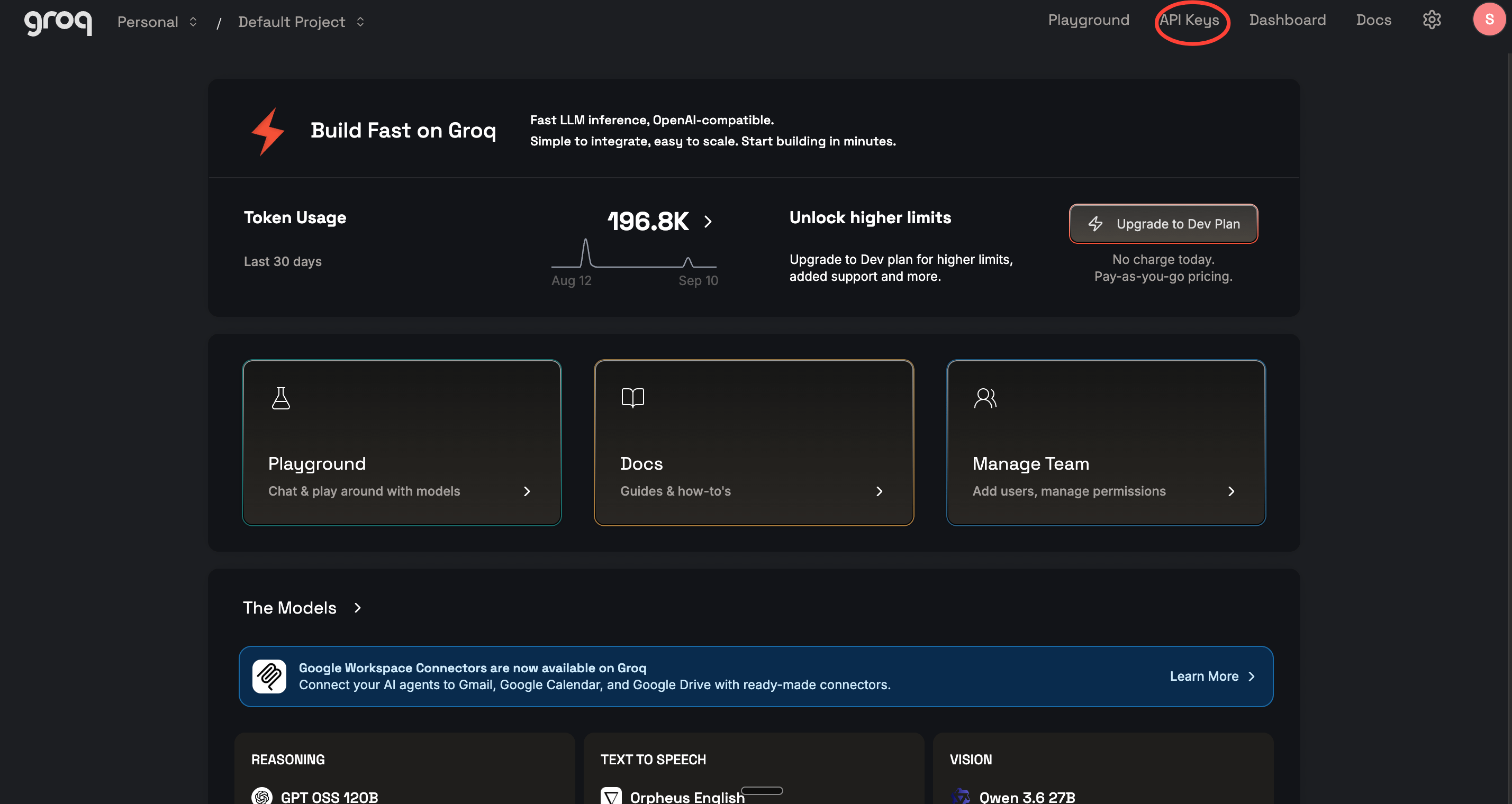
Click API Keys in the left sidebar → Create API Key
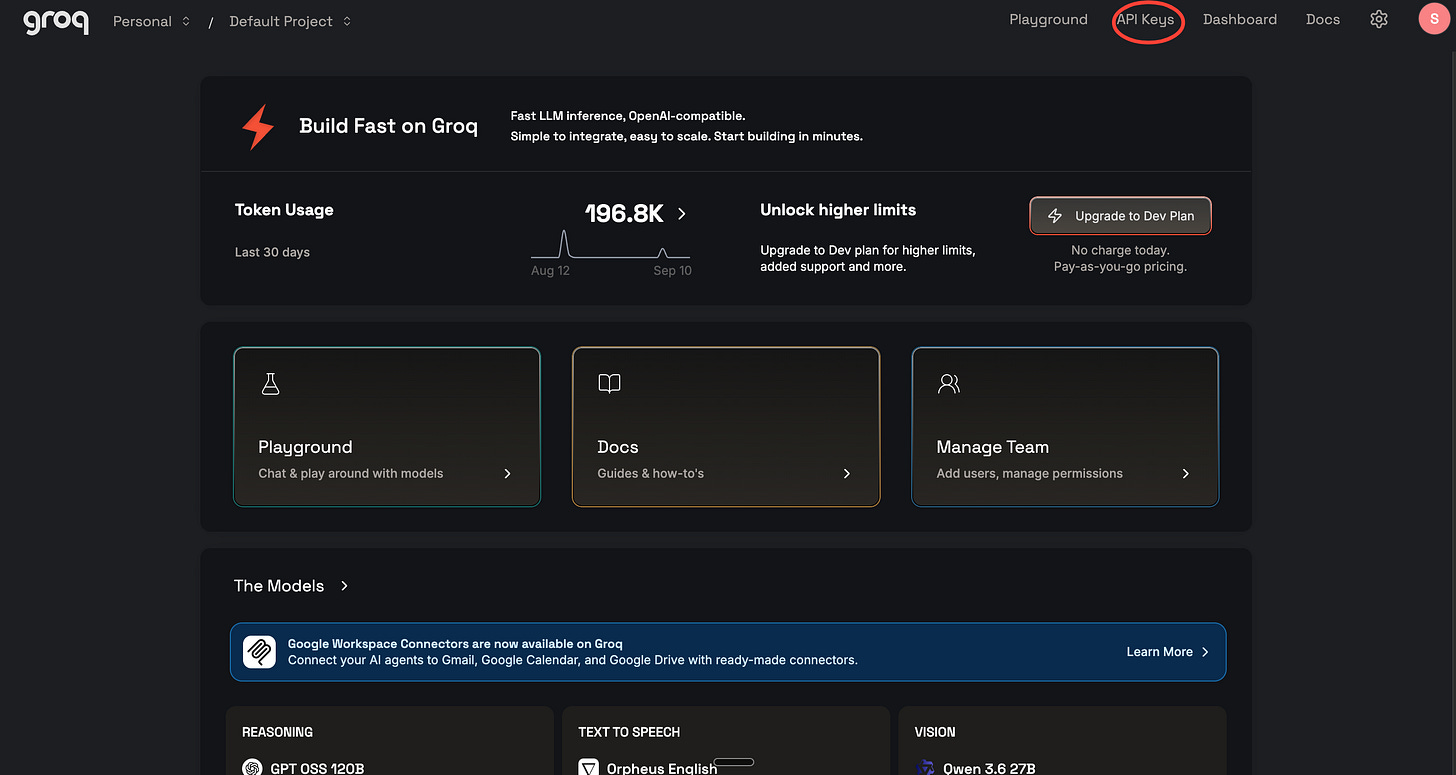
Name it anything; even commitment-tracker works
Copy the key and save it somewhere safe. You won’t see it again after closing the popup.
Step 3: Open Apps Script
This is where the code lives. Apps Script is Google’s built-in scripting environment. It runs in your browser, connects natively to Gmail, Sheets, and Calendar, and costs nothing. Here’s how to access it.
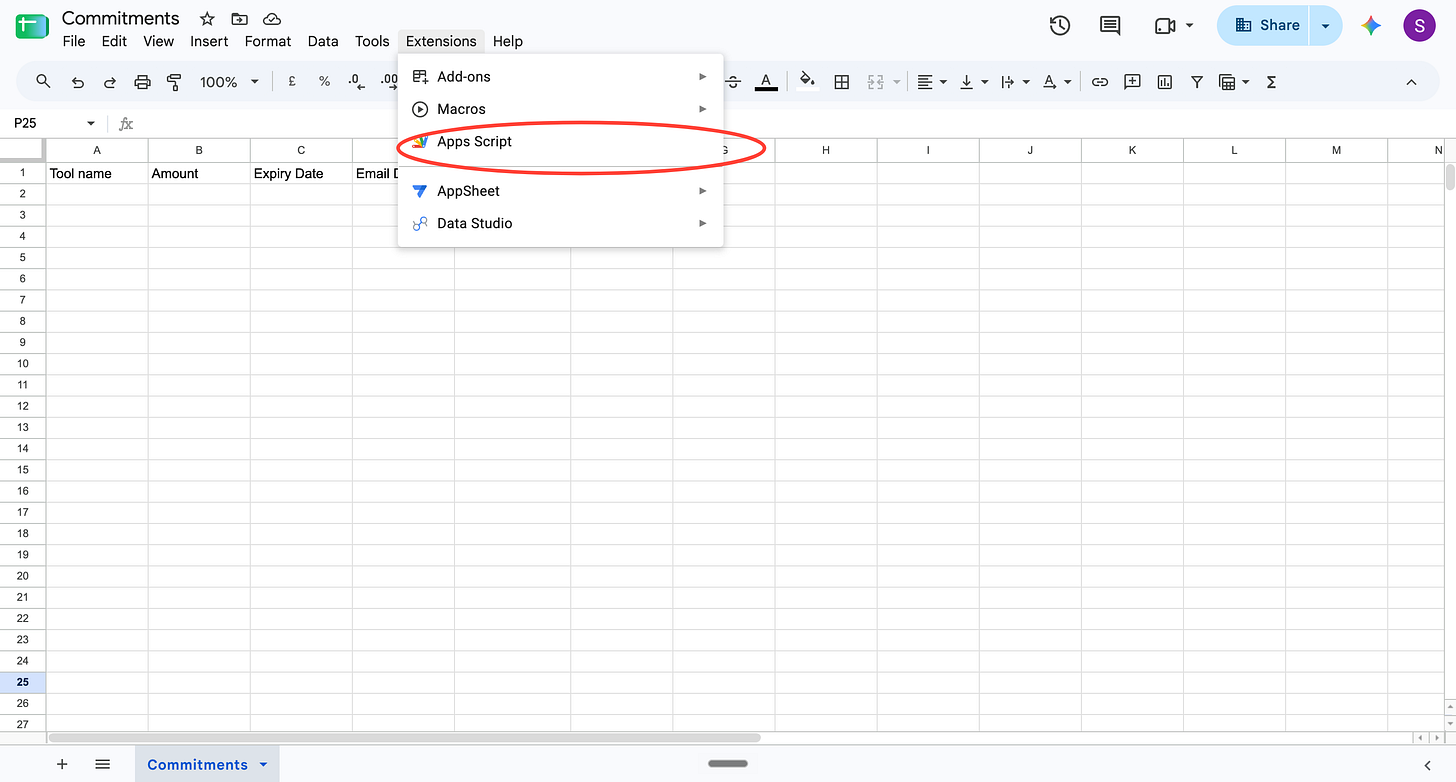
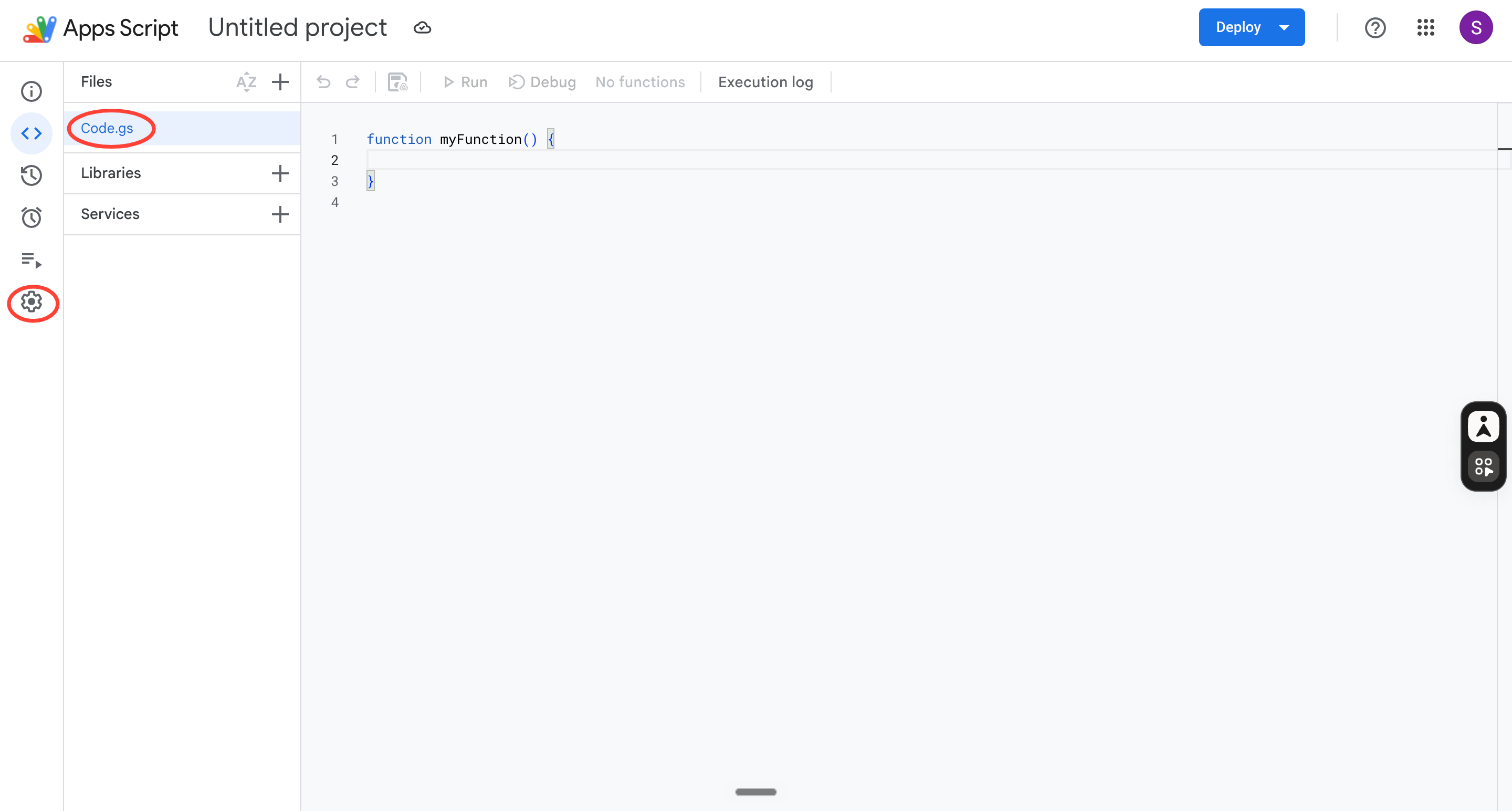
From inside your Google Sheet, click Extensions in the top menu → Apps Script
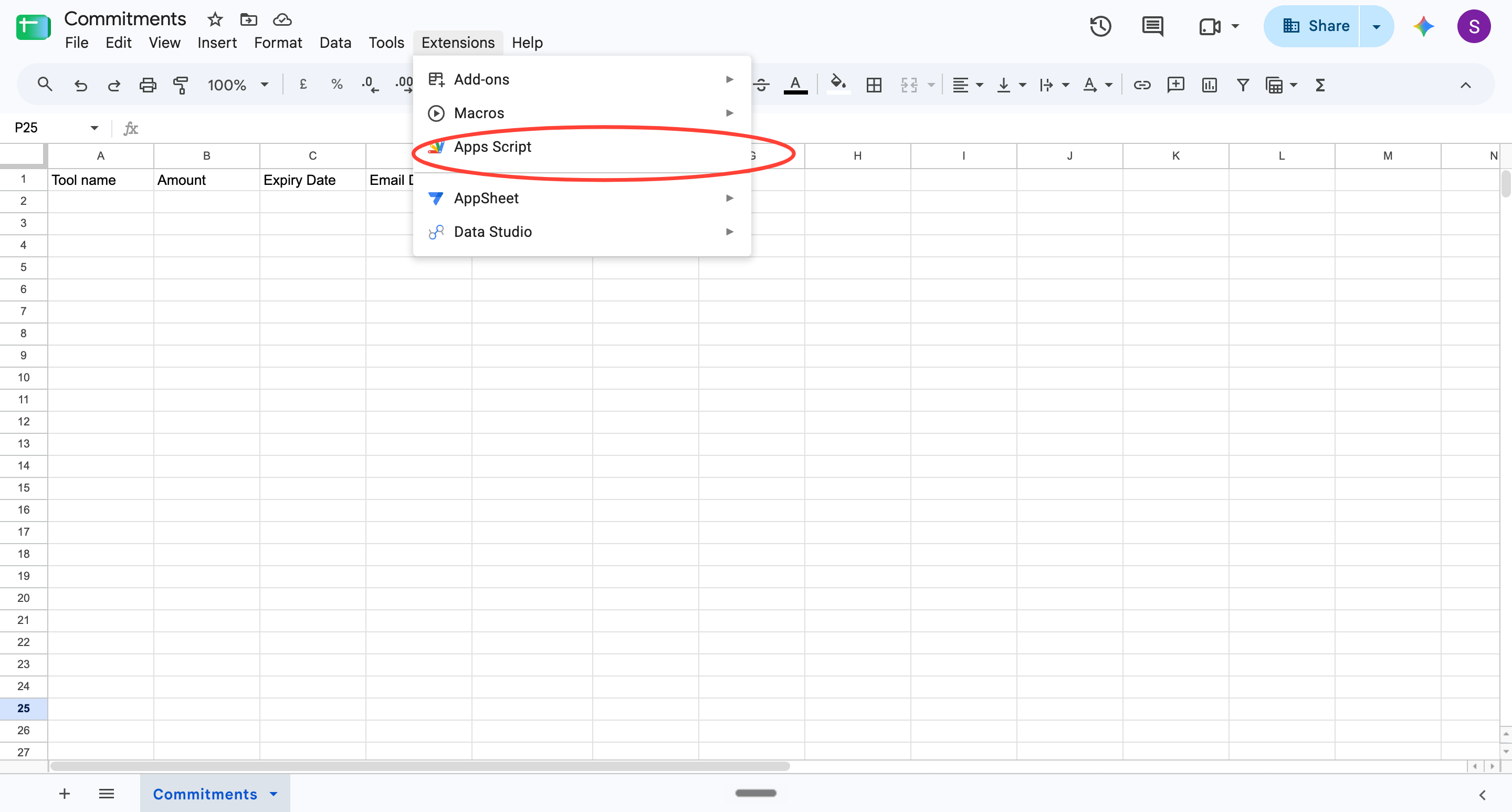
A new tab opens with an empty editor
Delete the default myFunction block so the editor is completely empty
Step 4: Store your API key securely in Apps Script
We’ll ask the script to fetch the Groq key from Script Properties rather than hardcoding it. This way, we can share the script with anyone without exposing your credentials.
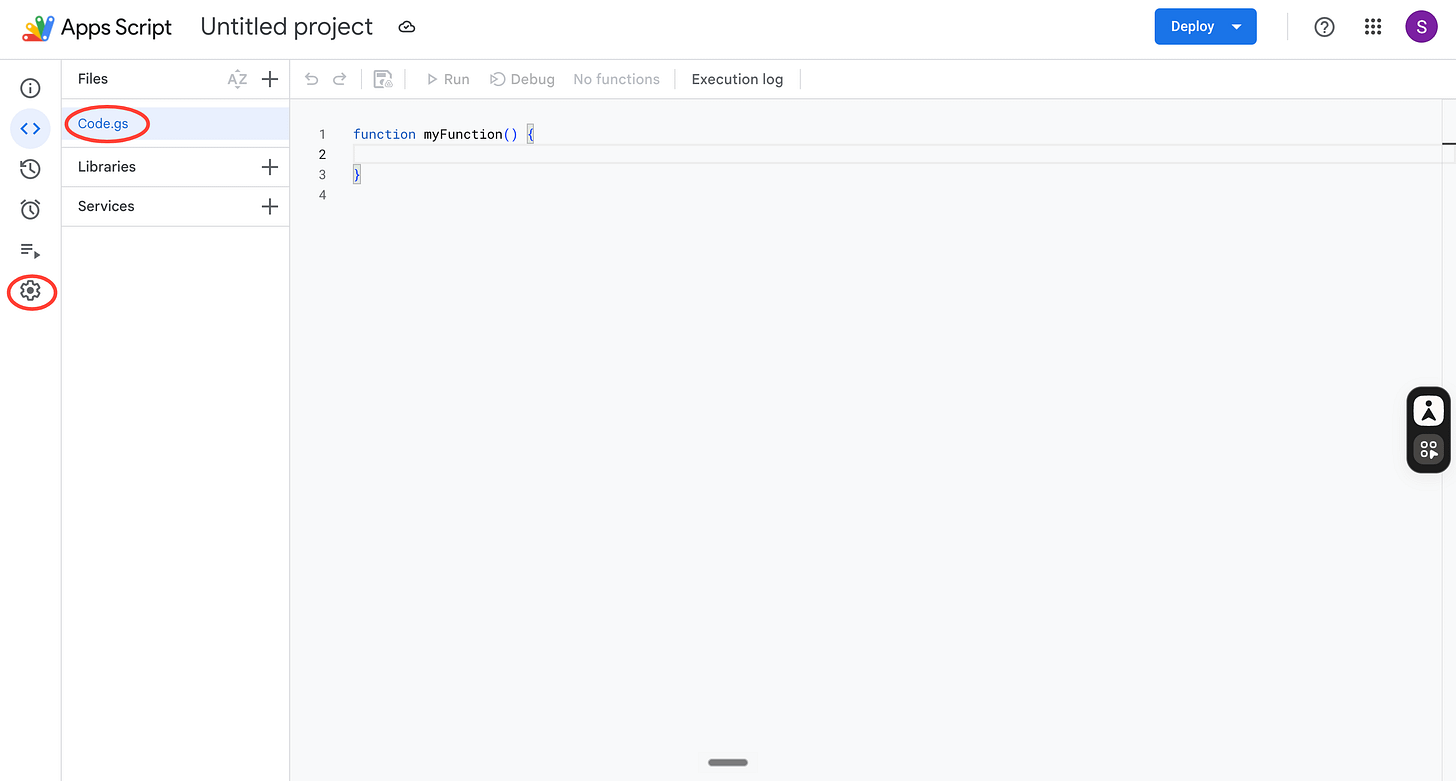
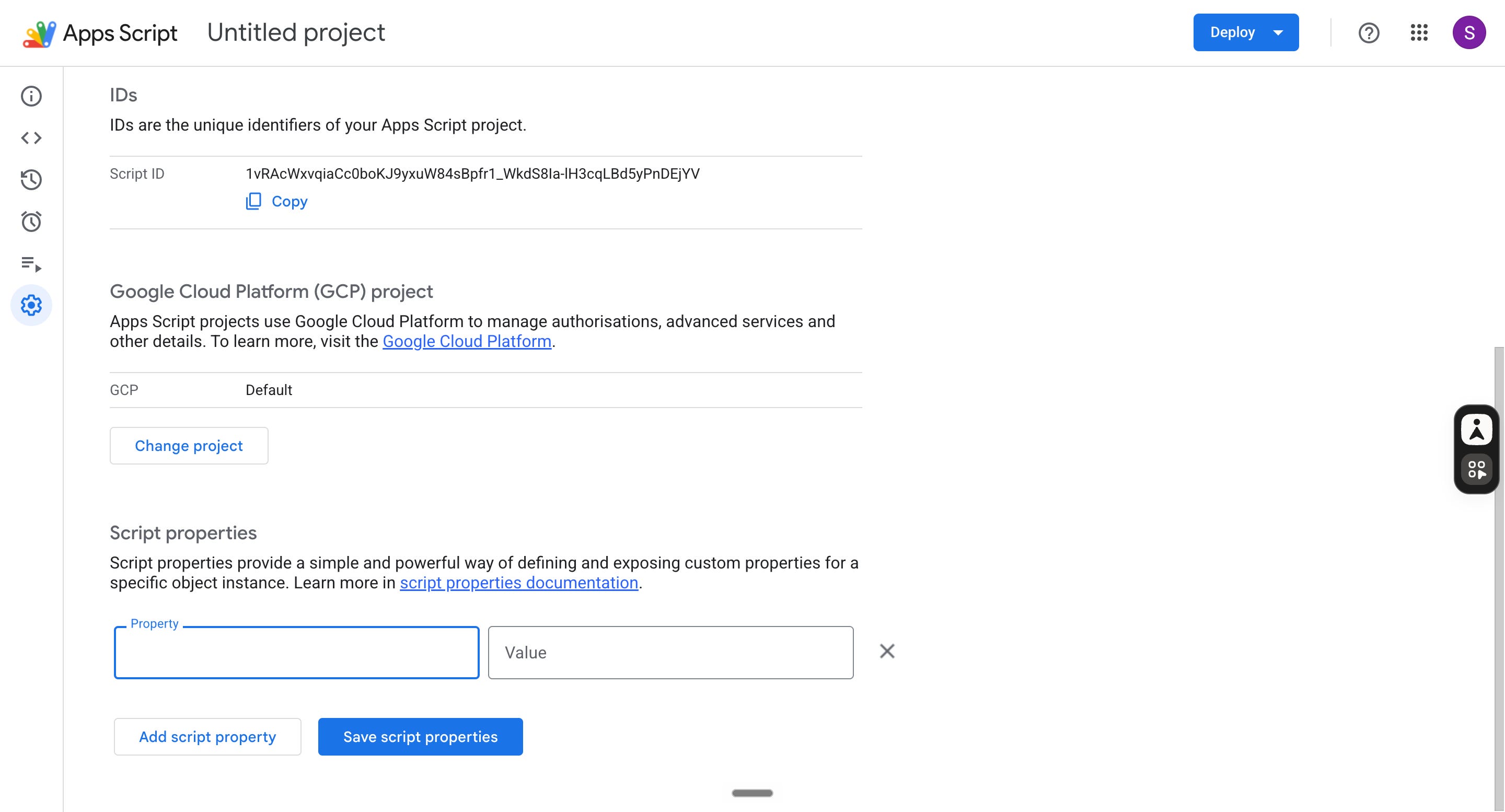
Click the gear icon on the left sidebar (that’s Project Settings)
Scroll down to Script Properties → Add script property
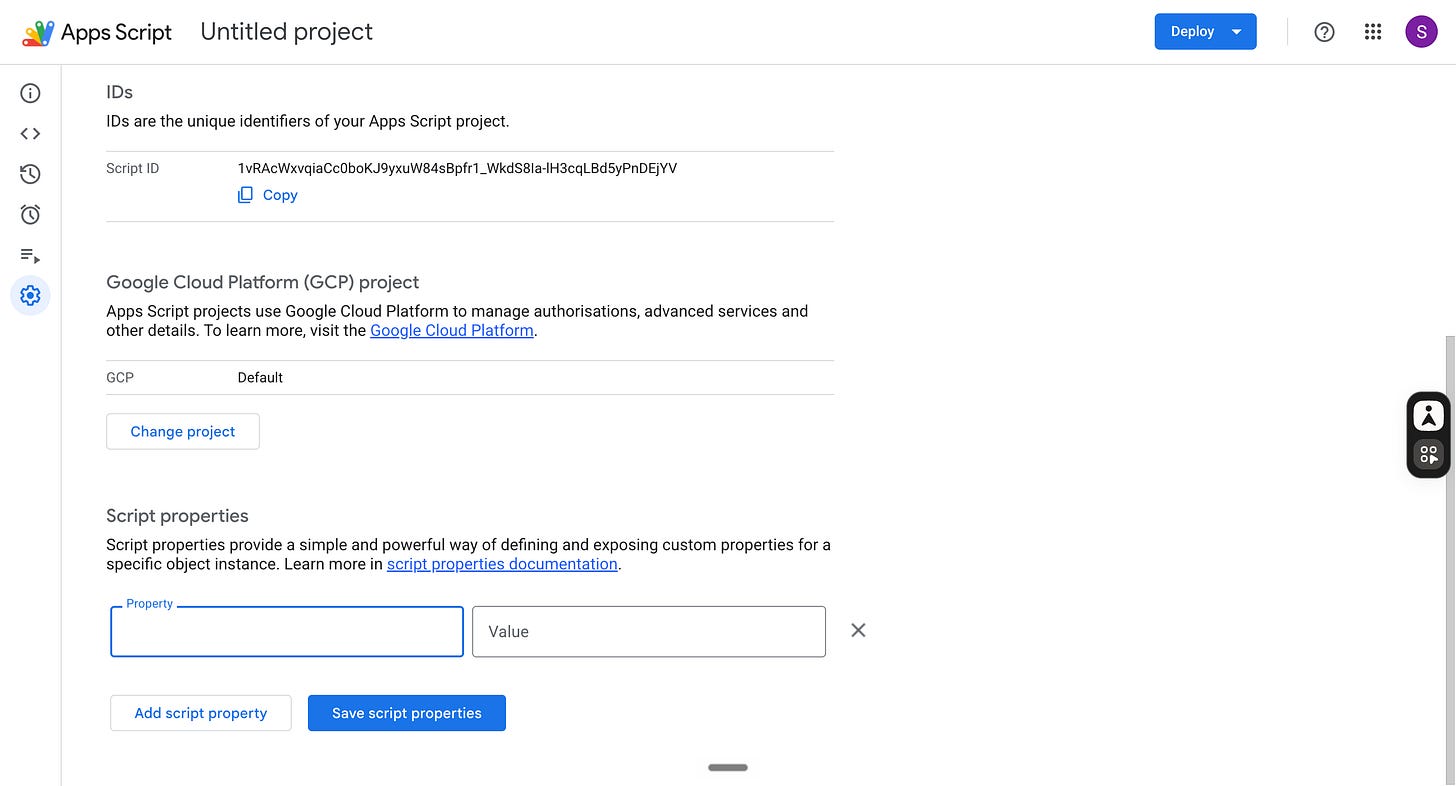
Set the property name to GROQ_KEY and paste your Groq key as the value
Click Save script properties
Step 5: Paste the code
Delete everything in the Apps Script editor and paste this exactly:
const GROQ_API_KEY = PropertiesService.getScriptProperties().getProperty(”GROQ_KEY”);
const SHEET_NAME = “Commitments”;
const GROQ_MODEL = “openai/gpt-oss-120b”;
function scanAndTrack() {
const sheet = SpreadsheetApp.getActiveSpreadsheet().getSheetByName(SHEET_NAME);
const calendar = CalendarApp.getDefaultCalendar();
const existingData = sheet.getDataRange().getValues();
const existingKeys = new Set();
for (let i = 1; i < existingData.length; i++) {
const key = `${existingData[i][0]}_${existingData[i][2]}`.toLowerCase();
existingKeys.add(key);
}
const queries = [
“subject:(trial)”,
“subject:(expire OR expiring OR expires)”,
“subject:(renewal OR renewing)”,
“subject:(billing OR invoice OR payment)”,
“subject:(subscription OR plan OR credits)”,
“subject:(ends soon OR ending soon OR ending)”
];
const processedIds = new Set();
for (const query of queries) {
const threads = GmailApp.search(query + “ newer_than:180d”, 0, 50);
for (const thread of threads) {
const messages = thread.getMessages();
for (const message of messages) {
const id = message.getId();
if (processedIds.has(id)) continue;
processedIds.add(id);
const subject = message.getSubject();
const body = message.getPlainBody().substring(0, 1500);
const emailDate = message.getDate();
const extracted = extractWithGroq(subject, body);
if (!extracted) continue;
const key = `${extracted.toolName}_${extracted.expiryDate}`.toLowerCase();
if (existingKeys.has(key)) continue;
existingKeys.add(key);
sheet.appendRow([
extracted.toolName,
extracted.amount,
extracted.expiryDate,
emailDate,
“No”,
subject
]);
}
}
}
createCalendarEvents(sheet, calendar);
Logger.log(”Scan complete.”);
}
function extractWithGroq(subject, body) {
const prompt = `You are extracting billing and subscription data from an email.
Email subject: ${subject}
Email body: ${body}
Today’s date is 2026-09-05. Extract the following fields. If a field cannot be determined confidently, return null.
Return ONLY valid JSON — no explanation, no markdown:
{
“toolName”: “name of the product or service”,
“amount”: “amount as a string e.g. $49 or $0 for free trials”,
“expiryDate”: “date in YYYY-MM-DD format. If the email says ends tomorrow use 2026-09-06. If it says ends in 5 days use 2026-09-10. If it says ends soon with no specific date estimate 2026-09-12. If truly no date can be inferred return null.”,
“isRelevant”: true or false
}
Return isRelevant: false if the email is not about a trial expiry, credit expiry, or subscription renewal.
Return isRelevant: false if no expiry or renewal date can be found.`;
try {
const response = UrlFetchApp.fetch(
“https://api.groq.com/openai/v1/chat/completions”,
{
method: “post”,
headers: {
Authorization: `Bearer ${GROQ_API_KEY}`,
“Content-Type”: “application/json”
},
payload: JSON.stringify({
model: GROQ_MODEL,
messages: [{ role: “user”, content: prompt }],
temperature: 0.1,
reasoning_effort: “low”,
max_tokens: 200
}),
muteHttpExceptions: true
}
);
const json = JSON.parse(response.getContentText());
const content = json.choices?.[0]?.message?.content;
if (!content) return null;
const parsed = JSON.parse(content.trim());
if (!parsed.isRelevant || !parsed.toolName || !parsed.expiryDate) return null;
return parsed;
} catch (e) {
Logger.log(”Groq error: “ + e.message);
return null;
}
}
function createCalendarEvents(sheet, calendar) {
const data = sheet.getDataRange().getValues();
for (let i = 1; i < data.length; i++) {
const toolName = data[i][0];
const amount = data[i][1];
const expiryDateStr = data[i][2];
const calendarCreated = data[i][4];
if (calendarCreated === “Yes” || calendarCreated === “Skipped — past”) continue;
if (!toolName || !expiryDateStr) continue;
try {
const expiryDate = new Date(expiryDateStr);
if (isNaN(expiryDate.getTime())) continue;
const eventDate = new Date(expiryDate);
eventDate.setDate(eventDate.getDate() - 2);
if (eventDate < new Date()) {
sheet.getRange(i + 1, 5).setValue(”Skipped — past”);
continue;
}
const title = `⚠️ ${toolName} — Decide before deadline`;
const description = `Decide whether to cancel or renew ${toolName} (${amount}).\n\nExpiry date: ${expiryDateStr}\n\nAction: Review your usage and cancel or continue before the deadline.`;
calendar.createAllDayEvent(title, eventDate, { description });
sheet.getRange(i + 1, 5).setValue(”Yes”);
} catch (e) {
Logger.log(`Calendar error for row ${i}: ${e.message}`);
}
}
}
Click Cmd+S to save.
Step 6: Run it
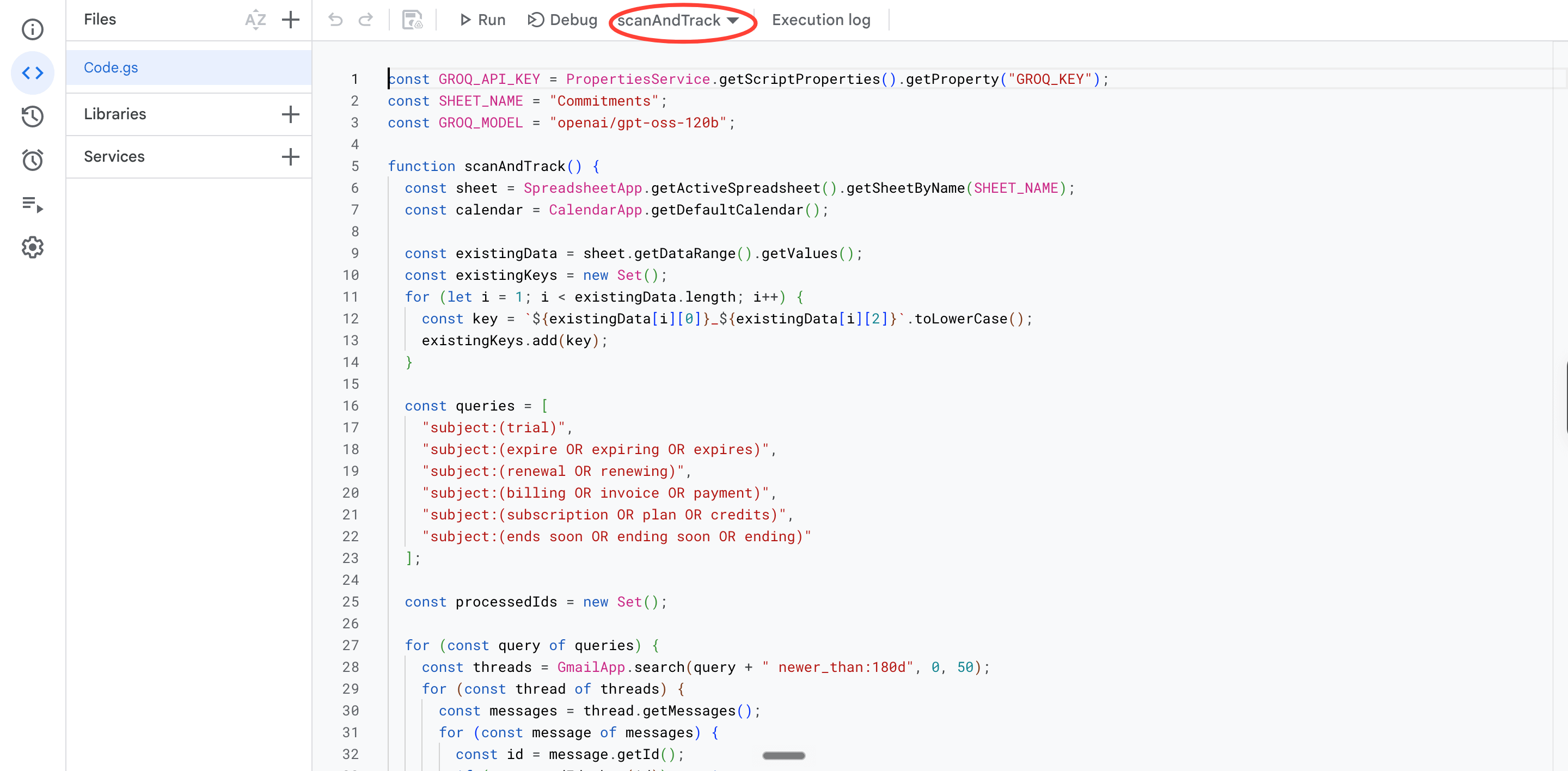
In the function dropdown at the top of the editor, select scanAndTrack
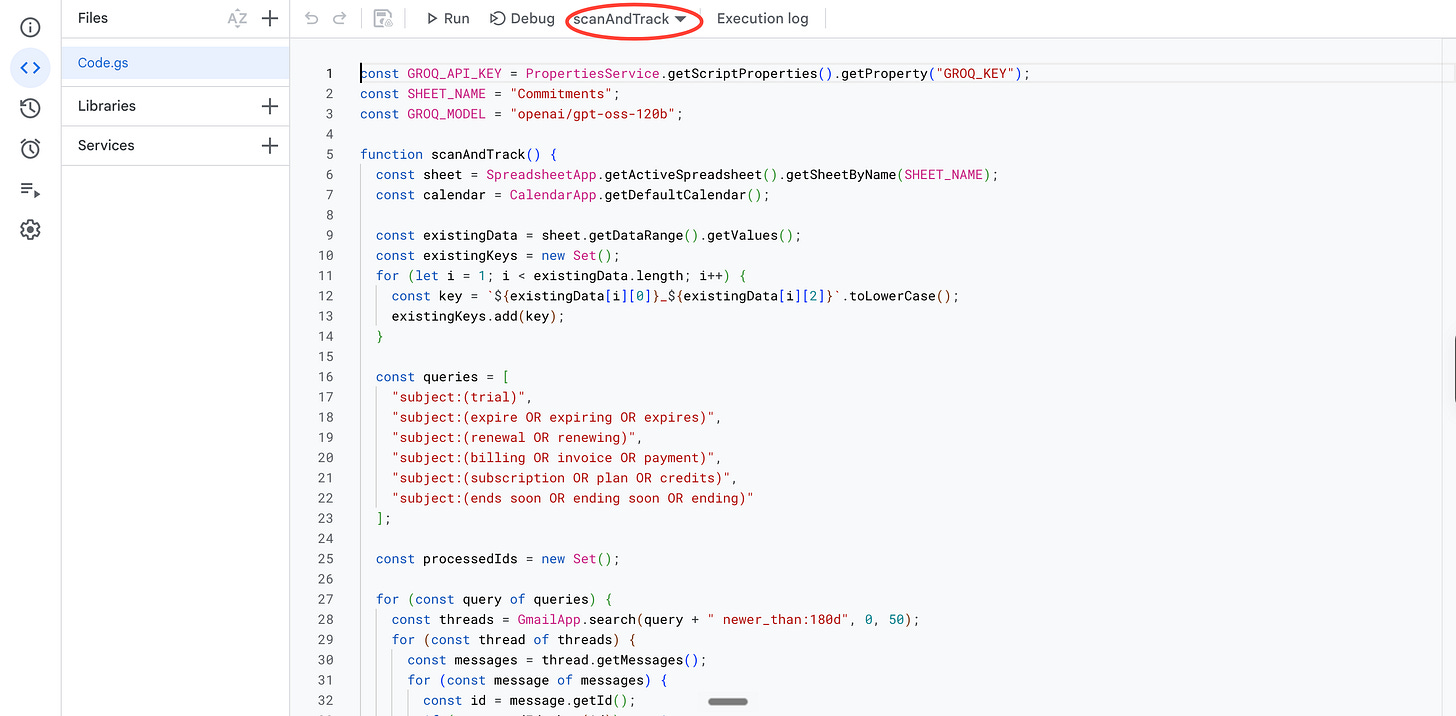
Click Run
The first time, Google will ask for permissions. Click Review Permissions → choose your Google account → Advanced → Go to project (unsafe). This warning appears for any personal script that hasn’t gone through Google’s app store. It’s normal. Click Allow.
The script takes 1–2 minutes depending on how many emails it finds
Step 7: Check your Sheet and Calendar
Open your Google Sheet. Every row is an expiry your script found: tool name, amount, expiry date, and whether a calendar event was created. Anything with a past expiry date will show Skipped. That’s expected.
Now, open Google Calendar. For every future expiry, there’s an all-day block sitting two days before the deadline. The event title tells you the tool. The description tells you exactly what to decide.
That’s it, the loop is closed.
Wait, what just ran?
Three things happened in sequence.
scanAndTrack is the function that runs everything. It opens your Sheet, reads what’s already logged, and builds a list of entries it’s seen before. That list is the deduplication check — anything already in the Sheet gets skipped before Groq even sees it.
Then it runs six Gmail searches in a row.
Trials, renewals, expiring credits, billing reminders. For every email it finds, it pulls the subject line and the first 1,500 characters of the body and hands both to extractWithGroq. Why 1500 characters? Because this is where the bulk of the email context usually lives.
extractWithGroq is where Groq does its job.
It sends the email to Groq with a prompt asking for four things: whether the email is relevant, the tool name, the amount, and the expiry date. If Groq can’t find a date, it returns null, and the email gets skipped. If it finds everything, it hands the result back to scanAndTrack, which writes a new row to your Sheet.
Once all the emails are processed, createCalendarEvents runs.
It goes through every row in the Sheet where Calendar Created says No, calculates two days before the expiry date, and creates an all-day event in your Google Calendar. Then it updates the row to say Yes, so it never creates the same event twice.
This took under an hour.
One script, three free tools, zero interfaces to maintain.
Every repetitive decision in your workflow: things you check manually, tabs you open out of habit, reminders you set and forget are candidates for the same treatment. Find the source, extract what matters, act on it, and post it somewhere you already look.
That’s the muscle worth developing. What would you automate next? Tell us.
Before you go.
Ever noticed weird things happeninng when you start building. A bug that only shows up on a different machine. Code that breaks the third time you run it. An assumption you built around that falls apart the moment someone else tries it. Instead of going in circles trying to fix it yourself, show it to a fresh pair of eyes.
Inside GrowthX, builders share what they made and get real notes from people who've been there every week.