



Last week I got a delivery and wanted to raise a return. To do that, I needed the order number, the seller's contact, and the return window. The catch? All of it was sitting in a confirmation email I couldn't find.
So I built an AI tool to fix that. It searches by meaning, not words. I typed what I half-remembered, and it found the email instantly. Let me show you how I did it.
Before we begin.
Been trying to get better at AI? Workflow guides are a good start. But they won’t get you ahead.
The founders, PMs, marketers, designers and engineers using Claude, Lovable and even Cursor — everyone who’s actually shipping — are inside GrowthX, building every weekend.
Build-focused events, expert-led sessions, AI credits, feedback, and community. It’s all in here.
Heads up, this tool uses embedding.
So, what’s embedding anyway?
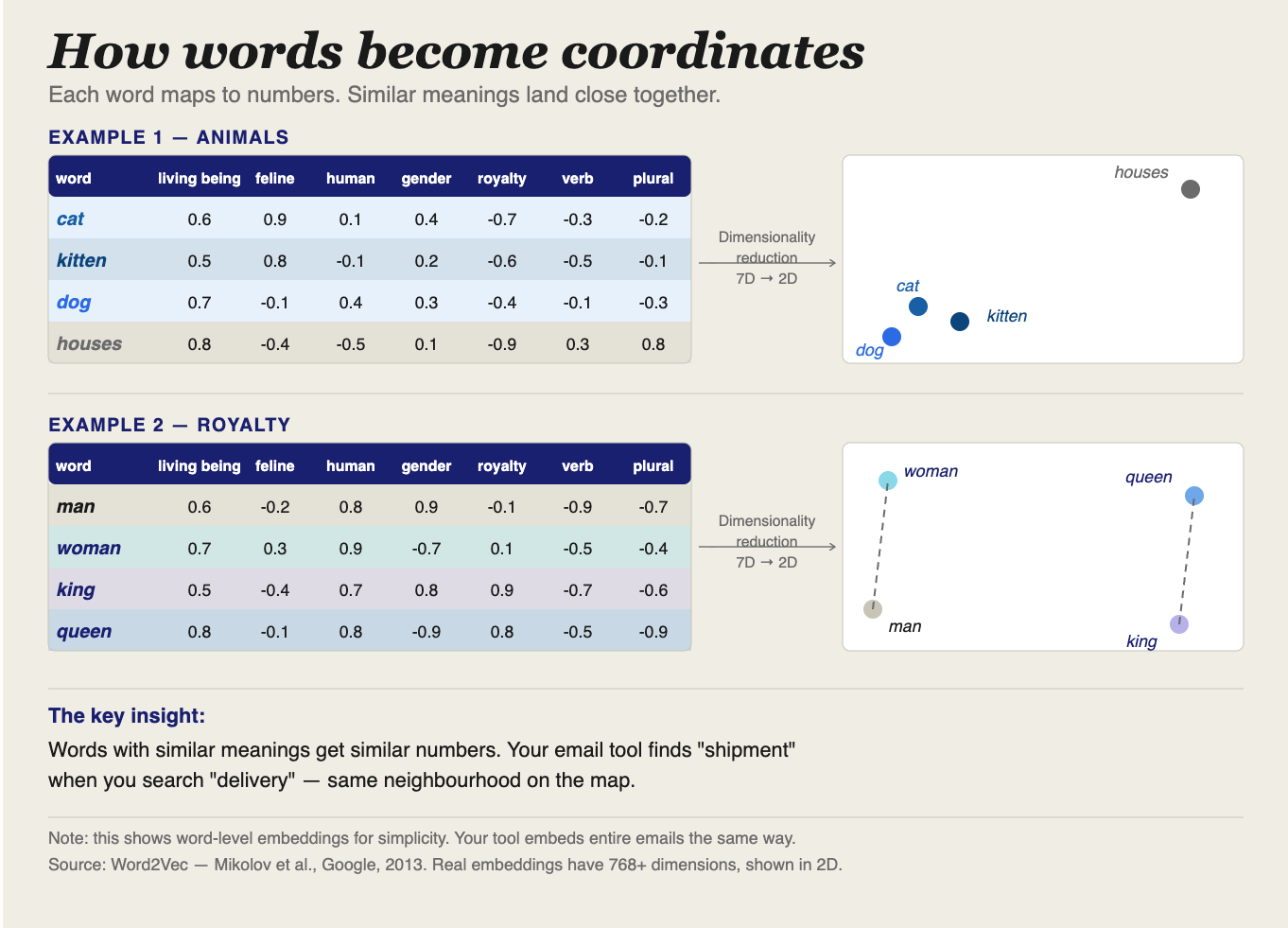
Let’s face it: computers cannot understand words as humans do. To a computer, words are just characters. “Delivery” and “shipment” look completely different, which is why vague searches where you remember the idea and not the exact word usually fail.
Embeddings fix this. They convert text into coordinates on a map of meaning. “Shipment,” “out for delivery,” “your order” all land in the same neighbourhood. So now when you search for “delivery”, the tool finds everything nearby, including emails that never used that word.
Cool, what’s the tool?
It is a semantic search tool for your Gmail. You paste a vague memory of an email, and it’ll find the right one.
The tool itself does three things. It reads your last 100 Gmail threads using Google Apps Script. It converts each email into an embedding using Gemini’s free API (that list of numbers that represents its meaning). And it stores those embeddings in a Google Sheet, so every future search runs instantly against a pre-built index.
When you search, your query gets the same treatment. One embedding, compared against 100. The five closest matches come back ranked by how near they sit on the meaning map.
Here’s what we’ll need:
Google Apps Script — native access to Gmail, no OAuth setup
Gemini API — free tier, no credit card, handles the embeddings
Google Sheets — stores your index, doubles as the output
Note:
1. Gemini’s free tier sends your email content to Google’s servers for processing. If you’re working with sensitive emails, use a test account or a personal inbox you’re comfortable with.
2. This tool doesn't run inside Gmail. It runs on Google Sheets. You'll open your Google Sheet, trigger both indexing and search from a menu inside the Sheet, and read the results in the execution log.
Step 1: Create a Google Sheet
This is where the email index lives. Every email the tool reads gets stored here as a row — subject, sender, a preview of the body, and the embedding. Think of it as your personal search database.
Go to sheets.google.com and create a blank sheet.
Name it Email Semantic Search.
At the bottom, rename the tab from Sheet1 to Email Semantic Search — the script looks for this exact name and fails silently if it doesn’t match.
Add these five headers across Row 1: Thread ID · Subject · Sender · Snippet · Embedding
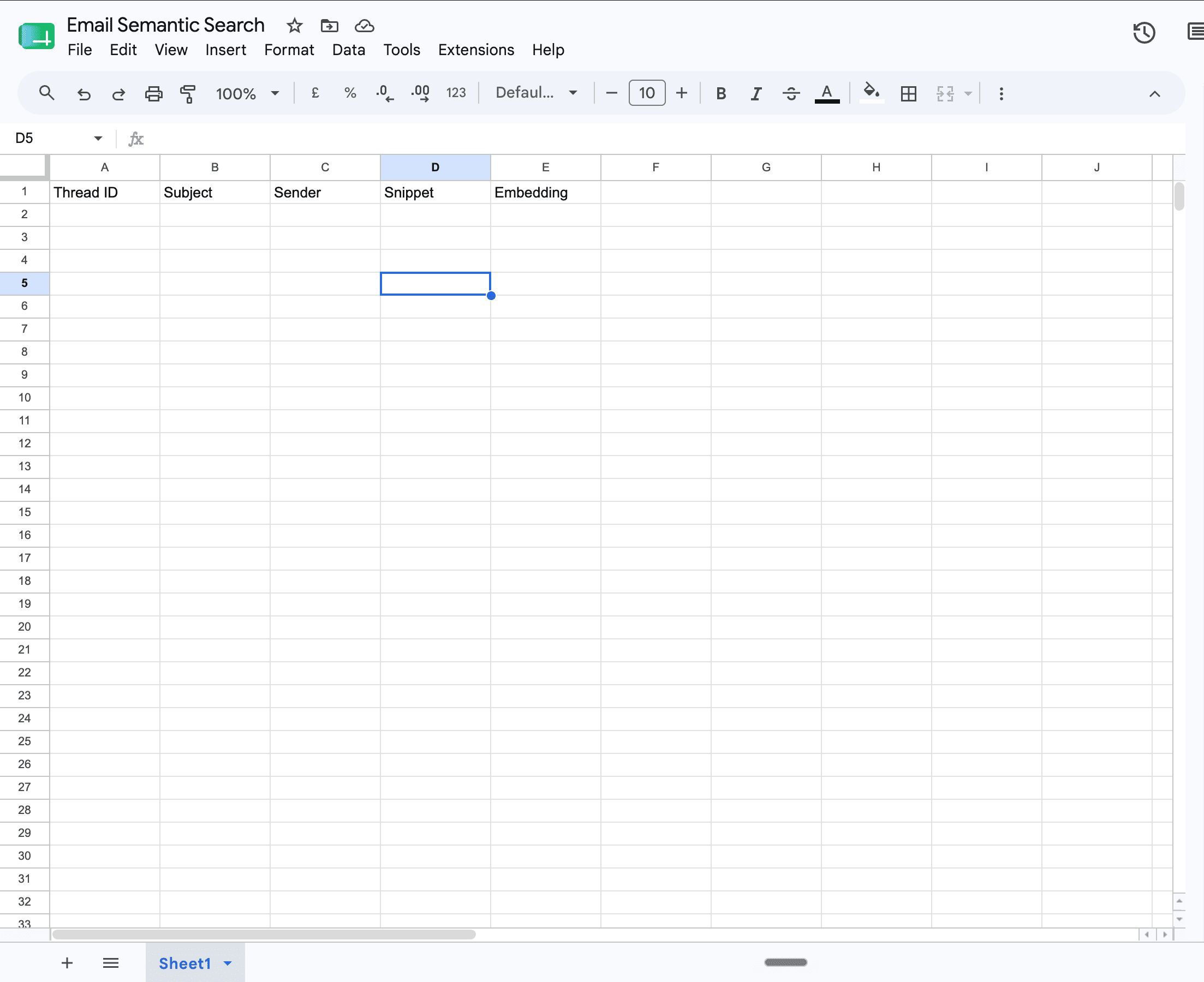
That’s it for the Sheet. Everything else gets written by the script.
Step 2: Open Apps Script
This is where the code lives. Apps Script is Google’s built-in scripting environment. It runs in your browser, connects natively to Gmail and Sheets, and costs nothing.
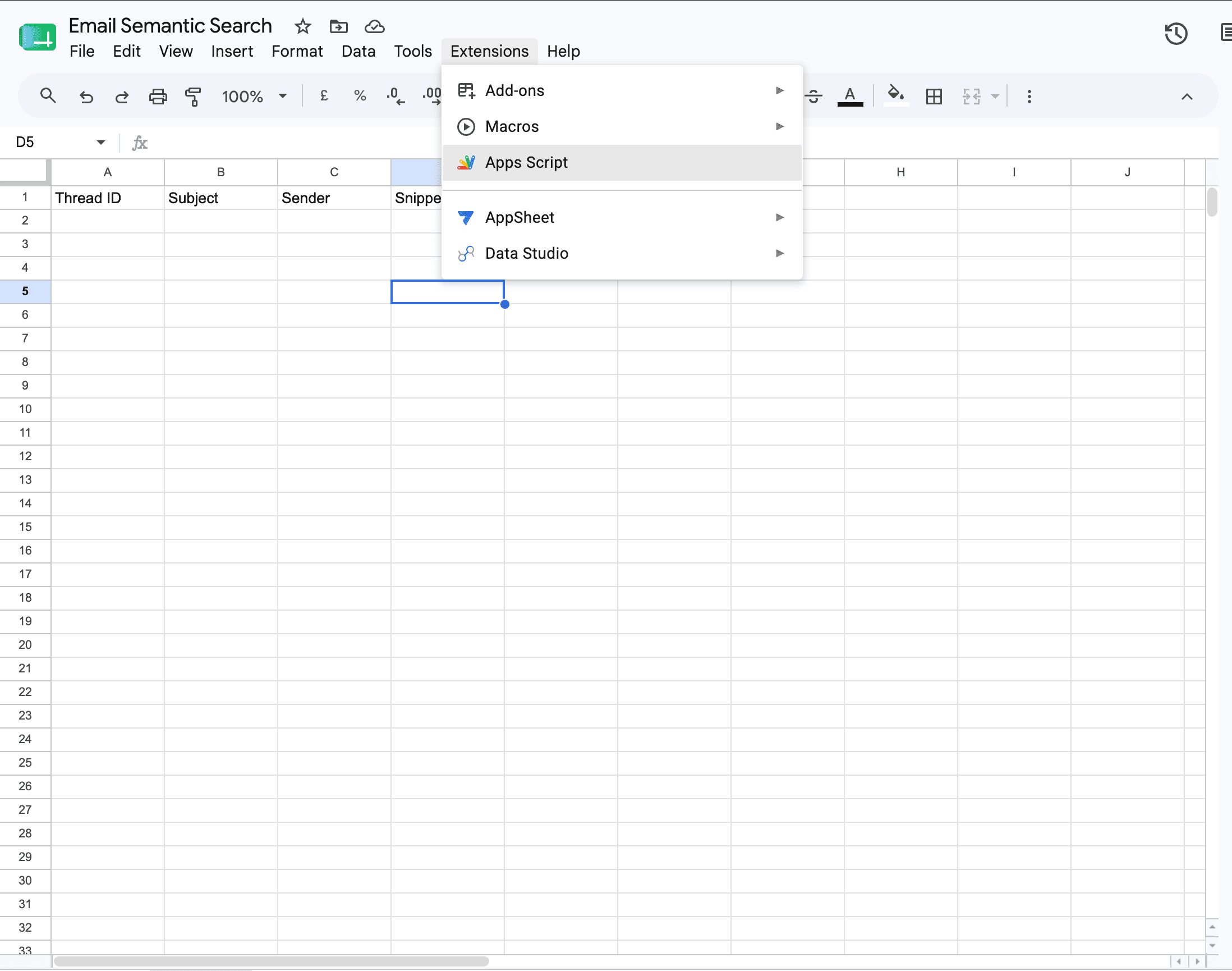
From inside the Google Sheet, click Extensions in the top menu, then Apps Script.
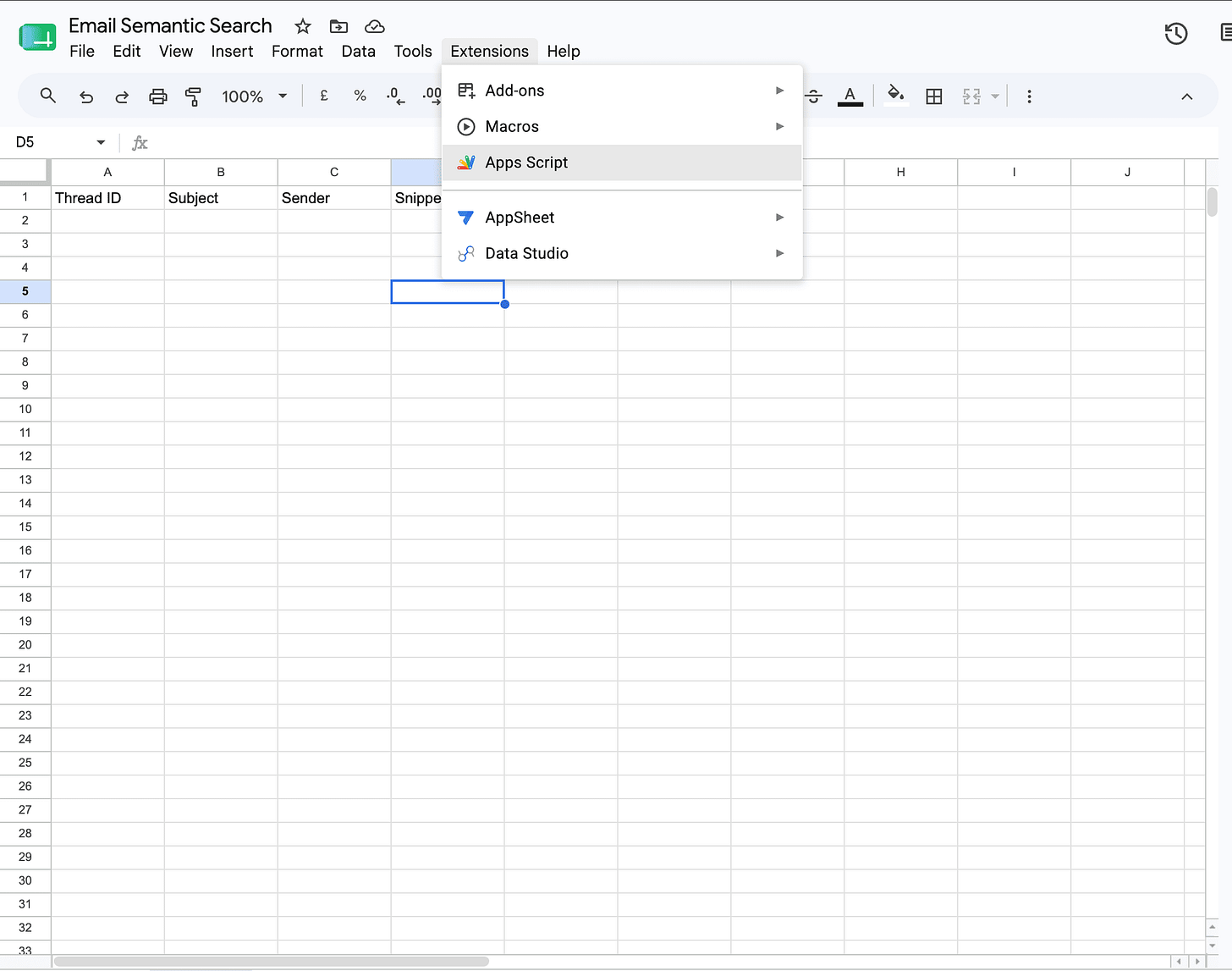
A new tab opens with an empty editor.
Delete the default function.
Rename the project from Untitled project to Email Semantic Search by clicking the title at the top left.
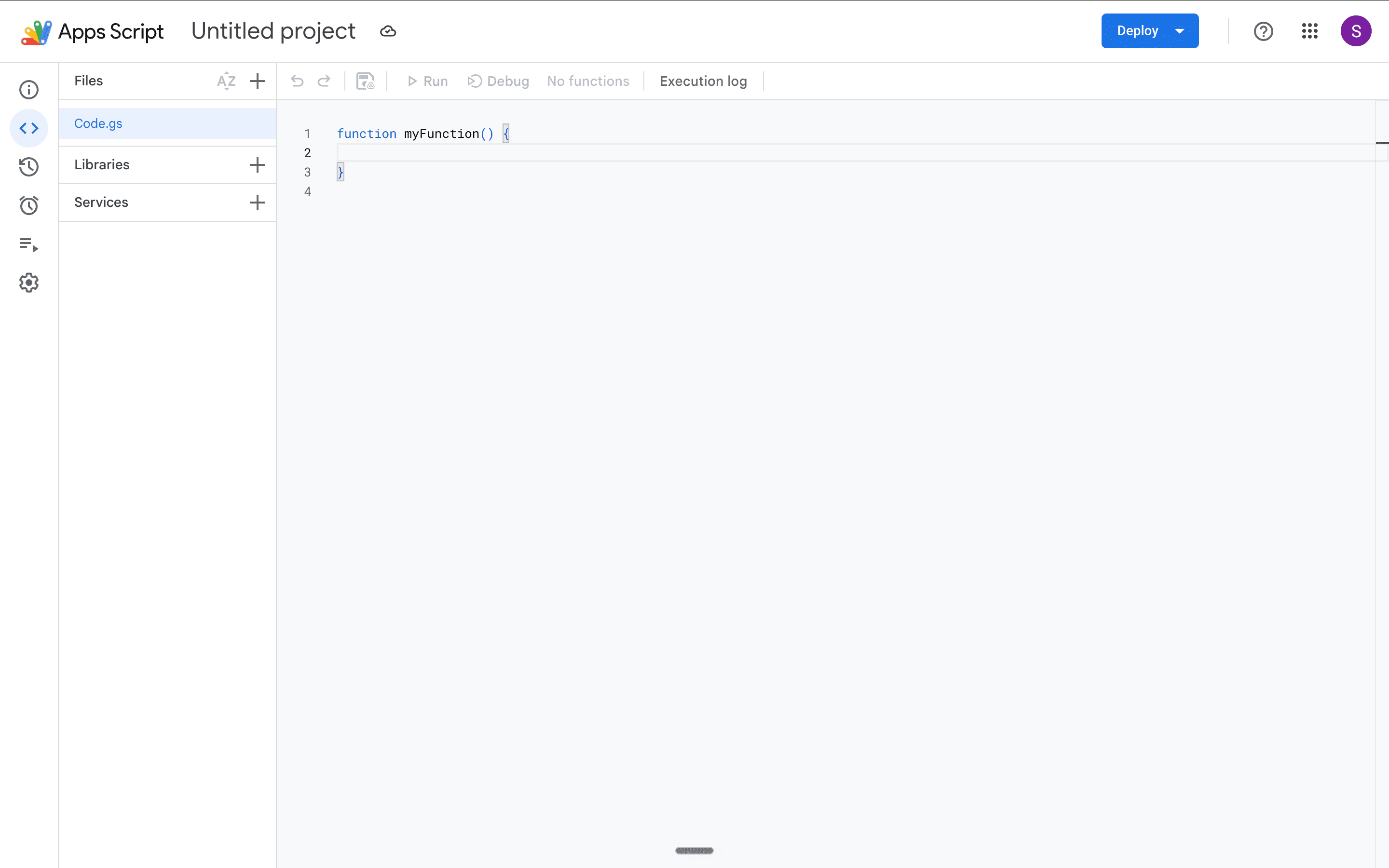
Keep this tab open. Everything from here happens here.
Step 3: Get the Gemini API key
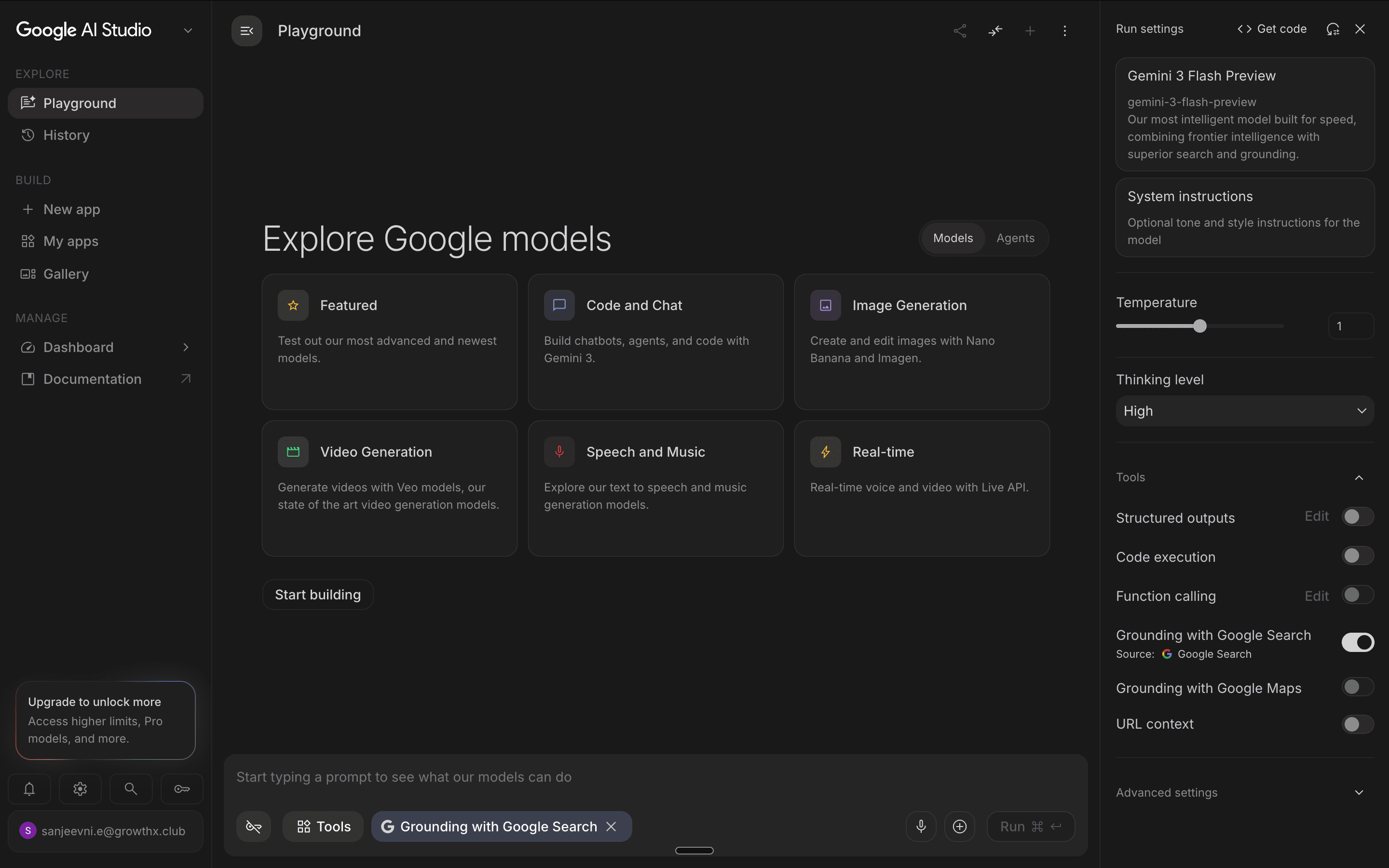
Go to aistudio.google.com and sign in with the associated Google account.
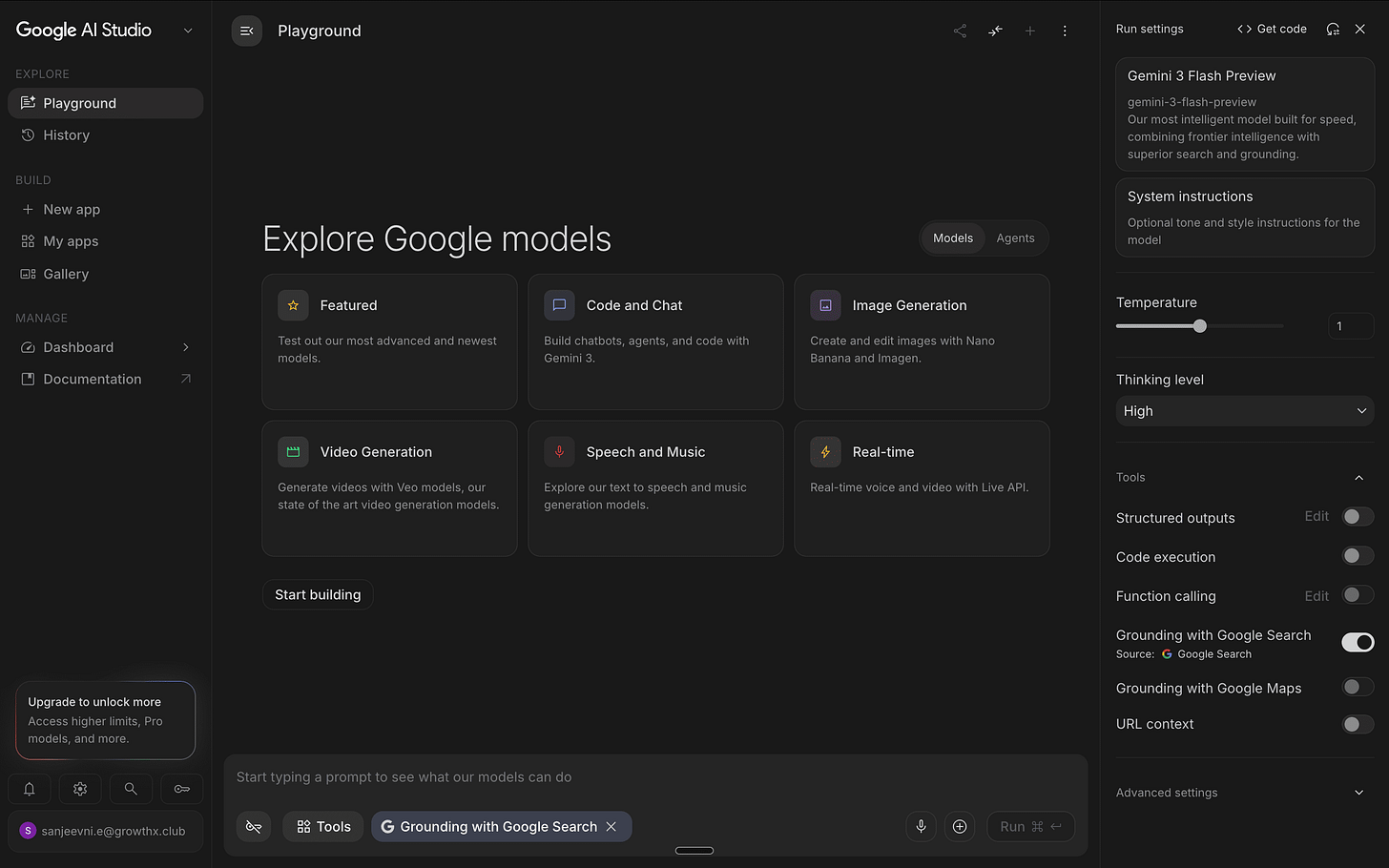
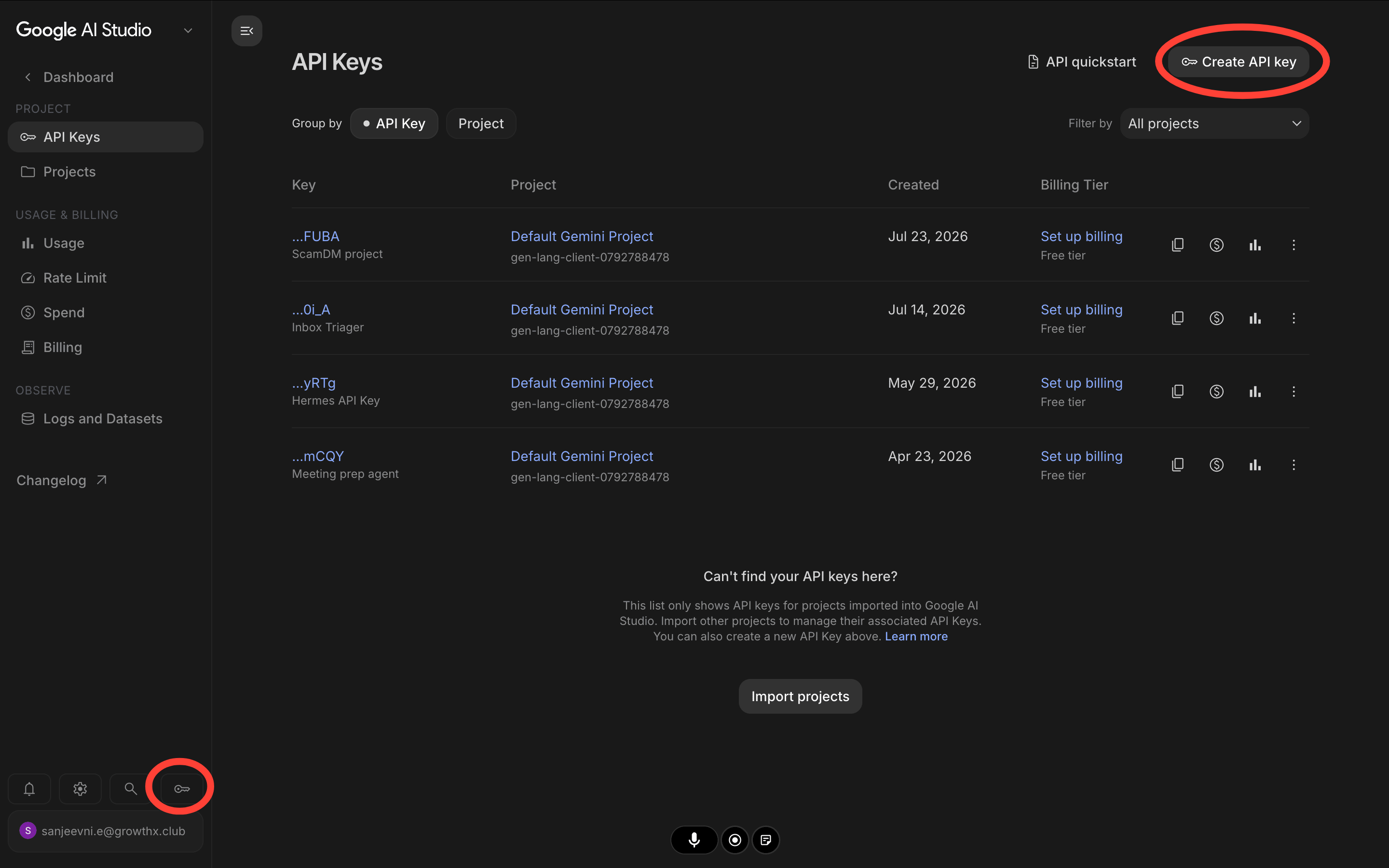
Click Get API key in the left sidebar, then Create API key.
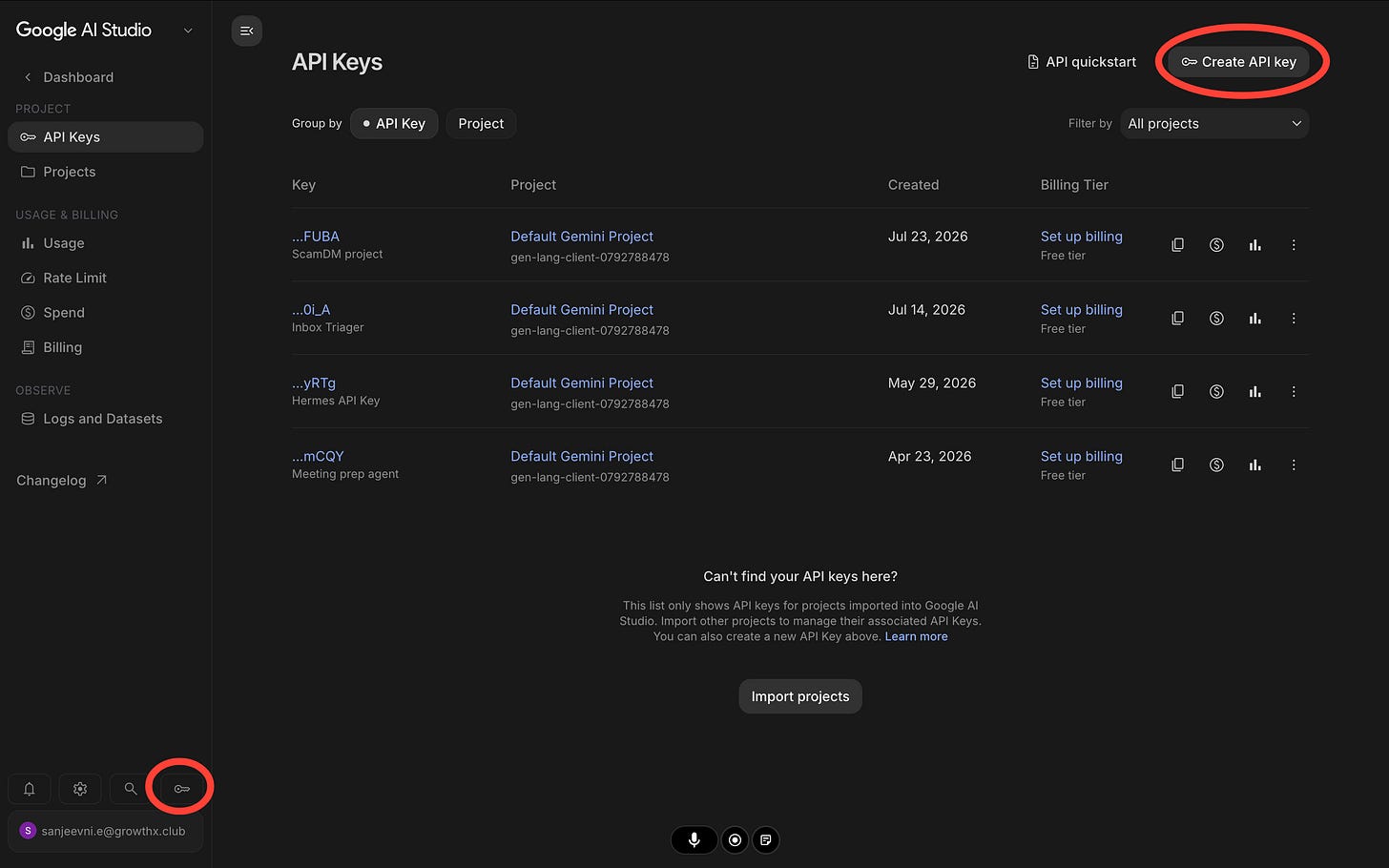
Select Create API key in new project. Copy the key — it starts with AIza.
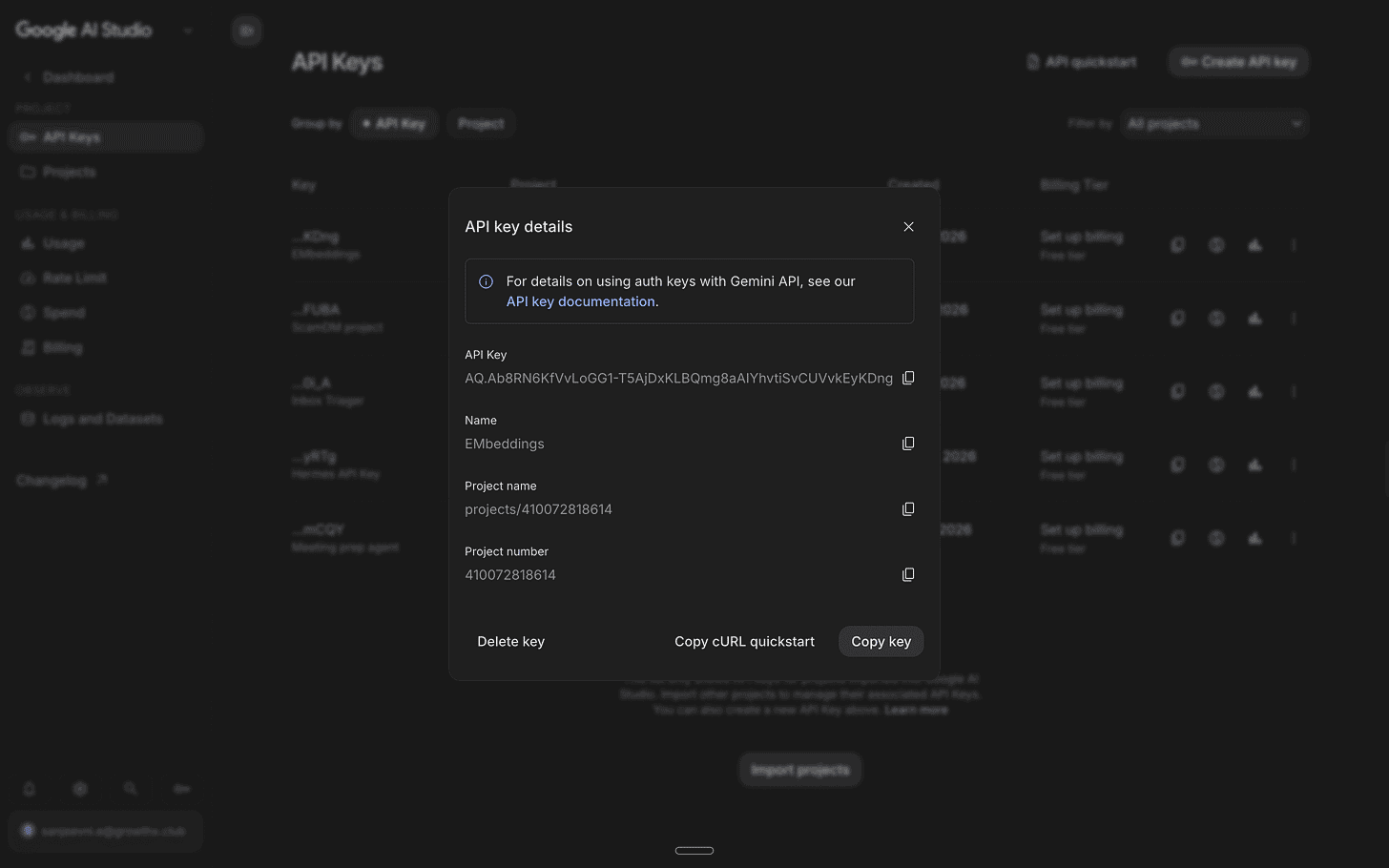
Now go back to your Apps Script tab. And click the gear icon on the left sidebar — that’s Project Settings.
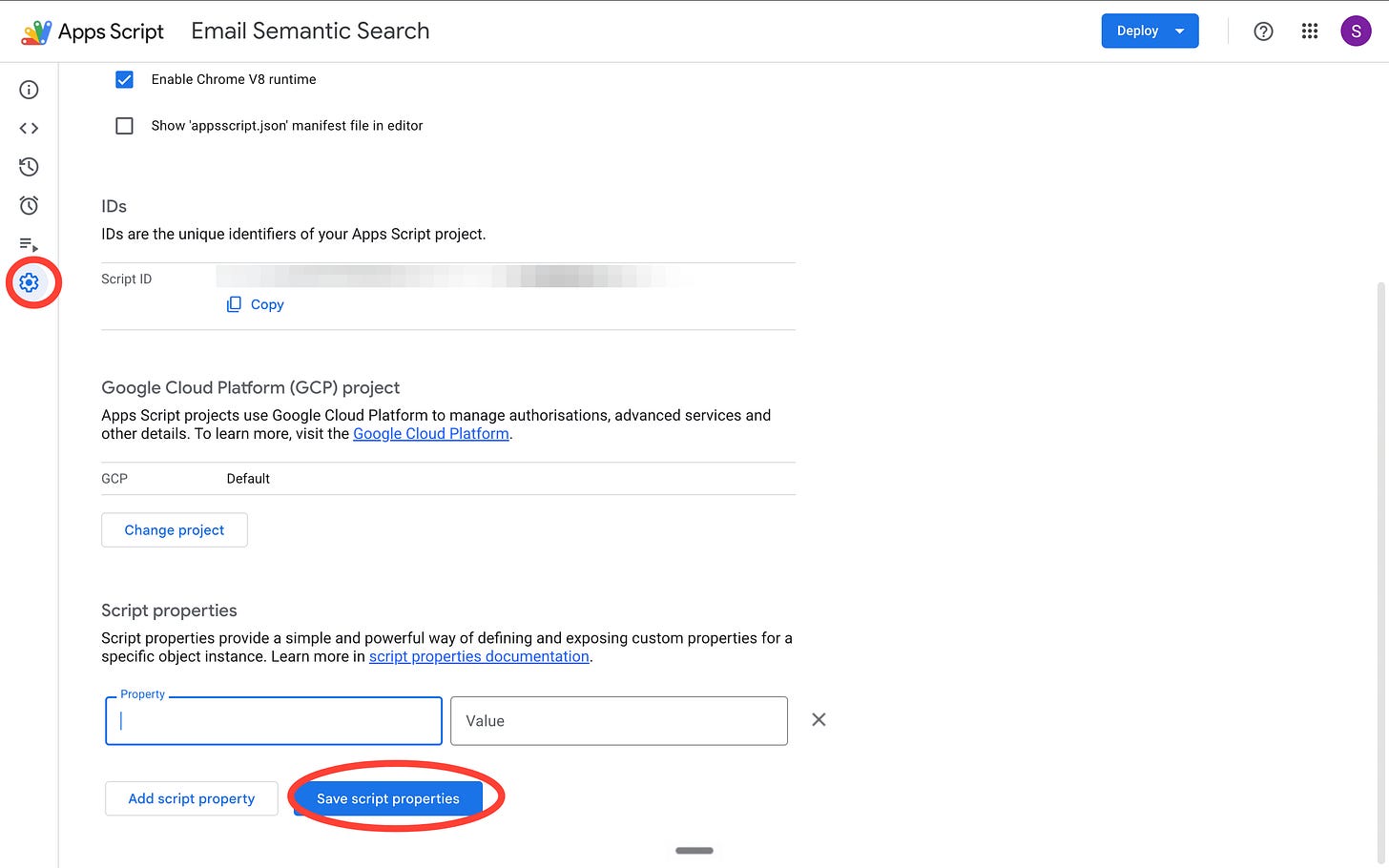
Scroll down to Script Properties and click Add script property. Set the property name to GEMINI_API_KEY and paste your key as the value.
Click Save script properties.
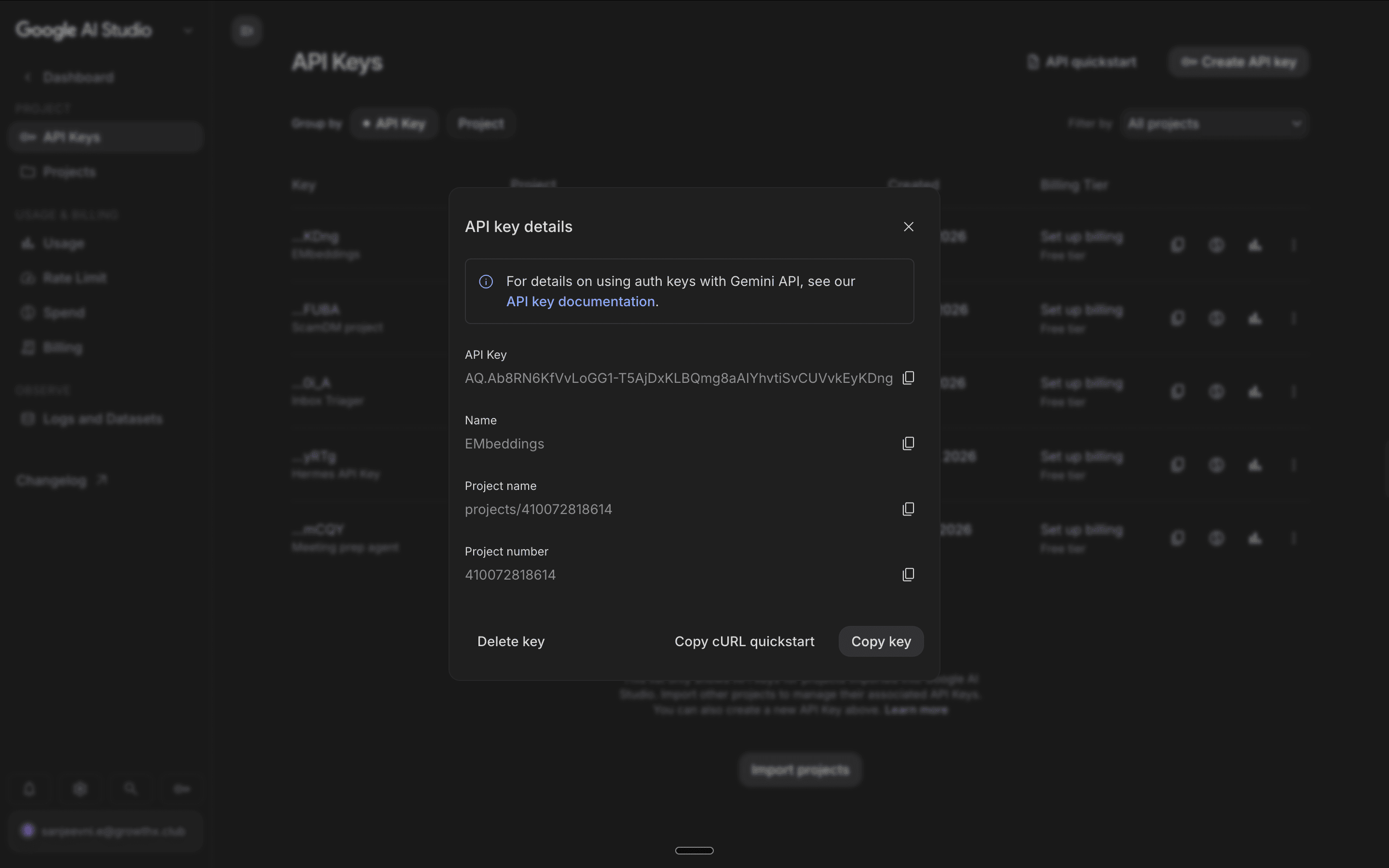
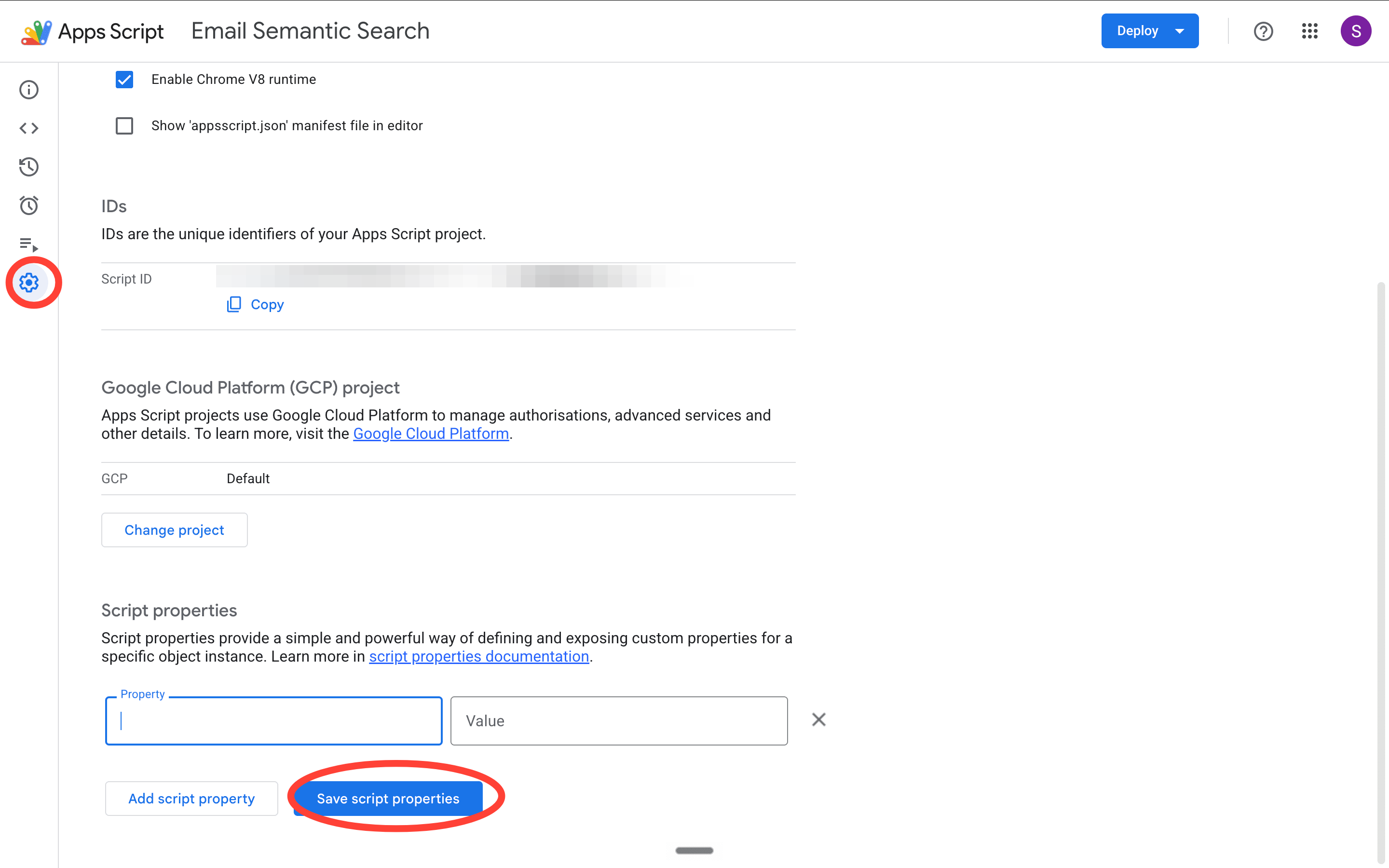
Your key is now stored securely inside the script. It never appears in your code, which means you can share the code safely without exposing your credentials.
Step 4: Paste the code
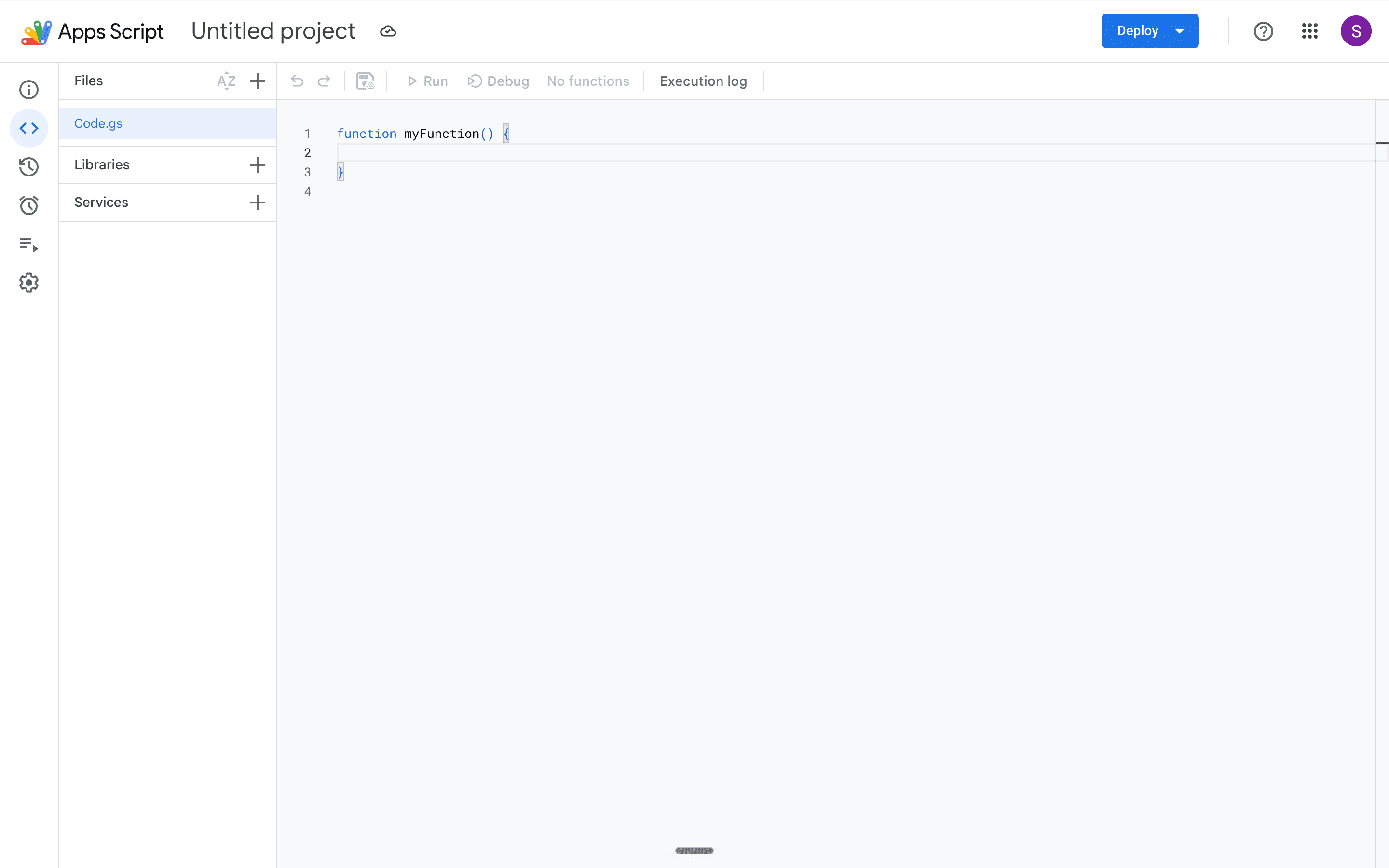
Delete everything in the Apps Script editor and paste this exactly:
function onOpen() {
  SpreadsheetApp.getUi()
    .createMenu('Email Search')
    .addItem('Search my inbox', 'searchEmails')
    .addItem('Re-index emails', 'indexEmails')
    .addToUi();
}

const SHEET_NAME = 'Email Semantic Search';
const NUM_EMAILS = 100;
const TOP_K = 5;

function getEmbedding(text) {
  const apiKey = PropertiesService.getScriptProperties().getProperty('GEMINI_API_KEY');
  const url = `https://generativelanguage.googleapis.com/v1beta/models/gemini-embedding-001:embedContent?key=${apiKey}`;

  const payload = {
    model: 'models/gemini-embedding-001',
    content: {
      parts: [{ text: text.slice(0, 2000) }]
    }
  };

  const response = UrlFetchApp.fetch(url, {
    method: 'POST',
    contentType: 'application/json',
    payload: JSON.stringify(payload)
  });

  const result = JSON.parse(response.getContentText());
  return result.embedding.values;
}

function cosineSimilarity(a, b) {
  let dot = 0, normA = 0, normB = 0;
  for (let i = 0; i < a.length; i++) {
    dot += a[i] * b[i];
    normA += a[i] * a[i];
    normB += b[i] * b[i];
  }
  return dot / (Math.sqrt(normA) * Math.sqrt(normB));
}

function indexEmails() {
  const ss = SpreadsheetApp.getActiveSpreadsheet();
  const sheet = ss.getSheetByName(SHEET_NAME);
  sheet.clearContents();
  sheet.appendRow(['Thread ID', 'Subject', 'Sender', 'Snippet', 'Embedding']);

  const threads = GmailApp.getInboxThreads(0, NUM_EMAILS);

  threads.forEach((thread, i) => {
    const message = thread.getMessages()[0];
    const threadId = thread.getId();
    const subject = thread.getFirstMessageSubject();
    const sender = message.getFrom();
    let snippet = '';
    try {
      snippet = thread.getMessages()
        .map(m => m.getPlainBody())
        .join(' ')
        .slice(0, 1500);
    } catch(e) {
      snippet = subject;
    }

    try {
      const embedding = getEmbedding(`${subject} ${snippet}`);
      sheet.appendRow([
        threadId,
        subject,
        sender,
        snippet.slice(0, 200),
        JSON.stringify(embedding)
      ]);
      Logger.log(`Indexed ${i + 1}/${NUM_EMAILS}: ${subject}`);
      Utilities.sleep(500);
    } catch(e) {
      Logger.log(`Failed on ${subject}: ${e}`);
    }
  });

  Logger.log('Indexing complete.');
}

function searchEmails(query) {
  const ui = SpreadsheetApp.getUi();
  const response = ui.prompt('Email Search', 'What are you looking for?', ui.ButtonSet.OK_CANCEL);
  if (response.getSelectedButton() !== ui.Button.OK) return;
  query = response.getResponseText();

  const sheet = SpreadsheetApp.getActiveSpreadsheet().getSheetByName(SHEET_NAME);
  const data = sheet.getDataRange().getValues();

  const queryEmbedding = getEmbedding(query);

  const scored = [];
  for (let i = 1; i < data.length; i++) {
    const row = data[i];
    if (!row[4]) continue;

    const embedding = JSON.parse(row[4]);
    const score = cosineSimilarity(queryEmbedding, embedding);
    scored.push({
      subject: row[1],
      sender: row[2],
      snippet: row[3],
      score: score
    });
  }

  scored.sort((a, b) => b.score - a.score);
  const topResults = scored.slice(0, TOP_K);

  Logger.log('=== TOP RESULTS ===');
  topResults.forEach((r, i) => {
    Logger.log(`\n#${i + 1} [Score: ${r.score.toFixed(3)}]`);
    Logger.log(`Subject: ${r.subject}`);
    Logger.log(`From: ${r.sender}`);
    Logger.log(`Preview: ${r.snippet}`);
  });

  return topResults;
}
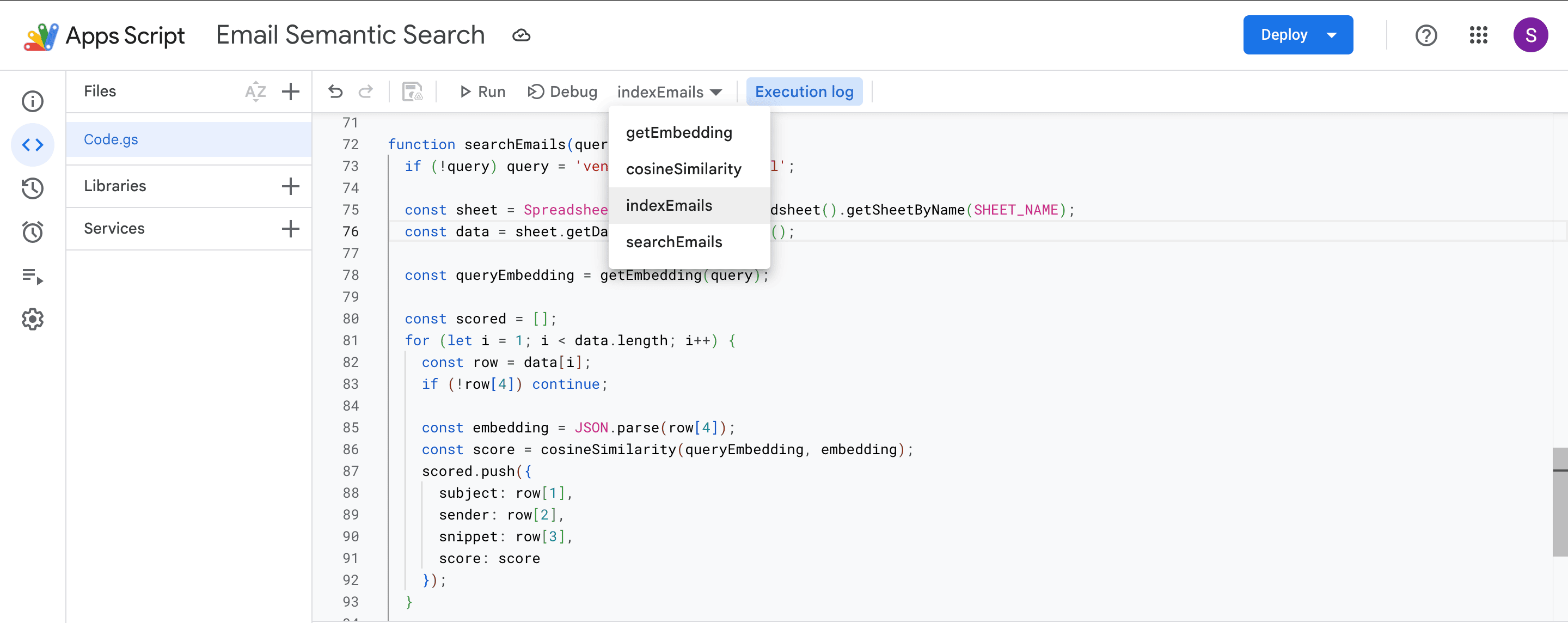
Click Ctrl or CMD S to save. Five functions should appear in the dropdown at the top: onOpen, getEmbedding, cosineSimilarity, indexEmails, and searchEmails.
Step 5: Run indexEmails
This is the step that builds the search index. Run it once now, then again when you want to refresh with newer emails.
In the Apps Script editor, click the function dropdown at the top and select indexEmails. Click the Run button.
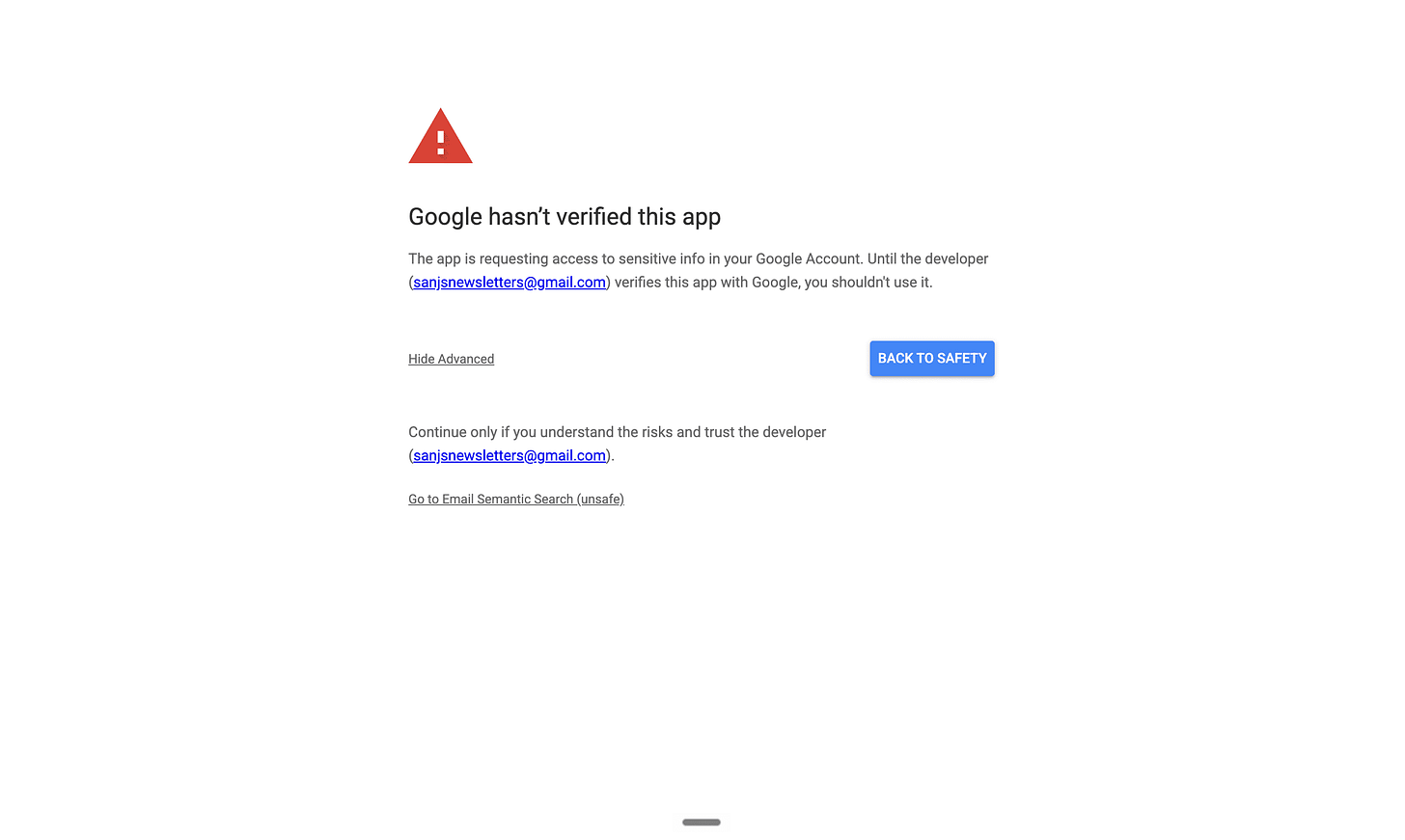
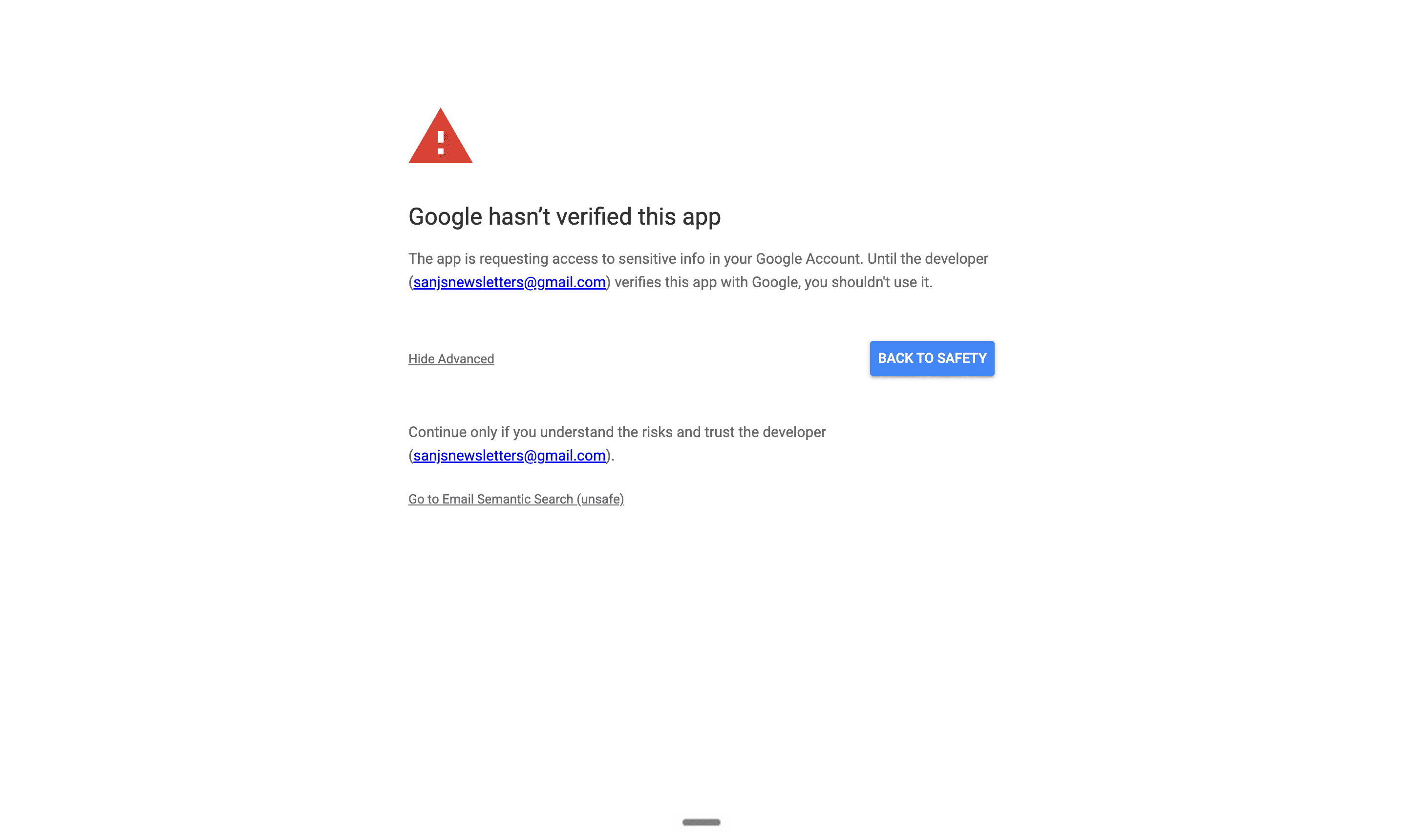
The first time we run it, Google will ask for permissions. Click Review permissions, choose your Google account, then click Advanced and Go to Email Semantic Search (unsafe). This warning appears for any personal script that hasn’t been verified through Google’s app store — it’s normal. Click Allow.
The script will take 2–3 minutes to index 100 emails.
Step 6: Search your inbox
Switch to the Google Sheet tab first. You should see an Email search button right after Help.
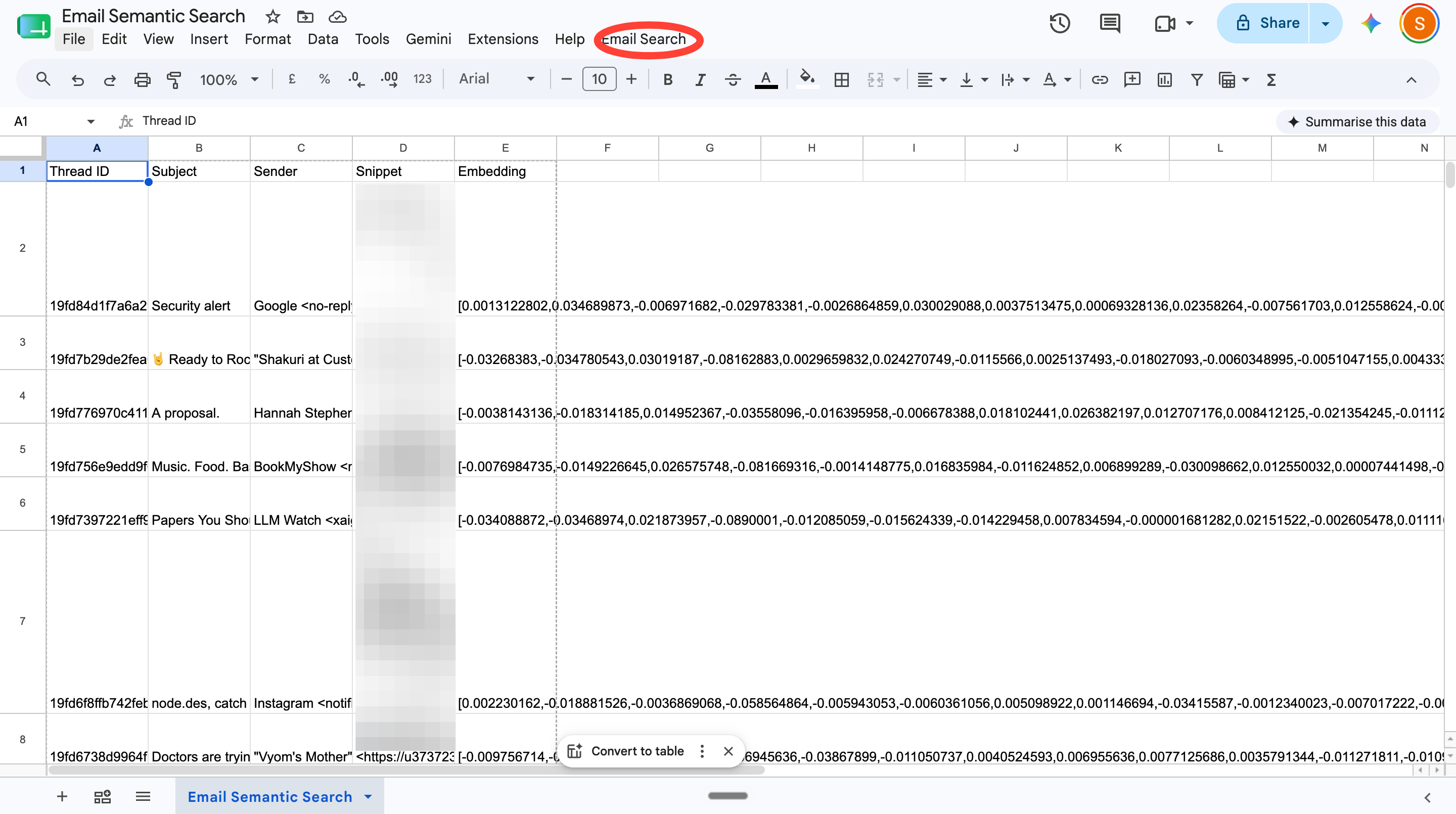
Click Email Search → Search my inbox. A pop-up appears.
Type what you remember about the email: just the idea. Something like “the vendor who sent pricing” or “delivery for my order last month” or “feedback about the onboarding.”
Hit OK.
Results appear in the execution log. Five emails ranked by score — a number between 0 and 1. The closer to 1, the nearer that email sits to your query on the meaning map.
Note: The score tells you proximity of meaning, not certainty of match. If the top result isn’t what you were looking for, read the second and third. The right email is almost always in the top five.
Wait, what just ran?
Honestly, AI only wrote part of what we pasted — the logic, the order, what calls what. The actual work? Borrowed. GmailApp reads the inbox. UrlFetchApp makes the call to Gemini. SpreadsheetApp draws the popup. We didn’t write any of that. We just told it when to run.
Think of it as a recipe running on someone else’s appliances. The recipe is ours. Let’s see what it actually does.
getEmbedding turns text into numbers. Give it a string; it calls Gemini; it returns 768 numbers. This is the engine.
cosineSimilarity measures how close two sets of those numbers are. One question, one answer: how similar in meaning are these two things?
indexEmails runs once. It walks through 100 emails, sends each one through getEmbedding, and saves the numbers to your Sheet. This is the slow one, and the one that builds your library.
searchEmails runs every time you search. It embeds your query, compares it against everything stored, and ranks what comes back.
Notice that both indexEmails and searchEmails lean on getEmbedding. It’s the shared engine underneath both. So when everything breaks at once, don’t start with the search or the index. Start with the engine they both depend on.
And things will break. Two worth knowing about.
A 404 means the model name went stale. gemini-embedding-001 works today, but Google retires models, and when it does, you get a “model not found” error. That’s an appliance problem, not a recipe problem. Your logic is fine — you called Gemini with a name it no longer answers to. Swap in the current model name, and it runs again.
A mid-run failure usually means you rushed it. The Utilities.sleep(500) line pauses half a second between emails. Take it out to go faster, and Gemini starts refusing your requests. The pause is what lets it finish.
That’s it.
In theory, the same code structure should work over Notion, Docs, and Slack too. All we'd need to do is swap out the data source. Would you try that? Tell us.
Want to plug your brand into our newsletter?
Email us at collab@growthx.club

This is basically the same pattern behind Rewind and now Microsoft's Recall, just scoped to email instead of your whole screen. The interesting part isn't the search, it's that most people generate 10x more retrievable personal data than they realize, they just have no interface for querying it by meaning. Curious what embedding model you used, that's usually where cost and latency get weird for indexing years of inbox history.
Super clean implementation using native Apps Script and Gemini. The real unlock is moving from passive search to active AI workflows.
Why just search your inbox when you can automate it?
Walk away with a fully working no-code expense analyst agent built from scratch in just 45 minutes this week: https://luma.com/0ak8kegm