


You already think faster than you type. You’re just not using that ability for work.
Wispr Flow removes the friction of typing. With it, you can speak your thoughts and get clean, formatted text instantly. Our team uses it for everything from quick Slack replies to making strategy docs.
Sign up with GrowthX and get 3 months free.
Today’s edition.
If you’ve used OpenClaw to set instructions that run routinely, you know OpenClaw is sort of terrible at retaining context. Persistent memory in OpenClaw requires manual setup, third-party plugins, and the right session configuration.
Hermes ships with memory on by default. It launched in February 2026 and crossed 140,000 GitHub stars in under three months because it does the one thing everyone wanted without asking: it remembers what happened last time.
Today, we’re using that to build a pricing monitor that runs periodically. No code. No server. No engineering ticket. Just plain English and 60 minutes.

But wait, why should we build a pricing monitor with Hermes?
A pricing monitor has three parts: a page reader, a comparison tool, and a logic that tells you when two versions of the page don’t match. Normally, that’s three separate tools, a database, and a developer.
Hermes collapses it all into one. It visits the page, holds the memory of what it saw last week, runs the comparison, and messages you on Telegram if anything moved. You don’t configure any of it. You describe what you want in plain English, and it figures out the rest.
Part 1: Install Hermes on your device.
1. Head to Hermes’ official website. Here’s the link.
This is what you should see.
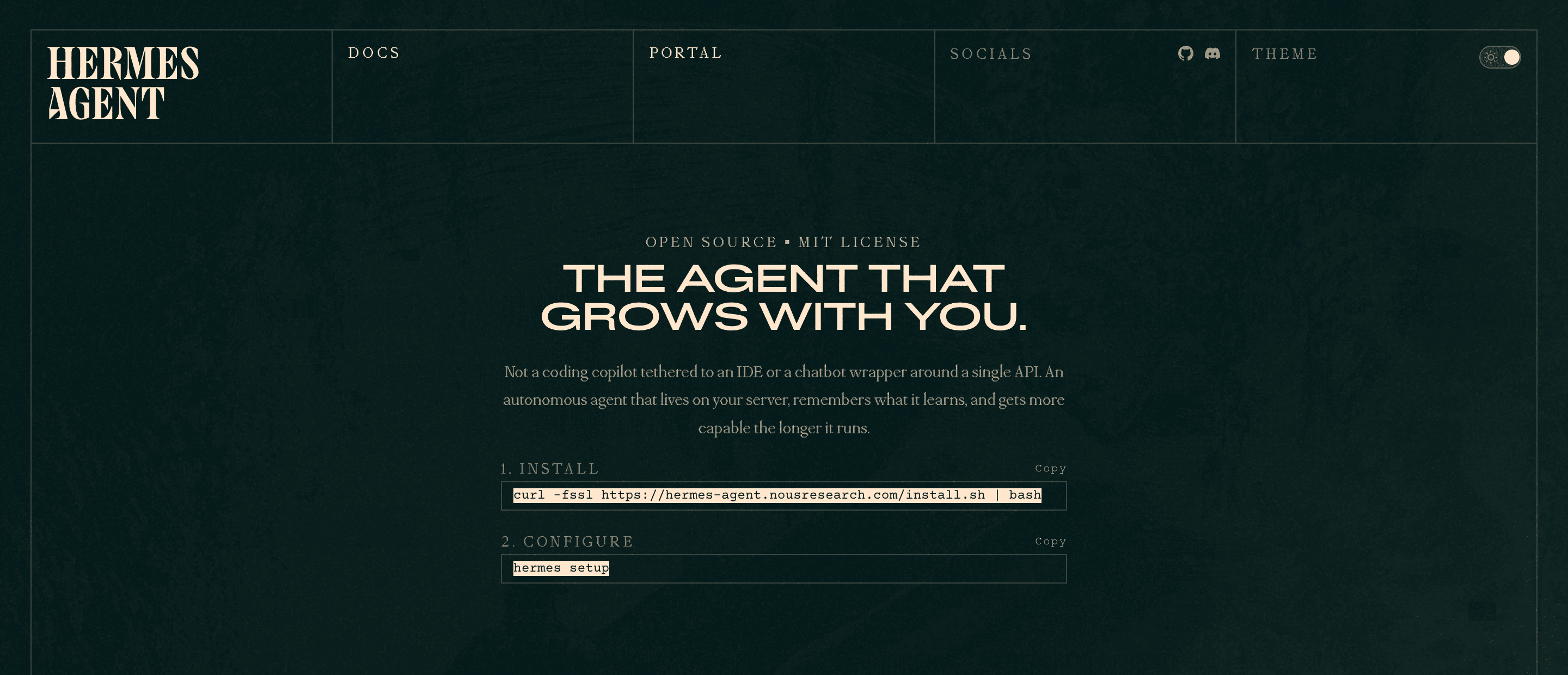
2. Copy the install command.
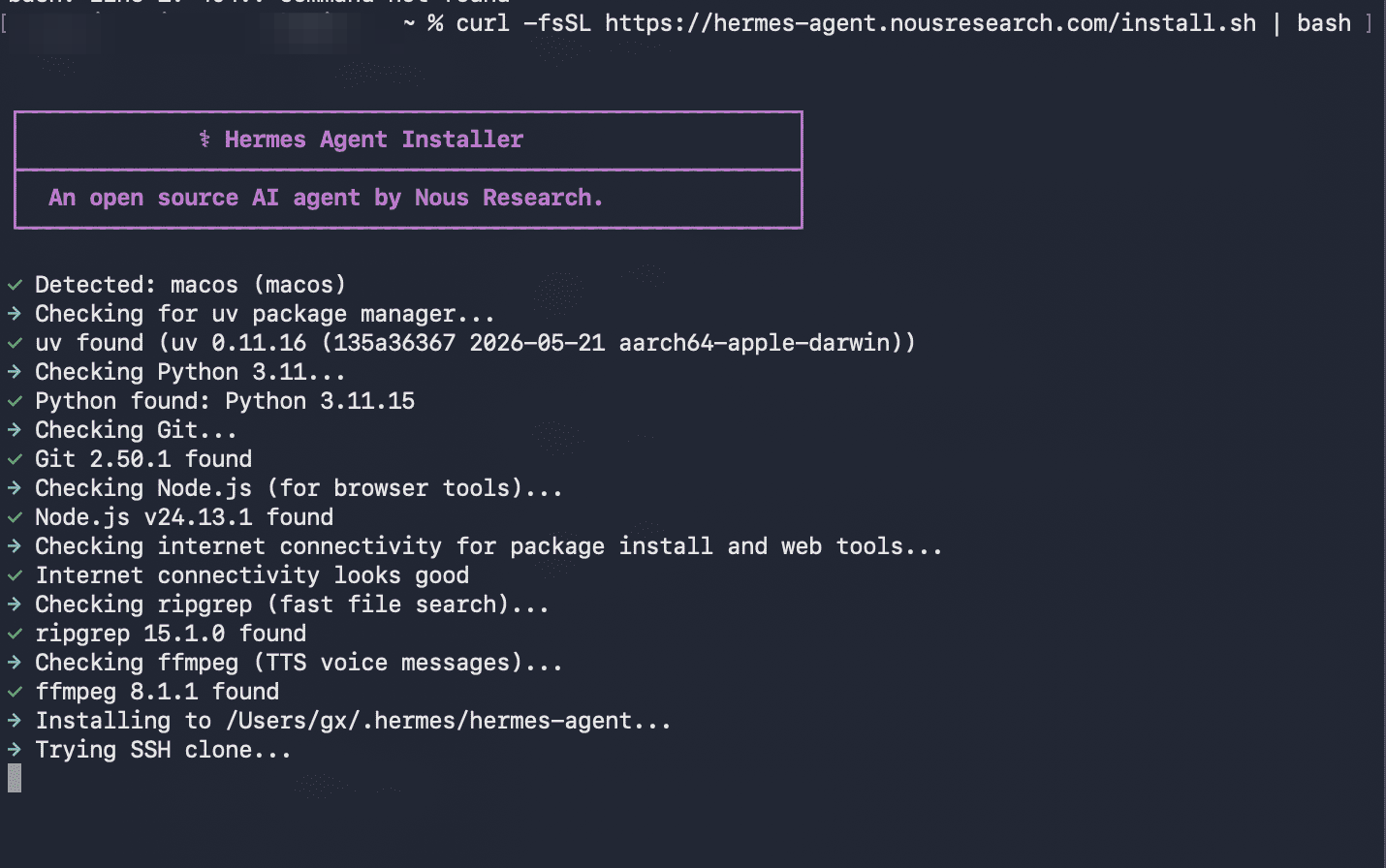
3. Now, head to your Terminal and paste the install command. You should see a purple installer screen that says “Hermes Agent Installer”. This is the tool that installs Hermes onto your device. It takes about 4-5 minutes, so don’t close your window.
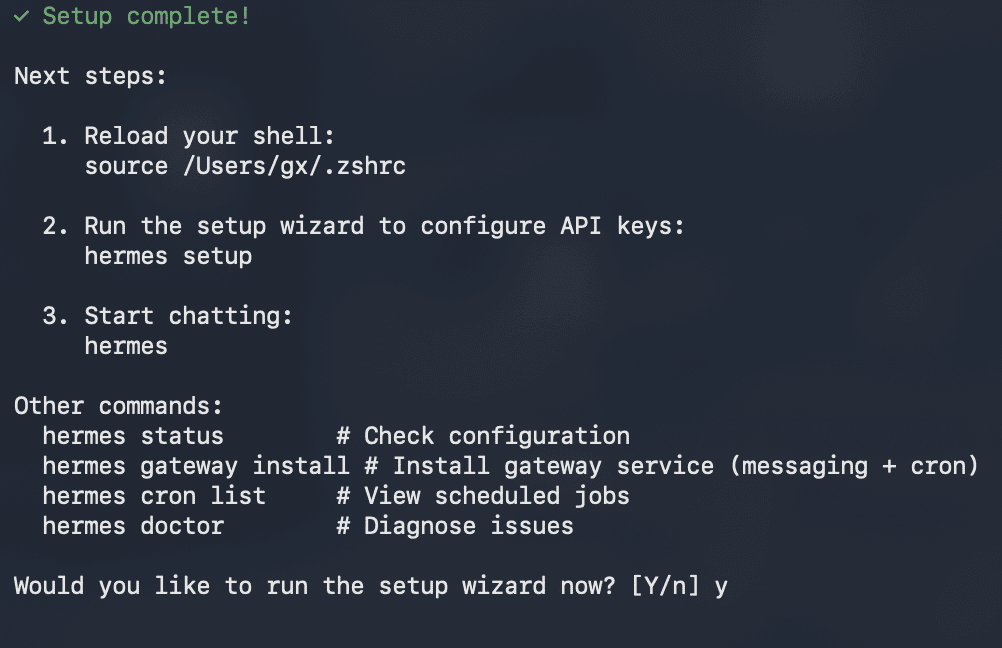
When it finishes, you’ll see a green Installation Complete screen with a list of next steps.
Part 2: Connect your AI model.
Hermes needs a brain. We’re using Google Gemini — free, no credit card, no expiry.
1. To get your Gemini API key, open aistudio.google.com in your browser and sign in with your Google account.
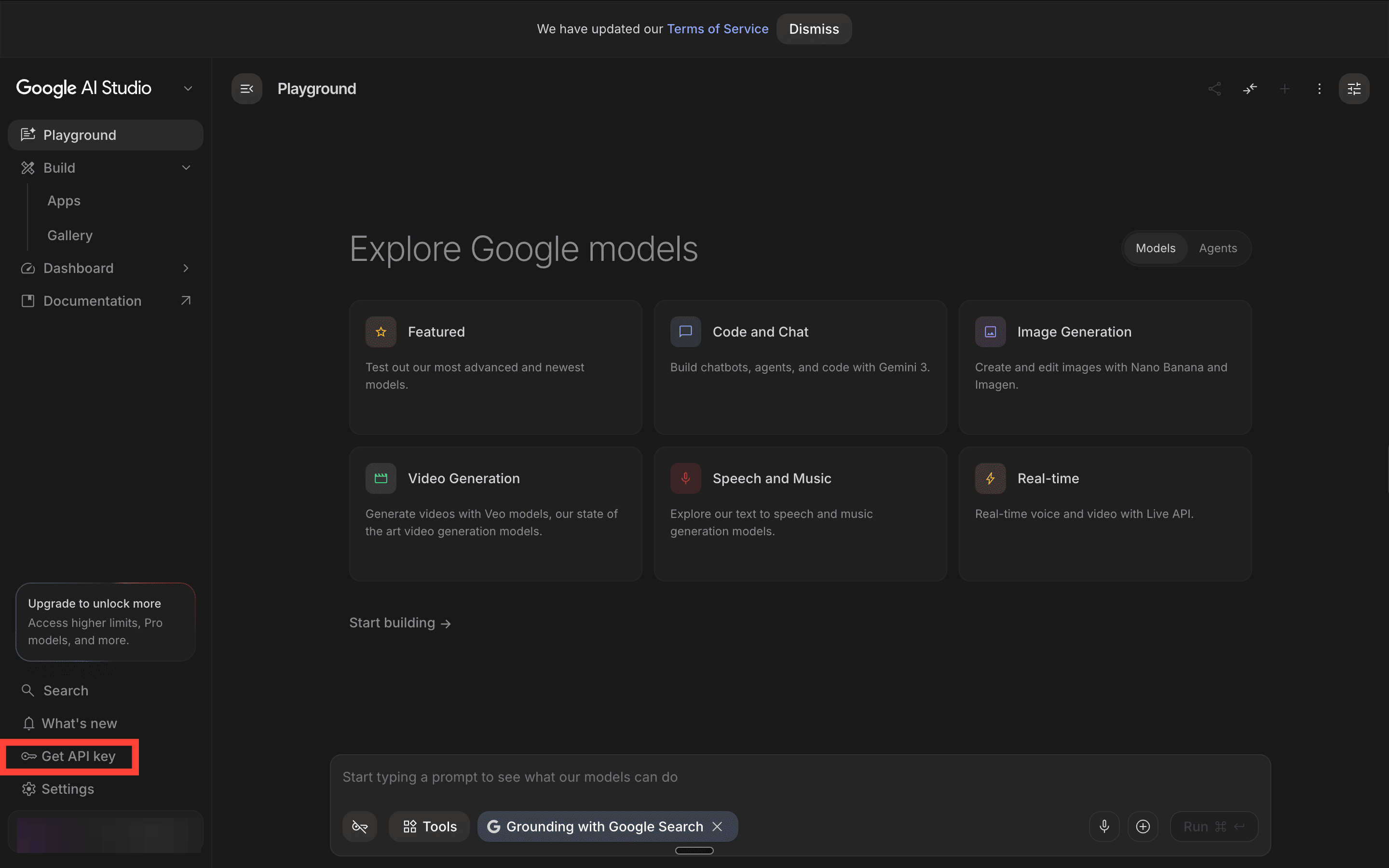
2. Click Get API Key in the left sidebar. Click Create API key, select a project from the dropdown, then click Create.
3. Copy the key somewhere safe and keep this tab open.
Run the setup wizard on your Terminal.
Copy the following exactly and hit Enter.
hermes setup
Next, select your AI provider.
A long list appears. Arrow down to Google AI Studio (Gemini models — native Gemini API) and hit Enter. Paste your API key when prompted, then press Enter. Then arrow down to gemini-2.5-flash and hit Enter.
The wizard will ask you to setup terminal backend next.
Keep current (local) selected. Hit Enter to confirm. This way, all commands run on your computer.
Now, set your working directory.
Hit Enter to accept the default [.] This is where Hermes sets commands to run periodic tasks.
Skip sudo.
Type N and hit Enter. This means Hermes cannot run administrator-level commands on your device.
Congratulations, Hermes now has a brain!
Heads up: Hermes runs on your device, so your laptop needs to be open and on for the monitor to work. It does not run when your Mac is shut down or asleep. If you want it running 24/7, you’ll need a cloud server. So, if you’re running a schedule, make sure you choose. time when you’re actually sitting on your laptop.
Checkpoint: If the installer gets stuck at “Trying SSH clone...”
Wait 60 seconds. If nothing moves, press Ctrl + C to cancel. Then run these two commands one by one:
git clone https://github.com/NousResearch/hermes-agent.git ~/.hermes/hermes-agent
cd ~/.hermes/hermes-agent && bash setup-hermes.sh
This does the same thing as the installer — just takes a different route.
When it finishes and asks “Would you like to run the setup wizard now?”, type Y and hit Enter.
Connect Telegram to Hermes.
In the Terminal, run this:
hermes setup gateway
A list of messaging platforms appears. Move to Telegram, get the Space button, and press Enter.
Paste your bot token when prompted and hit Enter.
How to get Telegram Bot token —
1. Open Telegram and search for BotFather
2. Type /newbot and follow the on-screen instructions.
3. Copy the HTTP API token.
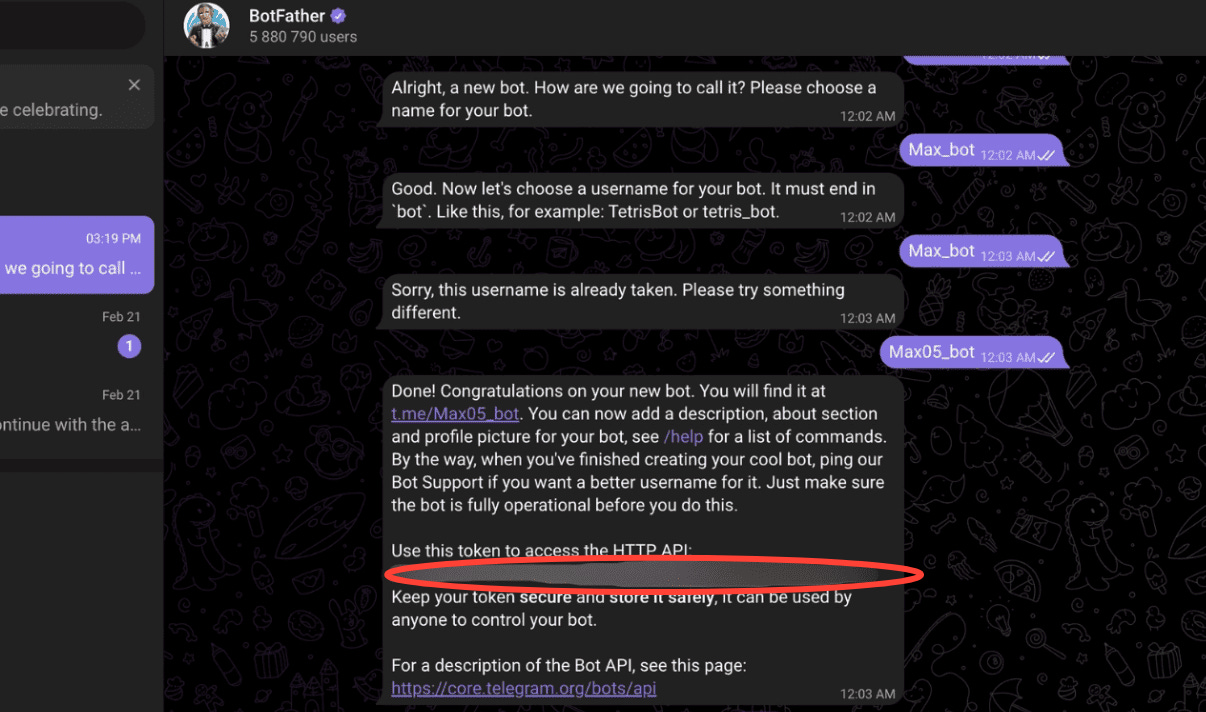
Now move to the final steps.
Now open Telegram, search for @RawDataBot, and send it any message. Copy the number next to “id” in the reply. Come back to Terminal and paste it. Hit Enter.
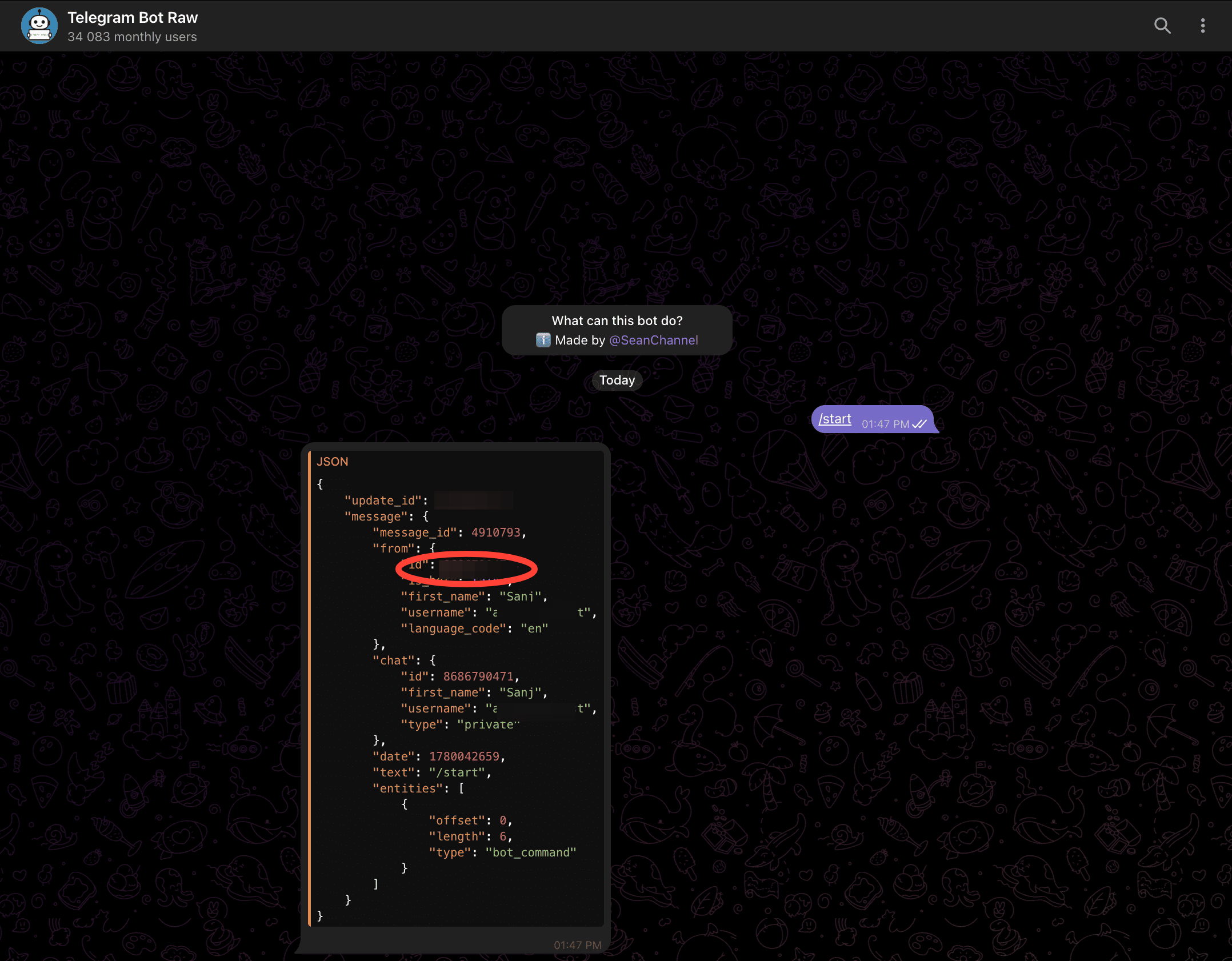
When asked to use your user ID as the home channel, type Y and hit Enter.
When asked to install the gateway as a background service, type Y and hit Enter.
Congrats, your Telegram is now connected to Hermes!
Start the gateway to receive Telegram messages.
In the terminal, copy this exactly.
hermes gateway start
You’ll see Hermes confirm it’s running. It’s now listening for messages from your Telegram bot in the background.
Verify web search is on.
This will help our bot read pricing pages of the tools we mention on the web.
1. Run:
hermes setup tools
2. Select Configure CLI.
3. Scroll to the top of the list and confirm Web Search & Scraping has a [✓] next to it. If it does, hit ESC and move on. If it doesn’t, press Space to enable it, then Enter to confirm.
Part 4: Build the pricing monitor.
Everything is set up. Now you tell Hermes what to do — in plain English, on Telegram.
Open your Telegram bot. Send it this message, replacing the URLs with your actual competitor pricing pages:
Every Monday at 5pm, message me asking: ‘Any new pricing pages to add or remove this week? Reply ADD [url] to add, REMOVE [url] to remove, or SKIP to continue.’ Wait up to 12 hours for my reply. Every Tuesday at 9am, visit all URLs in the current list. On the first visit to any URL, save a snapshot of the full pricing page to a local file. On every subsequent visit, compare what you find against the saved snapshot. If anything changed — any plan, price, feature, or tier — send me a Telegram message explaining what changed and what it might mean. If nothing changed, send one message saying all clear. Start with this URL: https://notion.so/pricing
Hermes will confirm the schedule and the URLs with you. Read it. If anything looks wrong, correct it in plain English.
Test it immediately. Send this to your bot:
Run the pricing monitor now and send me the result.
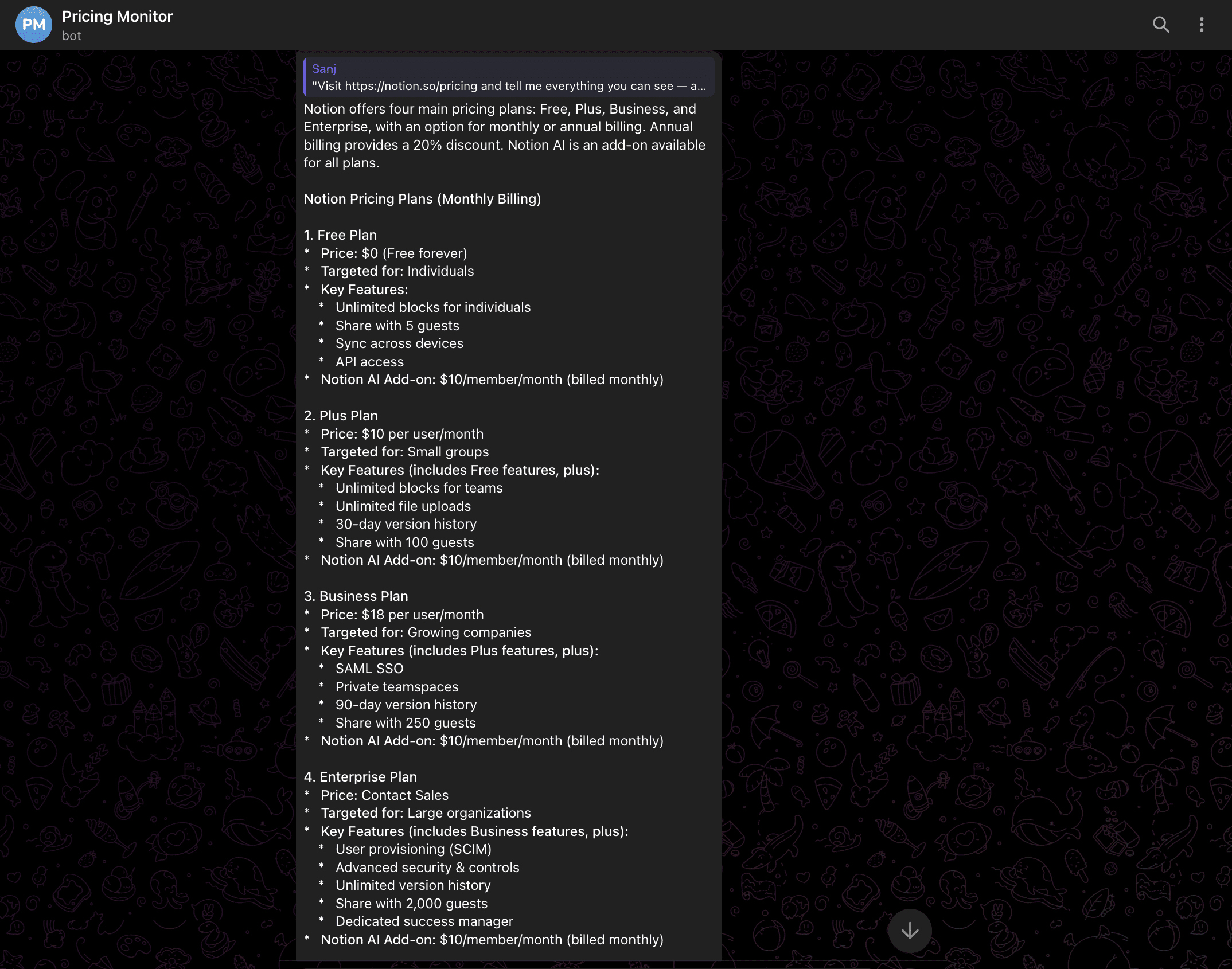
Within 2 minutes, you should receive a Telegram message with everything Hermes found on the Notion pricing page.
If the message arrives, the monitor is live. Here’s my message for reference.
How to add or remove URLs.
The monitor starts with one URL. Adding more takes one message.
To add a competitor. Send your Telegram bot:
ADD https://[competitor pricing page URL]
Similarly, you can remove competitors or even check the list of competitors to track. Just send a message to your bot.
What’s next?
You just built something most teams don’t have. The same setup runs a changelog watcher, a job-posting tracker, and a review-spike detector. Same Hermes. Same Telegram. All you need to do is add a different prompt.
This is too basic for your level abhishek