


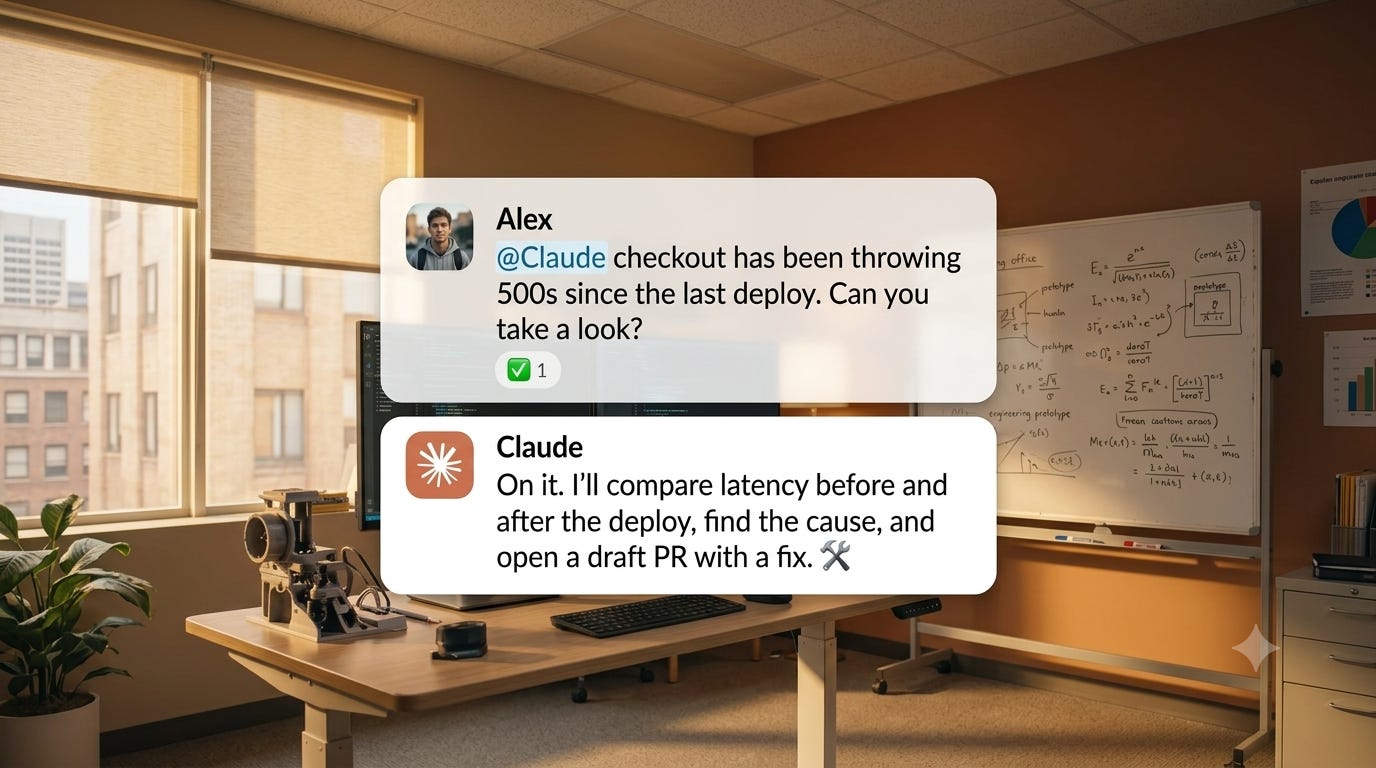
Imagine this. Your product launches in 3 days.
You tag @Claude: “Pull everything we’ve decided on positioning and draft a one-pager.” Claude reads three weeks of channel history and posts the draft.
Sneha immediately tags @Claude: “Update the hero copy in Figma to match.” Claude uses the positioning it just built and makes the change.
Then, Nirav, the copywriter, chimes in: “Hey, we tweaked the positioning on our last call. Here are the notes.” Claude listens, pivots, searches the transcript, and updates the Figma.
This could be how your team works on Slack right now. Say hello to Claude Tag.
1 month of Granola free. Start today.
We’ve tried several AI note-takers at GrowthX, and Granola has been our go-to for the past year. It gives us comprehensive prep notes before every meeting, near-accurate transcripts, and even makes follow-up tasks like emails and planning easy. Try Granola Pro free for 1 month by signing up using the link below.
So, what’s Claude Tag?
Claude Tag is Anthropic’s newest way to work with Claude in your Slack Workspace. You grant Claude access to selected channels and connect it to whichever tools, data, and codebases you choose.
Then anyone in the channel can tag @Claude to delegate tasks while they focus on other work. It’s like an intern, but better.
What can Claude Tag really do?
Understand what you need in simple language and do the task. Claude Tag figures out the steps, does the work, and posts its work back in the thread for everyone to see.
Wait, how does Claude Tag remember all that?
Anthropic states that whenever Claude is working on a task, it creates a sandbox environment for itself. That Sandbox is deleted as soon as Claude becomes inactive in that chat. Any decisions Claude made during the conversation, as well as hard rules, are recorded in a separate memory file.
And how does Claude do any job beyond Slack?
Well, you extend its reach (repos, ticketing systems, data warehouses, custom tools) through connections, plugins, and skills, configured per scope: a channel, a workspace, or the whole org separately. Meaning independent of whether you’ve set those up on the Claude app.
4 reasons why Claude Tag legitimately changes how we work.
1. It’s shared.
There exists only one Claude per channel. Everyone can assign tasks to it, see what’s being worked on, and pick up where someone else left off.
2. It remembers.
The longer Claude is in your channel, the more it understands about your work, your decisions, your terminology, your context. Tell it once, and it remembers the next time.
3. It doesn’t wait to be asked.
When you switch this on, Claude will flag things like a thread going quiet, a task nobody has followed up on, or a deadline approaching on its own.
4. It works while you’re doing other things.
Tag Claude to do a task, close the thread, and go back to your day. Claude works through it and posts when it’s done. Just like a real person would. It’s that easy.
Want Claude to do a task just for you? DM it privately. Claude will use your personal tools and connectors to finish the job.
Cool, how do you set it up?
Note 1: Claude Tag is available on Team and Enterprise plans only (Free, pro, and Max don’t qualify.)
Note 2: You need to be a Slack admin and the Owner of your Claude plan to set this up. Or get hold of someone who is.
Note 3: It might be easier to setup Claude Tag on your browser at claude.ai instead of the desktop app since it’s still in beta.
Step 1 — Connect Claude Tag to Slack
Go to claude.ai
Open the left tab and click on your username. You should see a panel pop up.
Now, head to Organisation settings. You should see a section for Claude Tag. Click on it.
Now, in the Claude Tag tab, turn on the toggle to Enable Claude Tag for your organisation. Then Click Connect. Claude generates a pairing message. It should look like this.
@Claude connect
Copy it, paste it into any Slack channel in your organisation. Claude will reply with a code. Copy that code, paste it back into the setup dialogue. Done. Your Slack workspace is now paired.
Step 2: Give Claude access
Skip this, and you’ll have Claude Tag only doing tasks within Slack. It’ll never do tasks that require it to access other tools or skills, or work how you want it to.
How to do it:
In the Claude Tag tab, find Claude Tag’s access. Under it, you should see a tab called All Apps. Click on it.
Now, you’ll see the option to create a new Access Bundle. This is how Claude will reach apps beyond Slack, access skills, store memory, and follow guardrails.
Click on the ‘+’ to create a new Access Bundle. You’ll see a tab pop up.
Name your bundle “General Agent” and then connect it to whichever tools you want Claude to reach: Google Drive, Notion, your CRM, whatever your team uses daily.
Add instructions for how it should behave across the whole workspace — tone, guardrails, how to respond.
Step 3: Add your own skills
By default, only Anthropic’s official plugins appear in the plugin tab. To use your own custom skills, you need to host them on GitHub first.
Here’s how to do it:
Open Claude Code on the desktop and copy this prompt:
Help me build a skill marketplace with my skills on GitHub.
Claude walks you through the steps and provides the links; it takes about 3 minutes.
Once your skill marketplace repo is on GitHub, go back to your access bundle.
Click ‘+’ under Repositories.
Connect your GitHub account, select your repo, and enable it.
Your general agent now has access to all your custom skills.
Step 4: Set up channel-specific agents
Why do you need it?
Ever asked a generalist to do a specialist’s job? They can do something — just never quite the right thing. A general agent is the same.
It has no idea your sales team needs a call brief every time a lead books in. It doesn’t know your marketing channel runs on Drive. It doesn’t know to watch for anything. It just waits to be told, every time, from scratch. Channel-specific agents fix that.
How to set one up:
Go to the Slack tab in Claude Tag settings.
Click ‘+’ to add a channel.
It will ask for a channel ID. (You can find this by right-clicking the channel in Slack) → Channel details → View channel details. The ID should appear at the bottom.
Paste it in.
Once the channel is added, you can assign a specific access bundle to it — different tools, different skills, different instructions than the general agent.
For example, a sales channel might have a lead researcher bundle with Calendly connected. A marketing channel might have a content bundle with your brand guidelines loaded, and so on.
Setting spend limits on Claude Tag
How does billing work on Claude Tag?
Adding Claude to Slack doesn’t add a per-seat charge. Channel and thread work is billed by usage instead. So, it draws from a usage balance. That’s the amount your Org Owner puts in your organisation’s billing currency.
You can add a spend limit to Clause Tag to control how much money gets used within a billing period. Think of it as a way to avoid draining your account balance when using Claude Tag.
Note: Direct messages don’t draw from this balance. A DM runs on the sender’s own claude.ai account and follows that seat’s usual usage limits.
The set-up.
Step 1: Fund the balance first
Check if your organisation has a launch usage credit to run a pilot on Claude Tag. If yes, you’d only need to fund the balance after that.
If your organisation has no usage credits, the spend limit step shows Buy usage credits instead with a Buy now button — load credits, then continue.
Step 2: Set the organisation-wide limit
Head to: claude.ai/admin-settings/usage/claude-in-slack.
Choose from $100, $250, $500, $1,000 (the default), Unlimited, or Custom — a US-dollar amount up to $1,000,000.
Note: Spend limits apply at the organisation and channel level. Usage analytics and per-channel spend breakdown live on the same page.
What happens when the limit is hit?
Simply put, Claude declines to do any work that would exceed a limit. Add the balance, and you can get straight back to work.
Best practices for working with Claude Tag
1. Work in the open
Claude works best when the work is in a place where the team can see, steer, and build on it. Anything your team writes down — decisions, conventions, postmortems acts as context for Claude.
Plus, a channel with more connections produces more useful results because Claude can integrate more sources.
2. Check access always
Before you ask Claude to do anything in a new channel, run:
@Claude what can you access from this channel?
Why? What Claude can do differs per channel. Without this check, you may ask for something it can’t reach and get a confused result.
3. Write tasks Claude can finish on its own
Claude only needs three things to close a thread without coming back to you:
a clear outcome
a condition that tells it when it’s done
for anything recurring? Set a format that doesn’t need to be explained every time.
So, state the outcome first. “Post the project status and tag me when it’s up” gives Claude something to verify. “Look at this” doesn’t because it’s very open-ended.
Next, state the end condition. And make sure the end condition is something a real person can check.
For instance, you don’t need a real person to check that a CI passes, a PR is merged, or a query returns requests. Claude can access those things and close those threads itself.
But for tasks like “does this draft look alright?” Claude isn’t the best person to answer that question. You are. In this case, you need to specify that the task is only done when you give it a pass.
Notes:
1. Claude can only check what it can reach
So, make sure you connect Claude with everything it needs to finish the task based on your rules.
2. Avoid vague conditions
Rules like “Babysit this PR until it merges” doesn’t mean Claude will check review comments before merging. That’s because it sees “until it merges as the only condition.” If you meant approvals present AND comments resolved AND your sign-off, you needed to write all three. Claude executes exactly what you say, not what you meant.
3. Tell Claude explicitly what to remember
Claude won’t save preferences it notices in passing. Say it directly:@Claude remember for this channel: keep replies to three sentences unless someone asks for detail. Then verify: @Claude what do you remember about this channel?`
What’s next?
Once Claude is in your channel, the first thing you’ll notice is that nobody has to context-switch anymore. A question gets asked in Slack, the answer comes back in Slack, and the whole team sees it.
What’s more, problems start getting flagged before anyone thought to raise them. A thread that went quiet. A deadline nobody followed up on. A lead that came in while the team was heads down. Claude surfaces everything.
Then one day, Claude Tag stops feeling like a tool and starts feeling like the team got an extra person. Except this one never misses a thread. See you in the next one.
Join us at the world’s largest Hermes Builathon!
The tickets for our biggest-ever buildathon backed by OpenAI, Convex, ElevenLabs, Linkup, Dodo Payments, Cloudflare, Hissa and Wispr Flow just went live. This time, in 5 countries, 10 cities all at once.
750K+ credits are up for grabs. Bring your most ambitious ideas this July.
Attend on July 11th
Paris- Register here
London- Register here
Singapore- Register here
San Francisco - Register here
Attend on July 12th
Gurugram - Register here
Mumbai - Register here
Pune - Register here
Bengaluru - Register here
Jaipur - Register here
Hyderabad - Register here
Want to plug your brand into our newsletter?
Email us at collab@growthx.club
